Operational Daily Start Checklist
Run this short control process at the start of every operating day. It helps the coordinator find coverage gaps, urgent tickets, and same-day arrivals before they become guest issues. Follow this end-user guide for clear steps, checks, and troubleshooting.
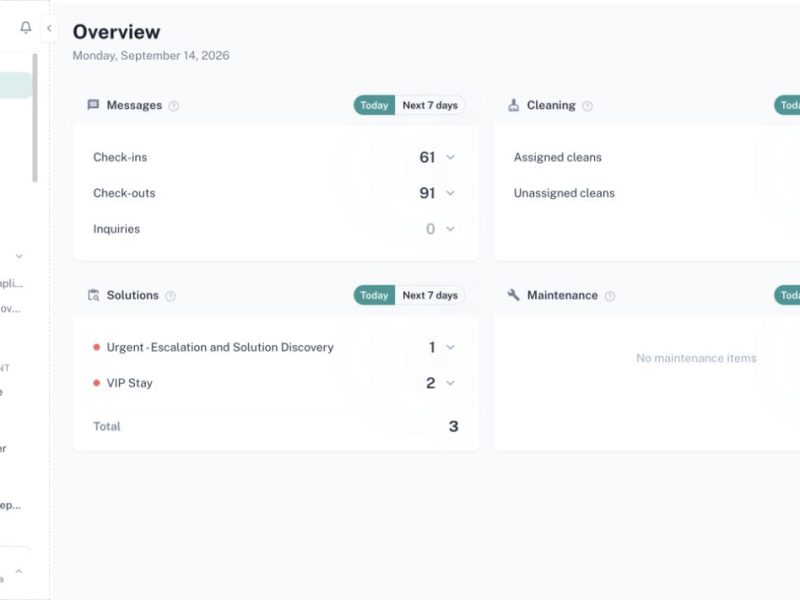
Run this short control process at the start of every operating day. It helps the coordinator find coverage gaps, urgent tickets, and same-day arrivals before they become guest issues.
Menu path: General > Dashboard
Audience: Operations coordinators, supervisors, and authorized administrators.
What you will accomplish
By the end of this guide, you will be able to complete the daily operations review from the correct CleanOver screen, understand the important checks before saving, and verify that the result is visible to the people who use it next.
Before you begin
- Use the business’s local date and confirm the correct region or company context.
- Keep the operations communication channel open for immediate escalations.
- Sign in to the Admin workspace and confirm you are in the correct business context.
- Use real operational dates and the property’s local timezone when the workflow includes time.
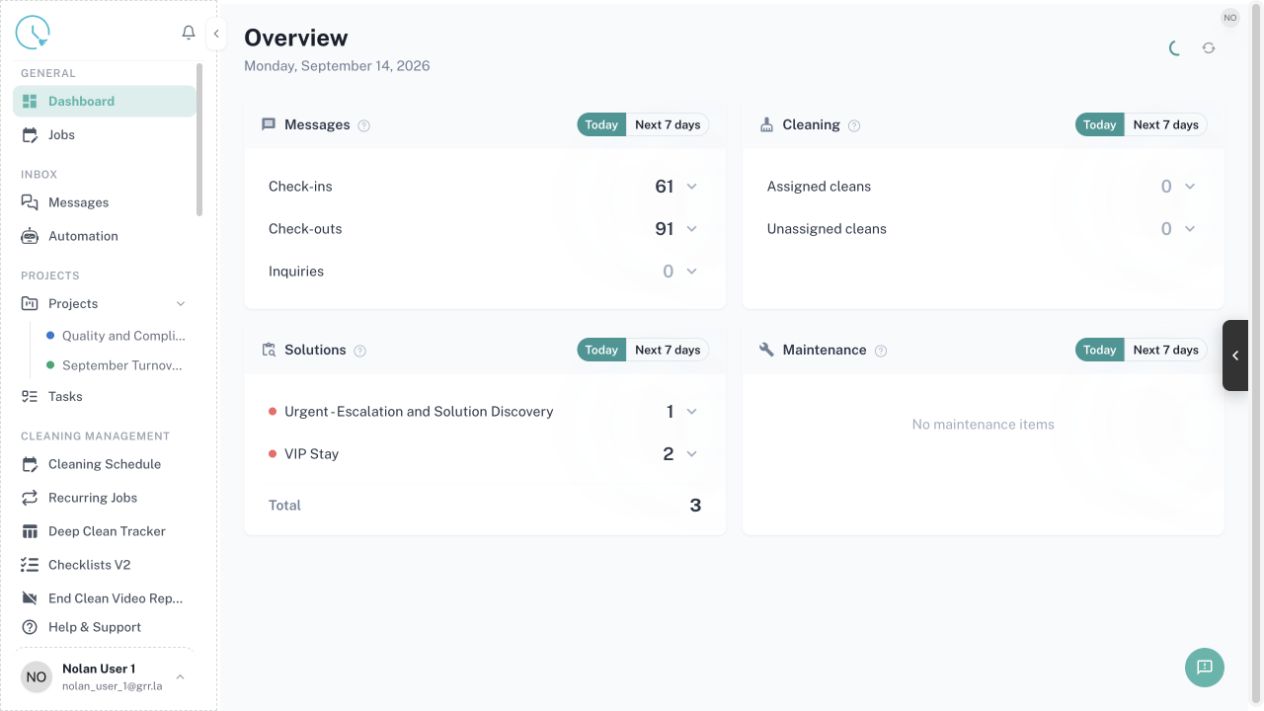
Step 1: Review the Dashboard
Open Dashboard and scan the high-level workload, alerts, and recent activity. Note anything that differs from the expected staffing or arrival plan.
Expected result: You have a quick picture of today’s workload.
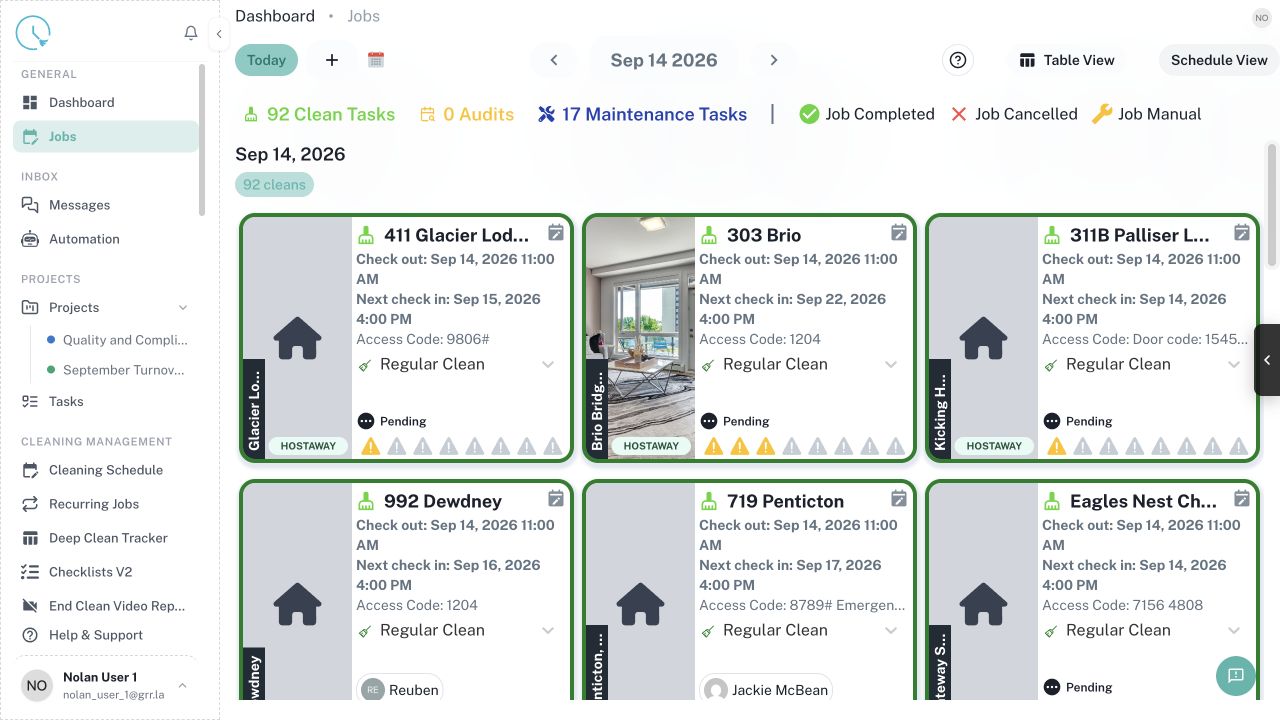
Step 2: Open today’s Jobs
Select Jobs and press Today. Review the Clean, Audit, and Maintenance counts before filtering so you understand the full workload.
Expected result: Today’s complete job set is displayed.
Step 3: Find unassigned and risky jobs
Use Filters to show Pending and Unassigned work. Prioritize same-day turnovers, narrow access windows, and units with an arrival shortly after checkout.
Expected result: Every high-risk job has an owner or escalation plan.
Step 4: Check maintenance blockers
Open Maintenance Tickets and review new, urgent, and overdue tickets. Link or communicate any ticket that can block cleaning or guest access.
Expected result: Arrival-blocking maintenance has a named responder.
Step 5: Review staff availability
Open Resource Planning and compare scheduled workers with actual availability and time off. Resolve gaps before staff begin travelling.
Expected result: Coverage matches the day’s workload.
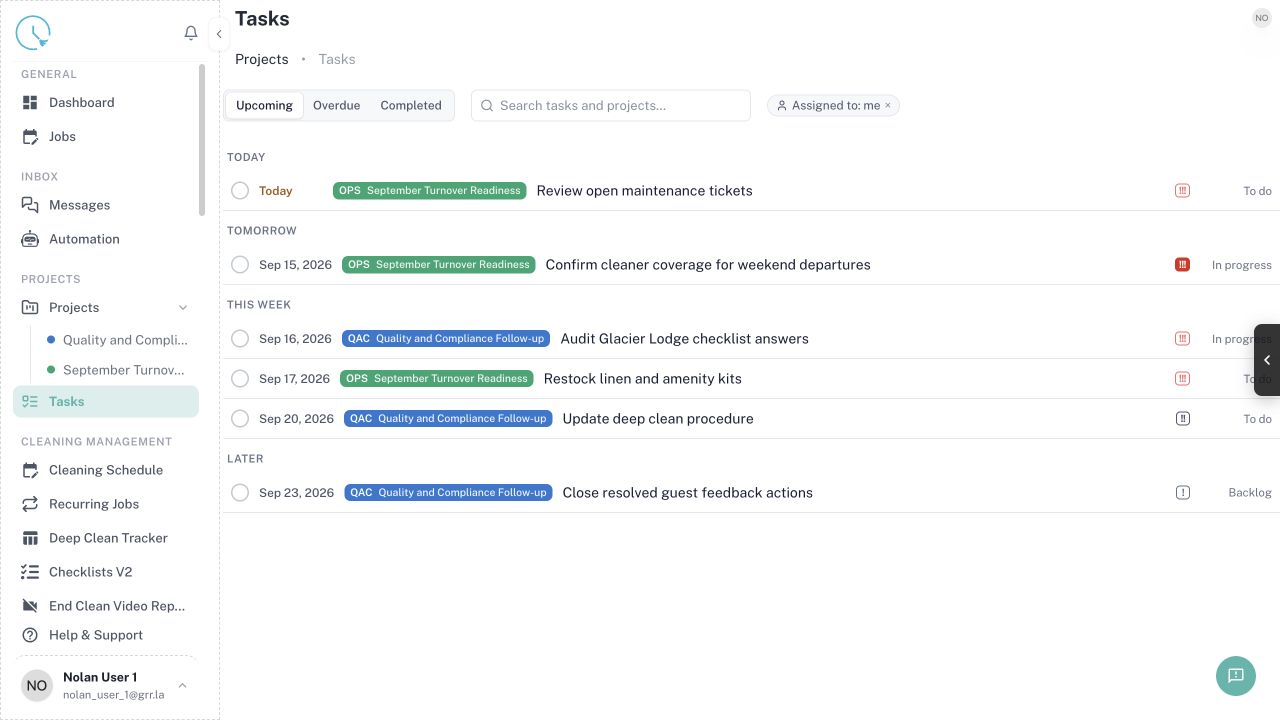
Step 6: Check project tasks and messages
Review Tasks due today and scan guest messages that require an operational action. Convert multi-step work into an owned task instead of relying on memory.
Expected result: Time-sensitive follow-up is assigned and dated.
Step 7: Publish the daily briefing
Use News or your approved team channel to share priorities, access changes, weather notes, and escalation contacts. Keep the message concise and actionable.
Expected result: Field staff know the plan before the first job starts.
Step 8: Repeat a midday exception check
Reopen Jobs around the busiest turnover period and review new unassigned, delayed, or blocked work.
Expected result: Changes made during the morning have not created a new coverage gap.
How to confirm the workflow is complete
- Refresh the destination list or calendar and confirm the saved record appears only once.
- Check the unit, date, status, owner or assignee, and any linked record before leaving the page.
- Open the next downstream view mentioned in the guide and confirm it shows the same information.
- Record an internal note when the action corrects historical data or changes another person’s responsibility.
Common issues and what to do
The expected record is missing
Clear old filters, check the date and business context, then search by the most specific identifier available. If the data comes from a connected provider, check connection and mapping status before recreating it manually.
A button is disabled
Look for a required field, incomplete checklist item, missing permission, locked lifecycle status, or unresolved linked task. Complete the highlighted requirement instead of trying to bypass it.
The page shows different information after refresh
Another user or integration may have updated the record. Compare timestamps and the source system, then apply the correction in the system that owns the data.
You are unsure whether to continue
Stop before cancelling, overwriting, revoking, or issuing a financial document. Ask the workflow owner to confirm the intended outcome and add that decision to the internal record.
Best practices
- Use clear names that make sense to a new team member without extra context.
- Prefer the smallest safe scope for bulk actions, filters, permissions, and date ranges.
- Keep guest-facing communication separate from internal diagnostic notes.
- Verify a high-risk change in a second view before considering it finished.
- Update the source configuration when the same correction is needed repeatedly.