Broadcast News to Field Staff
Use News for operational updates that a defined staff audience should see in CleanOver. Write for action: explain what changed, who is affected, and when the instruction starts. Follow this end-user guide for clear steps, checks, and troubleshooting.
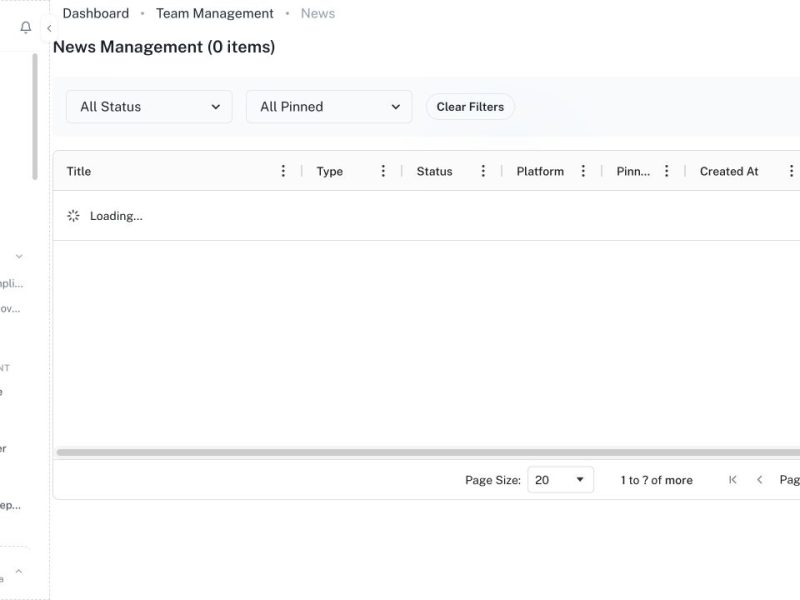
Use News for operational updates that a defined staff audience should see in CleanOver. Write for action: explain what changed, who is affected, and when the instruction starts.
Menu path: Team Management > News
Audience: Operations coordinators, supervisors, and authorized administrators.
What you will accomplish
By the end of this guide, you will be able to complete a staff news post from the correct CleanOver screen, understand the important checks before saving, and verify that the result is visible to the people who use it next.
Before you begin
- Confirm the message is approved and suitable for a broad internal audience.
- Identify the target company, subgroup, role, or staff list.
- Sign in to the Admin workspace and confirm you are in the correct business context.
- Use real operational dates and the property’s local timezone when the workflow includes time.
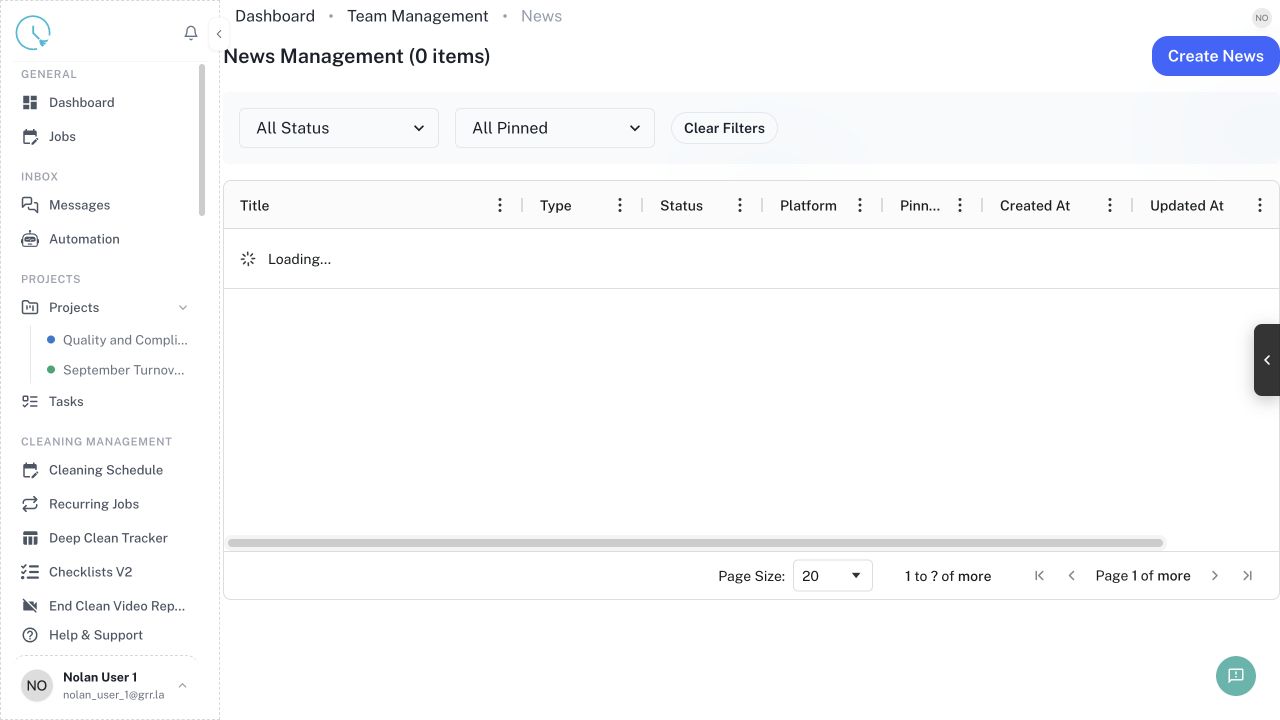
Step 1: Open News
Go to Team Management > News and review current and scheduled posts. Avoid publishing a duplicate update.
Expected result: You know whether an existing post should be edited instead.
Step 2: Start a new post
Select the create action and write a short title that communicates the change, not just the topic.
Expected result: Staff can understand the subject from the title.
Step 3: Write the message
Put the required action first, followed by context, effective date, owner, and escalation contact. Use short sections and plain English.
Expected result: The reader knows exactly what to do.
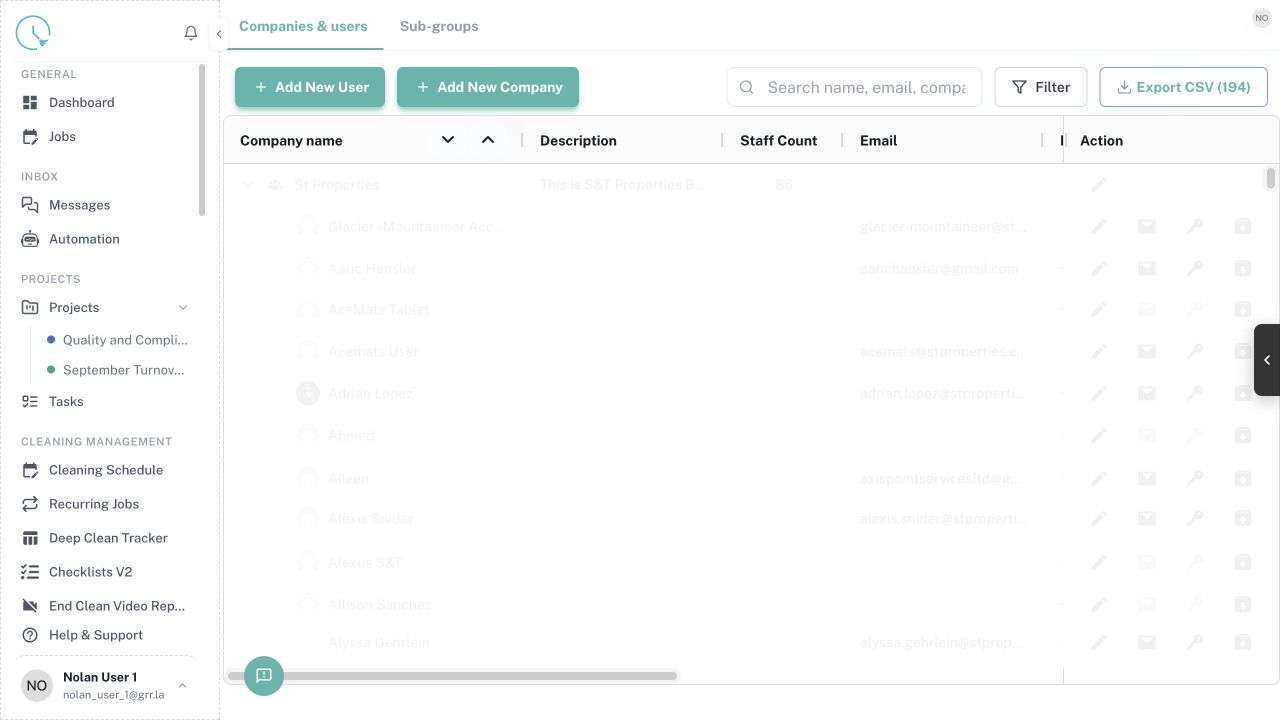
Step 4: Choose the audience
Select the intended companies, subgroups, teams, or roles. Review Users when you are unsure where a worker belongs.
Expected result: Only relevant staff receive the notice.
Step 5: Set timing and visibility
Publish immediately for current operations or schedule the post for the date it becomes relevant. Add an expiry when the instruction is temporary.
Expected result: The post is visible during the correct period.
Step 6: Preview before publishing
Check formatting, dates, links, and attachments. Remove guest information, passwords, or sensitive access codes.
Expected result: The post is safe and readable on a field device.
Step 7: Publish and verify
Publish the post and confirm it appears in the News list with the right audience and status.
Expected result: The intended staff can see the update.
Step 8: Update or retire old instructions
Edit the post when operational facts change and archive or expire obsolete notices so staff do not follow conflicting guidance.
Expected result: News remains a trustworthy source of current instructions.
How to confirm the workflow is complete
- Refresh the destination list or calendar and confirm the saved record appears only once.
- Check the unit, date, status, owner or assignee, and any linked record before leaving the page.
- Open the next downstream view mentioned in the guide and confirm it shows the same information.
- Record an internal note when the action corrects historical data or changes another person’s responsibility.
Common issues and what to do
The expected record is missing
Clear old filters, check the date and business context, then search by the most specific identifier available. If the data comes from a connected provider, check connection and mapping status before recreating it manually.
A button is disabled
Look for a required field, incomplete checklist item, missing permission, locked lifecycle status, or unresolved linked task. Complete the highlighted requirement instead of trying to bypass it.
The page shows different information after refresh
Another user or integration may have updated the record. Compare timestamps and the source system, then apply the correction in the system that owns the data.
You are unsure whether to continue
Stop before cancelling, overwriting, revoking, or issuing a financial document. Ask the workflow owner to confirm the intended outcome and add that decision to the internal record.
Best practices
- Use clear names that make sense to a new team member without extra context.
- Prefer the smallest safe scope for bulk actions, filters, permissions, and date ranges.
- Keep guest-facing communication separate from internal diagnostic notes.
- Verify a high-risk change in a second view before considering it finished.
- Update the source configuration when the same correction is needed repeatedly.