Assign and Dispatch Work in Maintenance Tickets V3
Assign maintenance tickets to handymen one at a time, by dragging on the dispatch board, or in bulk from the ticket list.
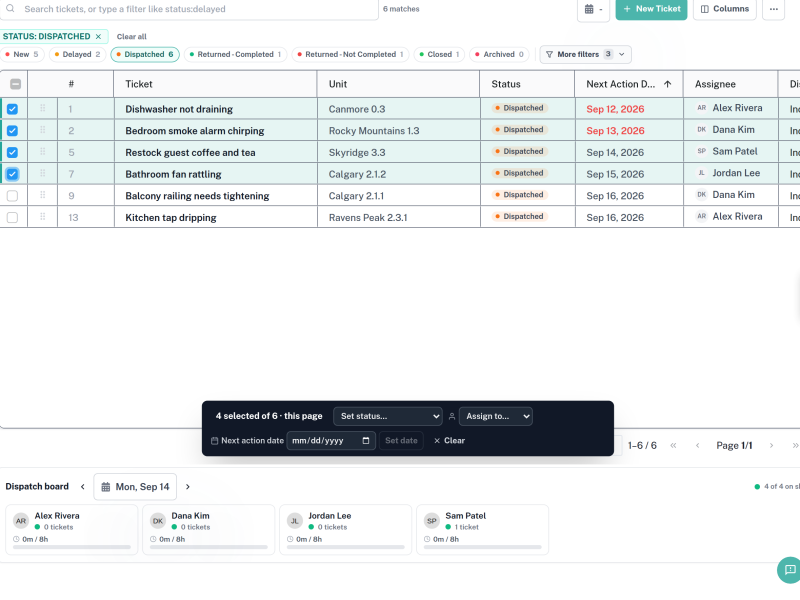
Dispatching is the point of Maintenance Tickets V3. You can assign a single ticket from the list, drag work onto a handyman lane on the dispatch board, or select many tickets and dispatch them in one action. Each route ends in the same place, so pick whichever matches the size of the job in front of you.
Menu path: Maintenance Management > Maintenance Tickets V3
Audience: Operations coordinators, dispatchers, and supervisors.
What you will accomplish
By the end of this guide you will be able to assign one ticket, move work between handymen on the board, dispatch many tickets at once, and shift a batch of dates without opening each ticket.
Before you begin
- Confirm your role allows assigning work; without it the dispatch controls stay disabled.
- Check the board date. Dispatching places work on the day the board is showing.
- Know who is on shift — the board header shows a summary such as 5 of 12 on shift.
Step 1: Find the work that needs an owner
Type unassigned in the search box to list every ticket nobody owns. Add due:today if you are only clearing today’s queue.
Expected result: The list shows tickets whose Assignee column reads Unassigned.
Step 2: Check who is actually working
Before assigning anything, read the dispatch board. Each lane header says whether that person is on shift or Off shift for the selected day, and the board summarises it on the right as, for example, 4 of 4 on shift. Lane headers also carry a ticket count and a workload bar such as 0m / 8h.
Assigning to someone who is off shift is possible when you know they are covering, but the board is where you find that out — the bulk assign list does not repeat it.
Expected result: You know who has capacity before you hand out work.

Step 3: Dispatch by dragging on the board
On the dispatch board, drag a ticket card onto a handyman’s lane to hand the work over. Drag a card within a lane to change the order in which the work should be done — the order you set is the order the handyman sees.
If a drop is refused, the target lane cannot take that ticket; the most common reason is that the person is off shift for the selected day.
Expected result: The card settles into the new lane and both lane workloads update.
Step 4: Select several tickets at once
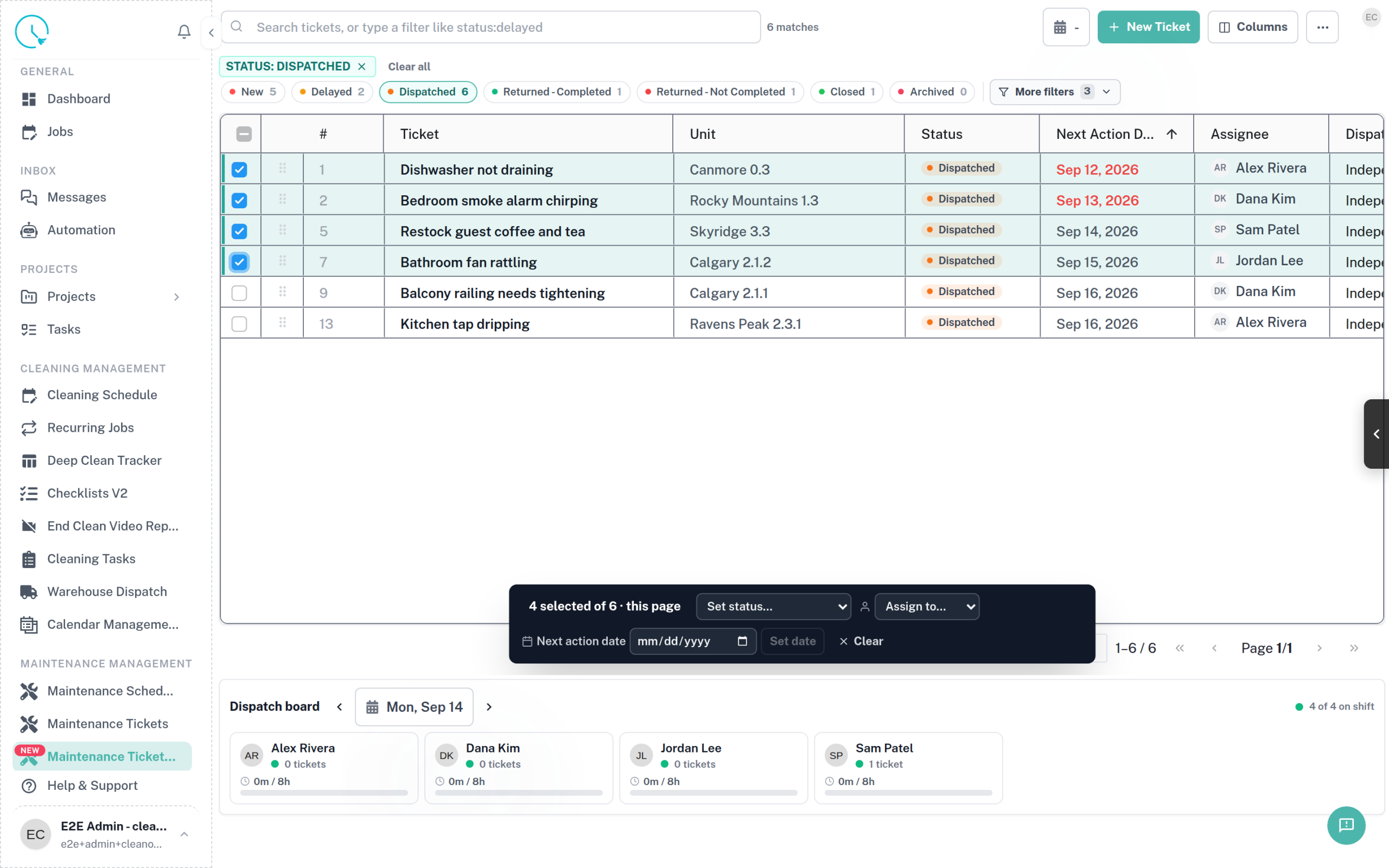
Use the checkboxes in the left-hand column of the list to select multiple tickets. A dark bulk action bar appears once at least one row is selected and reports the selection, for example 4 selected of 6 · this page.
The bar holds three controls — Set status…, Assign to… and a Next action date field with a Set date button — plus Clear to drop the selection.
Note the wording of this page: the selection covers the rows currently loaded, so narrow the list with a search first rather than relying on paging.
Expected result: The bulk action bar names the number of selected tickets.
Step 5: Assign the selection
Open Assign to… and pick the handyman. This is a plain list of your handymen — it does not mark who is on shift, which is why Step 2 has you read the board first.
You can also move the whole selection to another status with Set status…, which offers the same statuses you see in the chips.
Expected result: Every selected ticket shows the new assignee, and that handyman’s lane workload grows.
Step 6: Move a batch of dates
To reschedule rather than reassign, type or pick a date in the Next action date field and select Set date. This is the fastest way to push a group of jobs to a day when parts arrive or a unit is empty.
Rescheduling can move linked turnover work as well, so check the board afterwards rather than assuming only the selected rows changed.
Expected result: The Next Action Date column shows the new date for every ticket you selected.
How to verify the result
- Search
unassignedagain — the tickets you dispatched should be gone from that list. - Find the handyman’s lane on the board for the target date and confirm the tickets are there in a sensible order.
- Confirm nothing landed on someone marked Off shift unless you intended it.
Common issues and what to do
The bulk bar never appears
Nothing is selected. Use the checkbox in the leftmost column of a row, or the header checkbox to take the whole loaded page.
A bulk control is disabled
Either your role cannot assign work, or the selection contains a ticket in a state that cannot change. Reduce the selection to a single ordinary ticket to find out which.
A drop onto a lane is refused
The lane will not accept the ticket. Check whether the person is off shift on the board’s date, and whether the ticket is already finished.
The assignee list is empty
The business has no handymen yet. Add them under staff settings; the list is not filtered by the board’s date.
A bulk action reports fewer tickets than you selected
Some tickets were skipped rather than failing quietly — usually because they are already closed or linked to work that cannot move. Re-run the search to see what is left.
Best practices
- Dispatch from
unassignedrather than scrolling; it is faster and you cannot miss a ticket. - Search first, then select — the bulk bar acts on the loaded page, not the whole result set.
- Keep bulk selections small and similar — one unit, one day, or one type — so a single confirmation is easy to reason about.
- Set the lane order deliberately when a handyman has several stops; it is the running order they will follow.
- After a large bulk action, check the board before leaving the page.