Maintenance Tickets V3: Board and List Explained
Learn the two surfaces of Maintenance Tickets V3 — the ticket list and the dispatch board — and what each one is for.
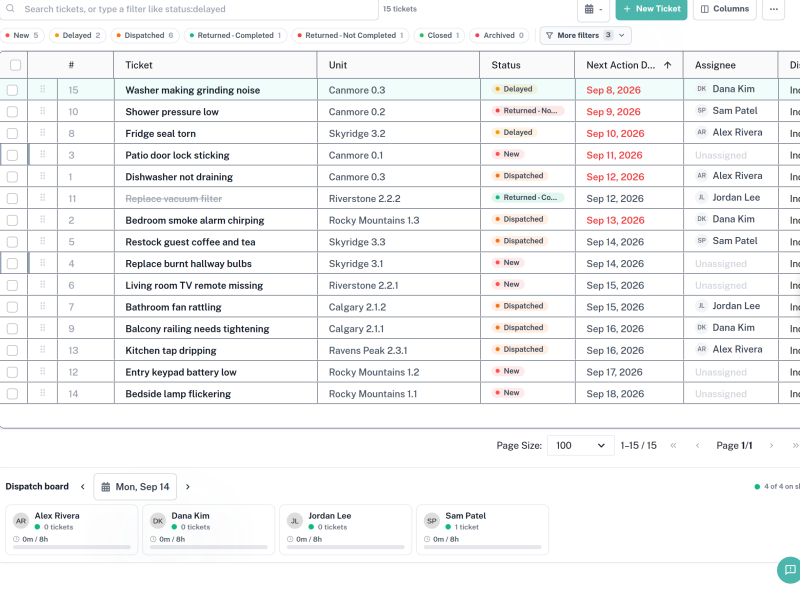
Maintenance Tickets V3 replaces the older maintenance ticket screens with a single page that shows two views of the same work at once: a searchable list of every ticket, and a dispatch board that lays the day out handyman by handyman. Understanding which view answers which question is the fastest way to get value from the page.
Menu path: Maintenance Management > Maintenance Tickets V3
Audience: Operations coordinators, dispatchers, and supervisors.
What you will accomplish
By the end of this guide you will know how to open Maintenance Tickets V3, tell the list and the dispatch board apart, read the counts along the top of the page, and change what each view shows without losing your place.
Before you begin
- Sign in to the Admin workspace and confirm you are in the correct business.
- Make sure your role can see maintenance tickets. Dispatching also requires permission to assign work.
- Have at least one handyman set up, otherwise the dispatch board has no lanes to draw.
Step 1: Open the page
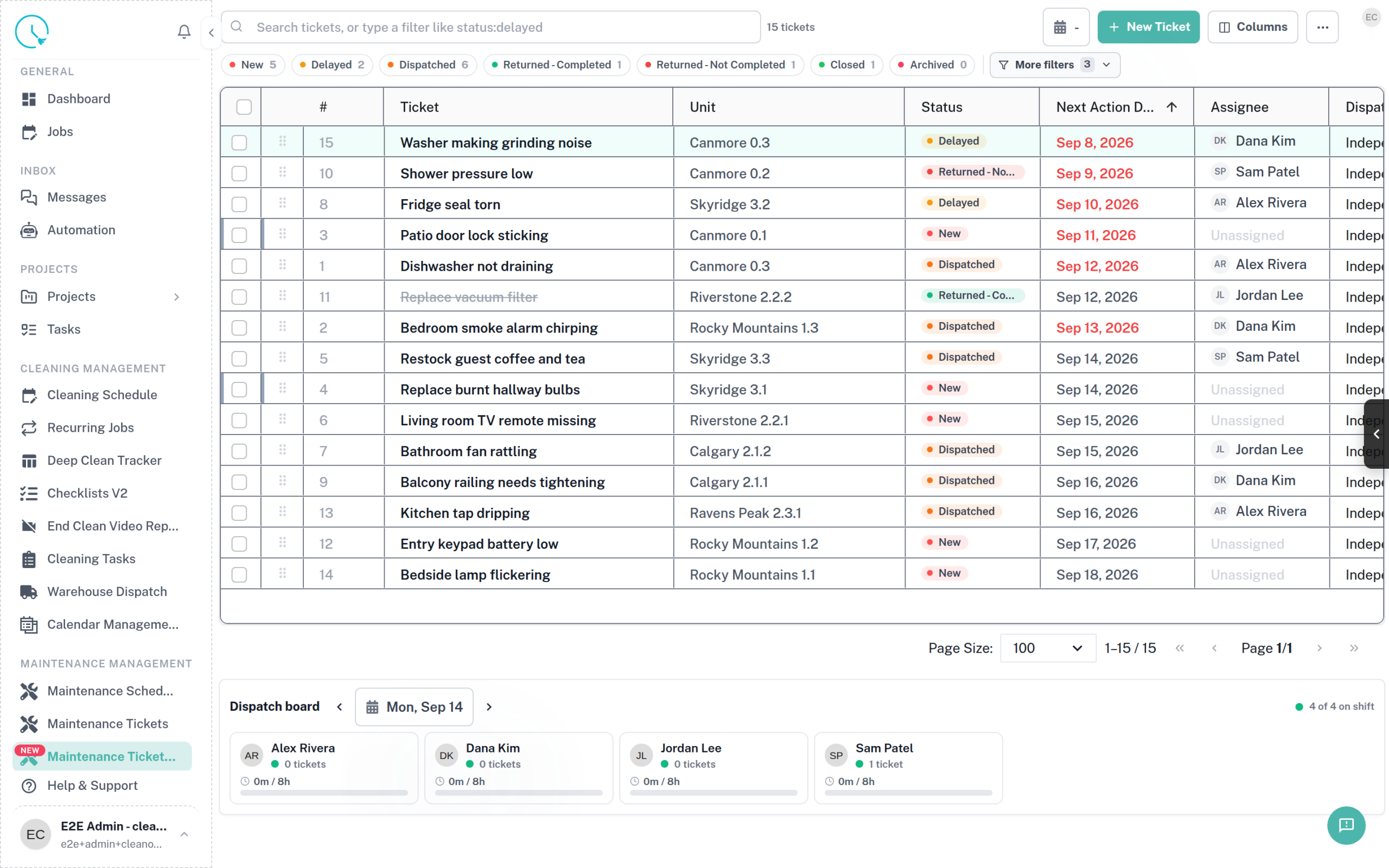
In the left navigation, open Maintenance Management and select Maintenance Tickets V3. The page opens with the ticket list filling most of the screen and the dispatch board docked underneath it.
Expected result: You see a ticket count in the toolbar, a row of status chips, and a Dispatch board heading lower down.
Step 2: Read the status chips
Directly under the search box is a row of chips, one per status, each with a count: New, Delayed, Dispatched, Returned – Completed, Returned – Not Completed, Closed and Archived. Selecting a chip narrows the list to that status.
These counts describe the tickets currently loaded for the page, so they move as you search and filter. They are the quickest way to see whether work is piling up in one state.
Expected result: Selecting a chip reduces the ticket count in the toolbar and the list redraws.
Step 3: Use the list for finding and editing
The list is a table with one row per ticket: the ticket number, its title, the unit, the status, the next action date, and the assignee. Select a row to open the ticket detail panel, where you can edit the ticket, read its activity, and add notes.
Use Columns in the toolbar to show or hide columns, and the page size control at the bottom to change how many rows load at once. The list is the right view when you are answering a question about a specific ticket.
Expected result: The columns you chose persist as you move around the page.
Step 4: Use the dispatch board for planning a day
The dispatch board shows one lane per handyman for a single date. Each lane header carries the person’s name, whether they are on shift or off shift, how many tickets they hold, and their workload so far. On the right of the board you will see a summary such as 5 of 12 on shift.
Move between days with the arrows either side of the date, or select the date itself to jump. The board is the right view when you are answering a question about a person or a day.
Expected result: Changing the date redraws every lane for the new day; the list above is unaffected.

Step 5: Adjust the board to fit your team
Boards get crowded as teams grow. Use Filter handymen to show only the people you are dispatching right now, and the density control to fit more lanes on screen. The More actions menu (the … button in the toolbar) holds the remaining options, and the board can also draw a route map showing each lane’s stops in order.
Expected result: Hidden handymen disappear from the board but their tickets stay in the list.
How to verify you are reading the page correctly
- The toolbar ticket count and the sum of the status chips describe the same set of tickets.
- A ticket you can see in a lane also appears in the list, with an assignee and a matching date.
- Changing the board date does not change the list; they are filtered independently.
Common issues and what to do
The dispatch board is empty but the list has tickets
The board shows one date at a time. A ticket only appears in a lane once it is dispatched to a person for that day. Tickets that are unassigned, or dated for another day, stay in the list only. Check the board date first, then the ticket’s assignee.
A handyman is missing from the board
Either they are hidden by Filter handymen, or they have no shift on the selected date. Off-shift staff still appear, labelled Off shift, so a person who is completely absent is usually being filtered out rather than unscheduled.
Closed tickets are nowhere to be found
This is deliberate, not a fault. See Statuses, Overdue and Closed Tickets for how to reach them.
Best practices
- Start in the list when you are chasing one ticket, and on the board when you are balancing a day.
- Hide columns you never read — a narrower table is faster to scan than a complete one.
- Check the on shift summary before promising a same-day repair.
- Leave the board on today unless you are planning ahead, so counts match what your team is doing now.