Search and Filter Maintenance Tickets V3
Use the Maintenance Tickets V3 search box as a filter language — status, assignee, unit, region, type, dates, and flags.
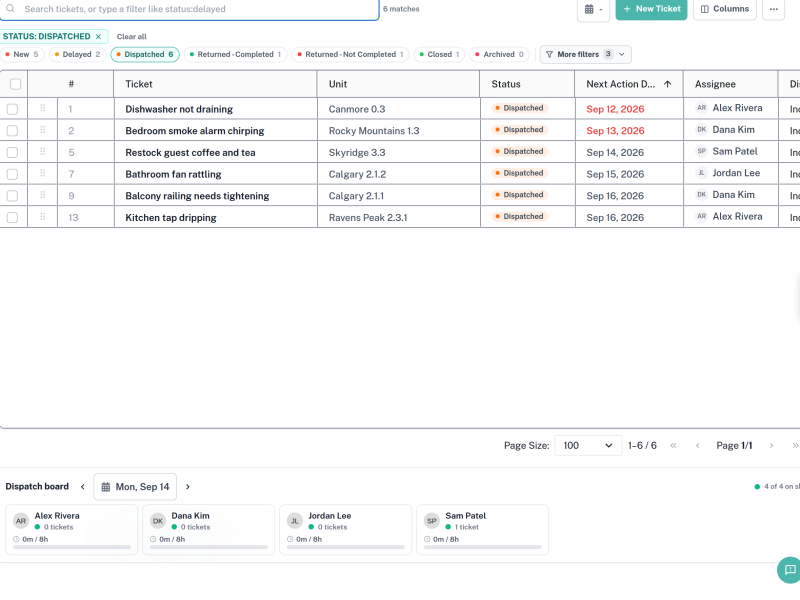
The search box in Maintenance Tickets V3 is more than a keyword box. It accepts short field:value filters that you can combine, negate and save in a link. Once you know the vocabulary you can answer most dispatch questions by typing one line instead of clicking through menus.
Menu path: Maintenance Management > Maintenance Tickets V3
Audience: Operations coordinators, dispatchers, and supervisors.
What you will accomplish
By the end of this guide you will be able to filter tickets by status, person, unit, region, type and date, combine those filters, exclude results you do not want, and recognise when a filter has silently matched nothing.
Before you begin
- Open Maintenance Management > Maintenance Tickets V3.
- Note the hint in the search box: Search tickets, or type a filter like status:delayed.
Step 1: Filter by a single field
Type a field, a colon, then a value. There is no space after the colon.
status:delayed— tickets in the Delayed statusassignee:dana— tickets assigned to a person whose name contains “dana”unit:riverstone— tickets on units whose name contains “riverstone”region:canmore— tickets on units inside that region or zonetype:issue— tickets of that maintenance typedue:today— tickets due today
Several fields accept alternative spellings, so you can type whichever word comes naturally: state: for status; assigned:, who: or handyman: for assignee; property: for unit; zone: for region; and date: for due.
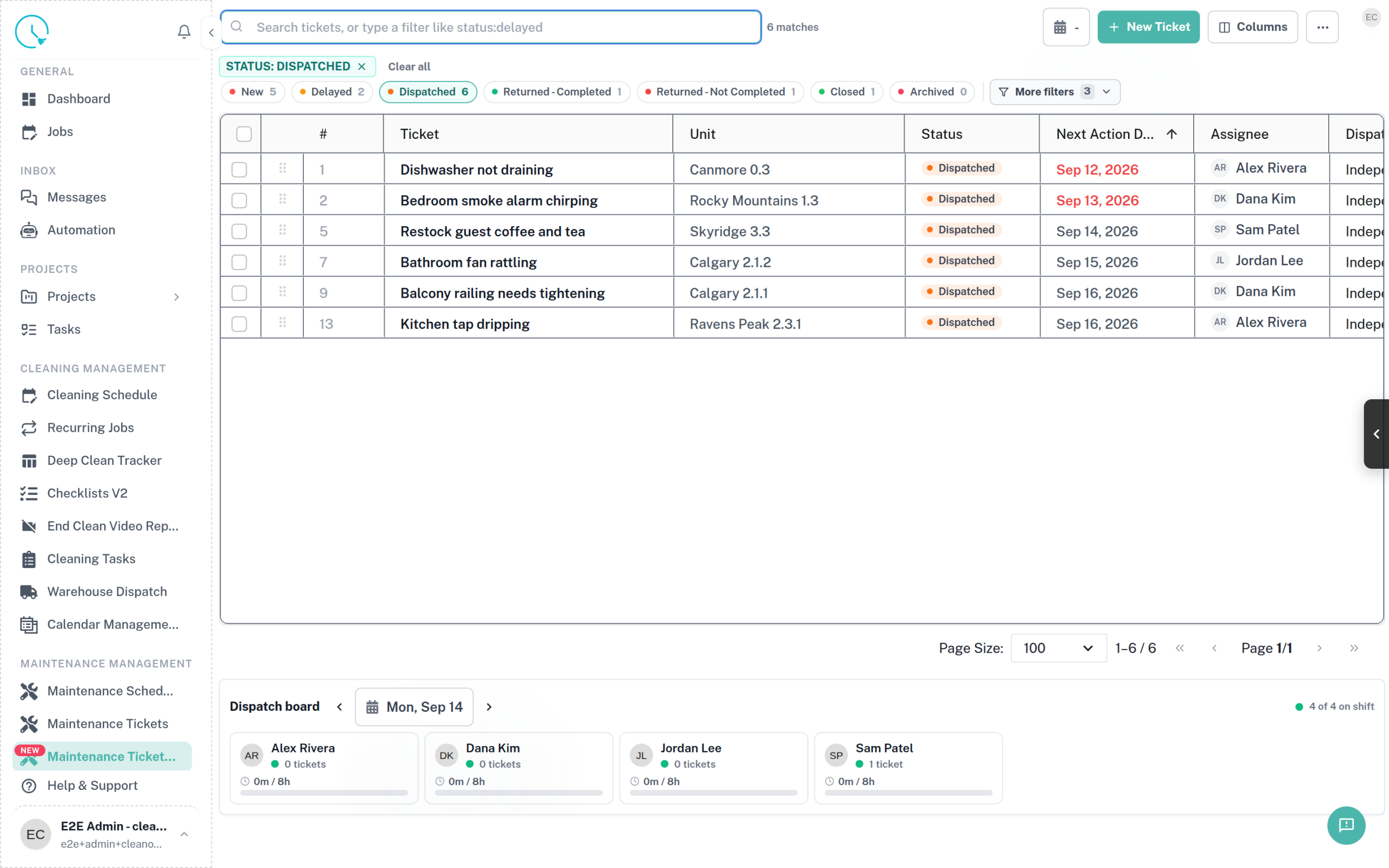
Expected result: The ticket count drops and the filter appears as a pill next to the search box.
Step 2: Combine filters
Separate filters with a space. How they combine depends on whether they are the same kind:
- Different kinds narrow.
status:dispatched assignee:dana due:todayreads as “dispatched work that Dana owns today” — every condition must hold. - The same kind widens.
status:new status:delayedreturns tickets that are New or Delayed, not tickets that are somehow both.
This is worth remembering, because adding a second status looks like it should narrow and in fact does the opposite. The page states the same rule in the help panel under the search box.
Anything that is not a field:value pair is treated as free text and matched against the ticket title, so dishwasher status:new finds new tickets mentioning a dishwasher.
Expected result: Each filter you add reduces the result count rather than replacing the previous filter.
Step 3: Handle values that contain spaces
Wrap a multi-word value in double quotes: unit:"rocky mountains 1.3". Without quotes only the first word binds to the filter and the rest becomes free text, which quietly widens your results.
Units and people are matched on contains, so a fragment from the middle of a name works. Statuses and types are matched on the start of the word, because those are short, fixed lists where partial matching would be noisy.
Expected result: The quoted value resolves to one unit rather than several.
Step 4: Exclude results
Put a minus sign in front of any filter to invert it. -status:closed hides closed tickets; -assignee:dana shows everything Dana is not doing. The minus only counts at the start of a filter, so hyphenated unit names and values like due:last-7-days are safe.
Expected result: Matching tickets disappear from the list instead of being highlighted.
Step 5: Filter by date
The due: filter accepts several shapes:
due:todaydue:2026-09-14— one specific daydue:2026-09-01..2026-09-30— an inclusive rangedue:>=2026-09-01— also>,<and<=due:this-weekdue:last-7-daysanddue:next-30-days
Expected result: The list only contains tickets whose next action date falls inside the window.
Step 6: Use the shortcut flags
Three words work on their own, with no field in front:
unassigned— nobody owns the ticket yetoverdue(orlate) — past its date and not finishedshared— work shared across more than one person
To find work nobody owns you can also write assignee:none; nobody, unassigned, no-one and noone all mean the same thing. To jump straight to one ticket, type its number with a hash: #4731.
Expected result: unassigned returns the queue you need to dispatch from.
Step 7: Let the box complete the value for you
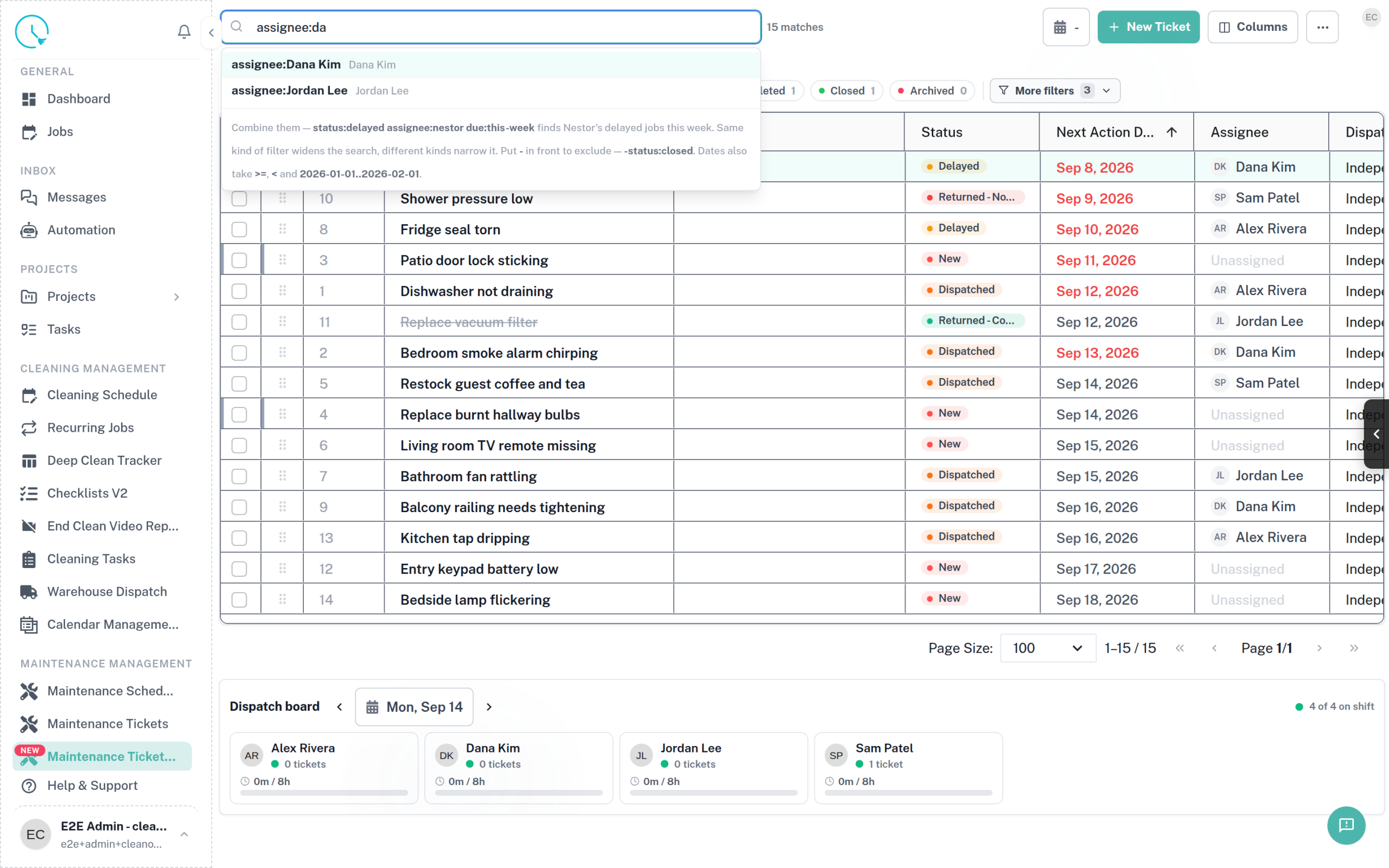
You do not have to know how a name is spelled. Start typing a filter and the search box offers matching values underneath — type assignee:da and it offers assignee:Dana Kim. Select one and the exact value is inserted for you.
Use this rather than typing values from memory. A value that does not resolve simply returns 0 matches; there is no warning telling you the name was wrong, so a typo and a genuinely empty result look identical.
The same panel carries a short reminder of the syntax, including exclusion with - and the date forms, so it is a quick way to check yourself without leaving the page.
Expected result: Choosing a suggestion inserts the full value and the result count updates.
How to verify the result
- Every filter you typed appears as a pill; anything still shown as plain text was treated as a keyword.
- The ticket count is smaller than it was before you filtered.
- Spot-check one row to confirm it really matches every filter you applied.
Common issues and what to do
A filter returns 0 matches
Most often the value did not resolve. Delete the value, retype the first few letters, and pick from the suggestions instead of typing it in full.
A unit filter returns nothing
Unit names often begin with a number and carry a building name in the middle. Search for the distinctive middle part rather than the leading digits, and quote it if it contains spaces.
A filter you expected to see is missing from the menu
Filter menus only list values that exist in the current results. A value with a count of zero is hidden, which can read as though the option was removed. Clear a filter or two and it reappears.
Search returns a closed ticket you did not expect
That is intended. Search deliberately reaches past the page’s default set so you can find finished work by number or name.
Best practices
- Build filters up one at a time; it is easier to see which one went wrong.
- Pick values from the suggestions rather than typing them, so a filter never silently misses.
- Quote any value containing a space, every time, rather than only when it fails.
- Prefer
unassignedover scanning the Assignee column by eye. - Copy the page URL once you have a filter you use daily — it carries your search with it.