Resolve Overlapping Reservations
An overlap means two reservations or blocks compete for the same unit and dates. Resolve it before dispatching jobs so cleaning and arrival plans stay reliable. Follow this end-user guide for clear steps, checks, and troubleshooting.
An overlap means two reservations or blocks compete for the same unit and dates. Resolve it before dispatching jobs so cleaning and arrival plans stay reliable.
Menu path: Cleaning Management > Calendar Management
Audience: Operations coordinators, supervisors, and authorized administrators.
What you will accomplish
By the end of this guide, you will be able to complete an overlapping reservation from the correct CleanOver screen, understand the important checks before saving, and verify that the result is visible to the people who use it next.
Before you begin
- Open both reservations in the source channel and confirm their current status.
- Do not cancel a confirmed guest stay until the reservation owner has approved the change.
- Sign in to the Admin workspace and confirm you are in the correct business context.
- Use real operational dates and the property’s local timezone when the workflow includes time.
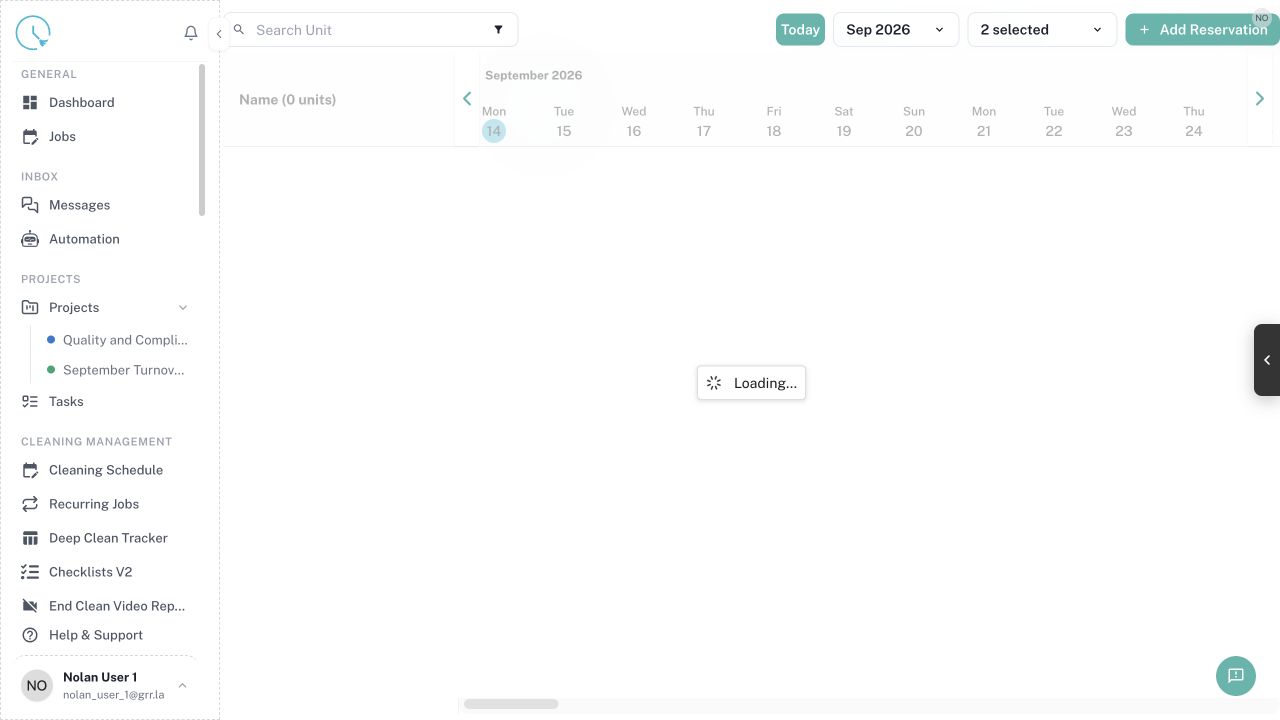
Step 1: Open Calendar Management
Go to Calendar Management and select the affected unit. Move to the month that contains the conflict and identify the dates where reservation bars overlap.
Expected result: Both competing records are visible in one calendar view.
Step 2: Compare reservation details
Open each record and compare channel, confirmation number, guest name, check-in, checkout, and status. A cancelled or failed reservation should not block availability.
Expected result: You know which records are valid and which one is stale.
Step 3: Check listing mapping
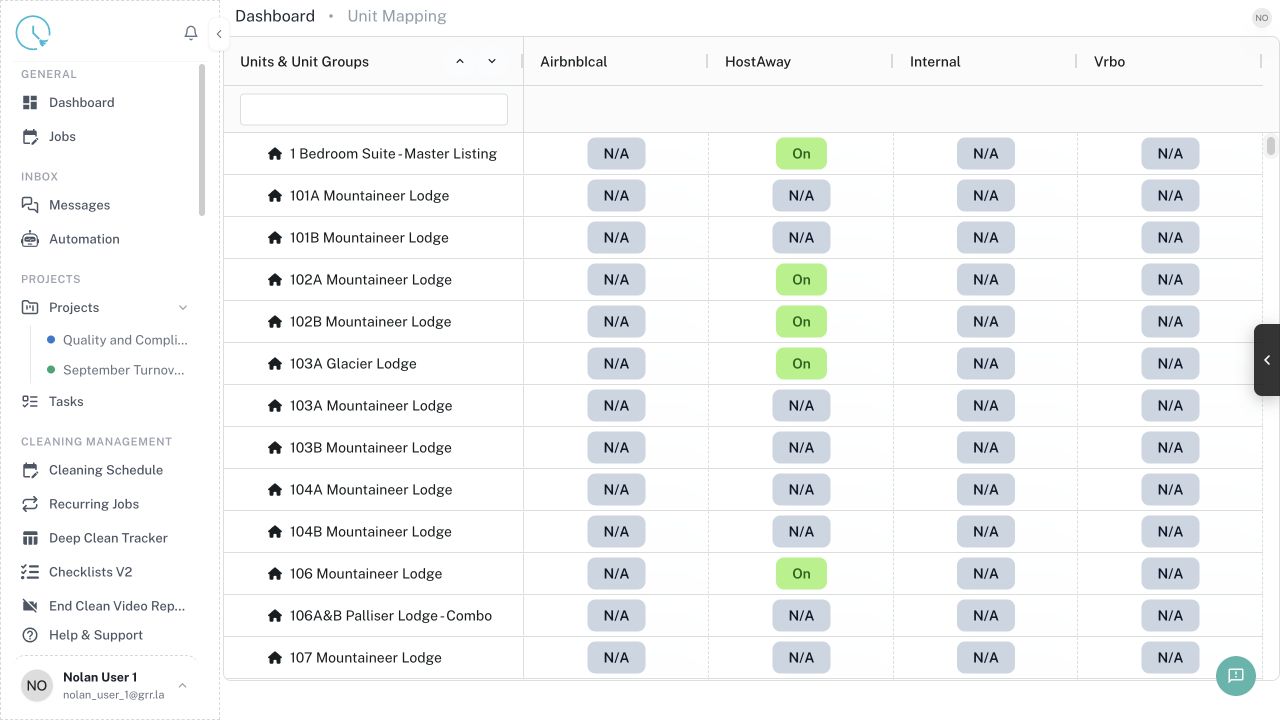
Open Channel Manager > Listing Mapping and confirm that each external listing points to the intended CleanOver unit. A wrong mapping can make two different listings look like one unit.
Expected result: Each listing maps to the correct internal unit.
Step 4: Choose the authoritative record
Use the provider confirmation and most recent sync status to decide which reservation is the source of truth. If both are real, escalate for a room move or approved overbooking decision.
Expected result: The team agrees which stay should occupy the inventory.
Step 5: Correct the source, then sync
Make the change in the connected channel when the reservation came from that channel. Return to CleanOver and refresh or run the available sync action.
Expected result: The corrected provider state is reflected in CleanOver.
Step 6: Review generated jobs
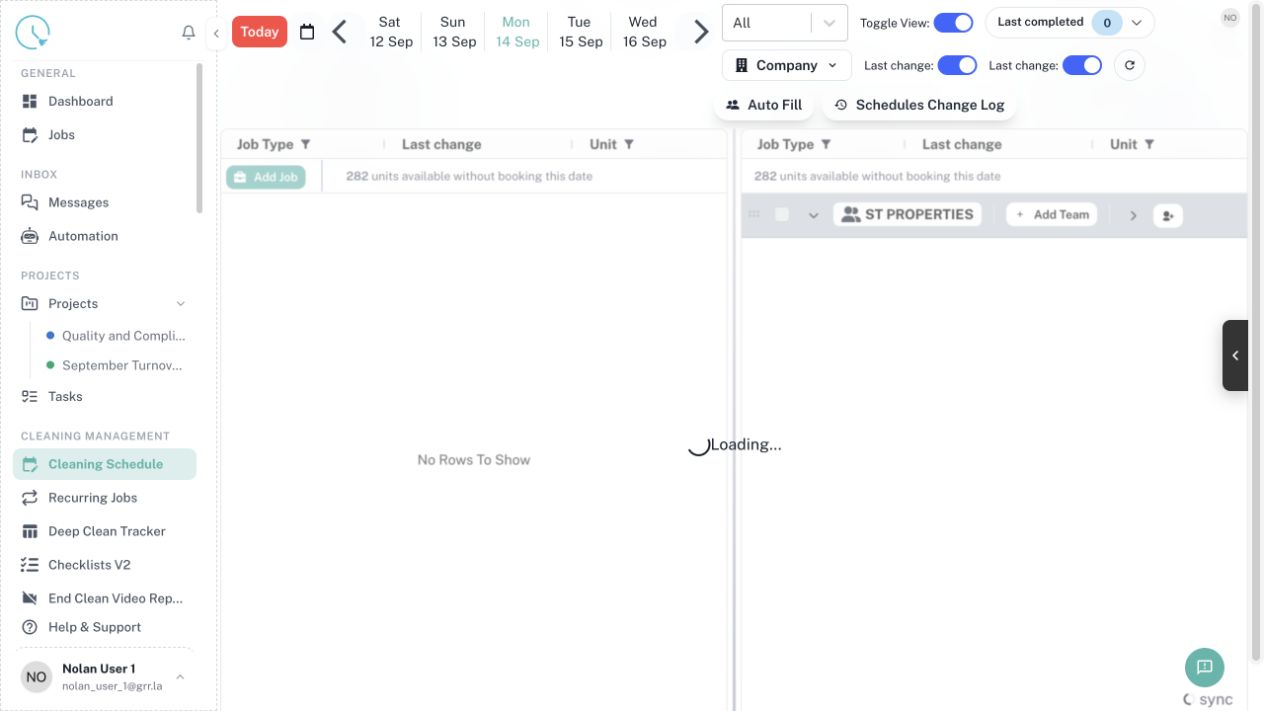
Open Cleaning Schedule and verify that checkout and turnover jobs now belong to the correct unit and dates. Remove duplicate manual jobs only after confirming the valid job remains.
Expected result: Only the required operational jobs remain.
Step 7: Document the resolution
Add an internal note with the provider confirmation numbers, the chosen outcome, and who approved any guest-facing change.
Expected result: Future reviewers can understand why the overlap was resolved this way.
How to confirm the workflow is complete
- Refresh the destination list or calendar and confirm the saved record appears only once.
- Check the unit, date, status, owner or assignee, and any linked record before leaving the page.
- Open the next downstream view mentioned in the guide and confirm it shows the same information.
- Record an internal note when the action corrects historical data or changes another person’s responsibility.
Common issues and what to do
The expected record is missing
Clear old filters, check the date and business context, then search by the most specific identifier available. If the data comes from a connected provider, check connection and mapping status before recreating it manually.
A button is disabled
Look for a required field, incomplete checklist item, missing permission, locked lifecycle status, or unresolved linked task. Complete the highlighted requirement instead of trying to bypass it.
The page shows different information after refresh
Another user or integration may have updated the record. Compare timestamps and the source system, then apply the correction in the system that owns the data.
You are unsure whether to continue
Stop before cancelling, overwriting, revoking, or issuing a financial document. Ask the workflow owner to confirm the intended outcome and add that decision to the internal record.
Best practices
- Use clear names that make sense to a new team member without extra context.
- Prefer the smallest safe scope for bulk actions, filters, permissions, and date ranges.
- Keep guest-facing communication separate from internal diagnostic notes.
- Verify a high-risk change in a second view before considering it finished.
- Update the source configuration when the same correction is needed repeatedly.