Statuses, Overdue and Closed Tickets in Maintenance Tickets V3
What each maintenance status means, exactly when a ticket counts as overdue, and how to find closed and archived work.
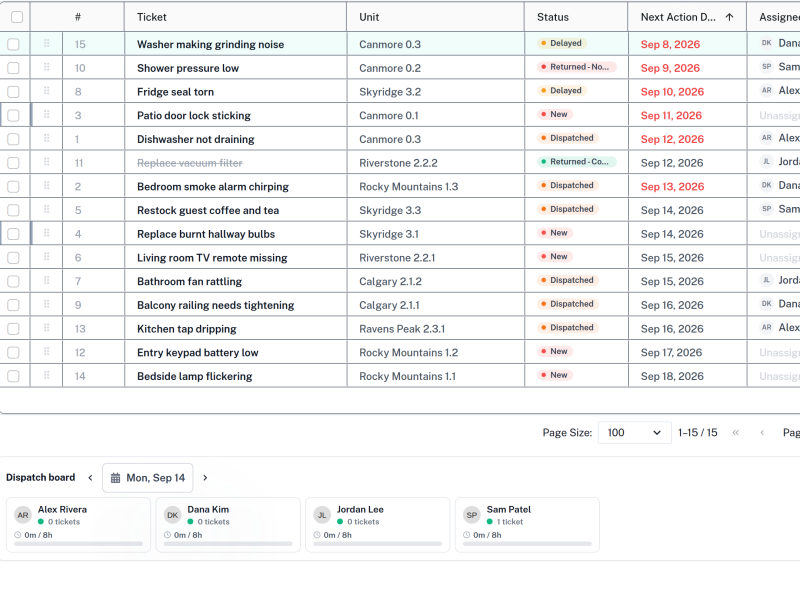
Most confusion on the maintenance board comes down to three questions: what does this status mean, why is this ticket red, and where did the closed ones go? This guide answers all three, because the rules behind them are deliberate and not always obvious from the screen.
Menu path: Maintenance Management > Maintenance Tickets V3
Audience: Operations coordinators, dispatchers, and supervisors.
What you will accomplish
By the end of this guide you will know what each status means, which ones count as finished, exactly when a ticket is treated as overdue, and how to reach closed and archived tickets that the page hides by default.
Before you begin
- Open Maintenance Management > Maintenance Tickets V3.
- Look at the status chips under the search box — they are the statuses in play for your business.
Step 1: Learn the statuses
A maintenance ticket moves through these states:
- New — raised, not yet dispatched.
- Dispatched — assigned to somebody for a specific day.
- Delayed — acknowledged but deliberately pushed out.
- Returned – Completed — the handyman handed the work back finished.
- Returned – Not Completed — handed back unfinished.
- Closed — resolved and signed off.
- Archived — retained for history, out of day-to-day view.
Expected result: Every chip above the list maps to one of these states.

Step 2: Understand which statuses count as finished
Three statuses mean the dispatch is over: Returned – Completed, Closed and Archived. Tickets in those states are never shown as overdue, however old they are.
Returned – Not Completed is deliberately not treated as finished. The handyman gave the job back unfinished, so it is the status that most needs re-dispatching. It stays active, keeps its place on the board, and will start reading as overdue once its date passes — which is exactly the nudge it should give you.
Expected result: A returned-not-completed ticket still appears in your active queue.
Step 3: Know exactly when a ticket is overdue
A ticket is overdue when both of these are true:
- Its date is earlier than today. The date used is the ticket’s due date, or — when it has none, as with turnover work — its active date.
- Its status is not one of the three finished states above.
A ticket with no date at all is never overdue; there is nothing for it to be late against. This single rule drives the red styling in the list, the overdue search flag, the overdue filter and the export, so all four always agree.
Expected result: Typing overdue in the search box returns exactly the tickets drawn in red.
Step 4: Find closed and archived tickets
The page does not load Closed and Archived tickets by default. This keeps the board and the list focused on work that still needs doing, and it is a deliberate decision rather than a missing filter.
To reach them, search for them. Use status:closed, status:archived, or the ticket number directly with #4731. Search reaches past the page’s default set, so a closed ticket will be found by number even though it is not in the list.
Expected result: The closed ticket appears in the list, and you can open it to read its history.
Step 5: Recognise your business’s own statuses
A business can create its own maintenance statuses in General Settings. Those appear alongside the standard ones and are loaded with them, so a ticket in a custom status is never invisible.
The one exception follows the rule above: a custom status named Closed or Archived is treated as closed or archived, and is kept out of the default view like its standard counterpart.
Expected result: Custom statuses show as their own chips with their own counts.
How to verify the result
overdueand the red rows in the list return the same tickets.- A ticket you just closed disappears from the default list but is still found by
status:closed. - A returned-not-completed ticket is still present in the active queue, not filed away as done.
Common issues and what to do
A ticket disappeared right after it was closed
Expected. Closed tickets leave the default view immediately. Find it with status:closed or by its number.
An old ticket is not showing as overdue
Check its status first — if it is Returned – Completed, Closed or Archived it will never be overdue. If it is active, check it has a date at all; a dateless ticket cannot be late.
A turnover ticket shows a date but is not flagged overdue
Turnover work usually has no due date, so its active date is used instead. If it still is not flagged, confirm the status is not one of the finished three.
A status chip you rely on has vanished
Chips and filter values with a count of zero are hidden in the current results. Clear your search and it returns.
Best practices
- Re-dispatch Returned – Not Completed tickets promptly — they are unfinished work, not a record of finished work.
- Close tickets only once the repair is verified; closing removes them from everyone’s default view.
- Give every ticket a date, so it can be tracked as overdue if it slips.
- Keep custom statuses few and clearly named — each one becomes a chip your whole team has to interpret.