Why an Invoice Does Not Change When You Fix a Rate
Generated invoices preserve a snapshot of job amounts and billing details. Changing a rate affects future calculations, but it does not silently rewrite a document that was already issued. Follow this end-user guide for clear steps, checks, and troubleshooting.
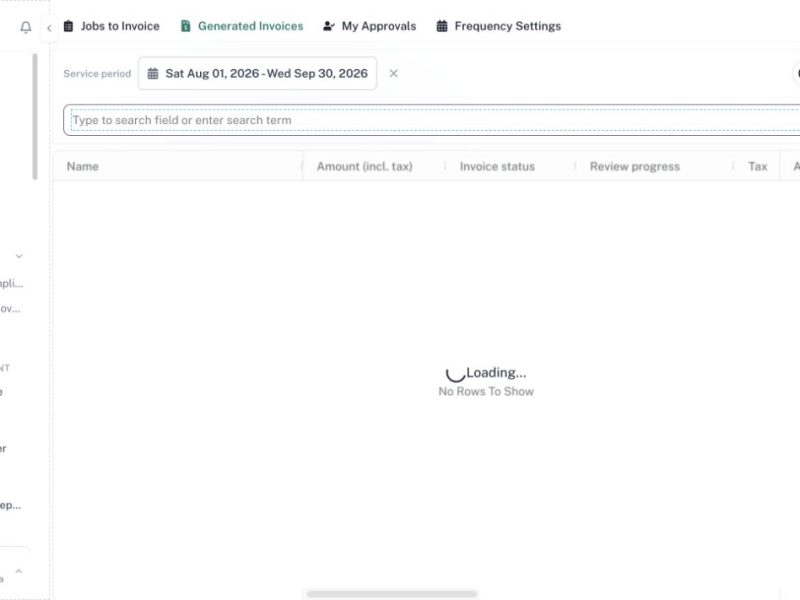
Generated invoices preserve a snapshot of job amounts and billing details. Changing a rate affects future calculations, but it does not silently rewrite a document that was already issued.
Menu path: Financial Management > Cleaner Invoices > Invoices
Audience: Operations coordinators, supervisors, and authorized administrators.
What you will accomplish
By the end of this guide, you will be able to complete an invoice snapshot from the correct CleanOver screen, understand the important checks before saving, and verify that the result is visible to the people who use it next.
Before you begin
- Identify whether the invoice is draft, submitted, approved, paid, or void.
- Confirm the rate change is correct for the worker, job type, unit, and effective period.
- Sign in to the Admin workspace and confirm you are in the correct business context.
- Use real operational dates and the property’s local timezone when the workflow includes time.
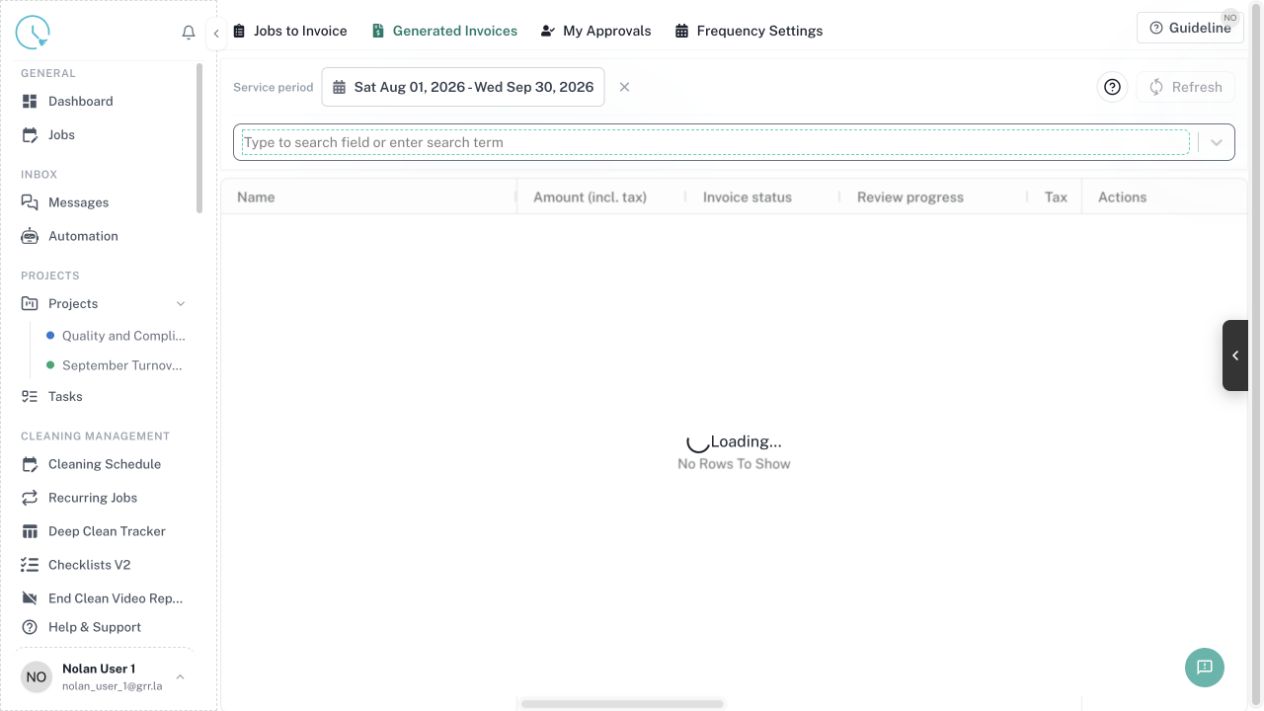
Step 1: Open Generated Invoices
Go to Cleaner Invoices > Invoices and open the generated list. Locate the invoice number and note its status and service period.
Expected result: You are working with the correct invoice.
Step 2: Understand the saved snapshot
Each invoice stores the selected jobs and amounts used at generation time. This protects audit history from later rate edits.
Expected result: You do not expect an issued total to change automatically.
Step 3: Correct the source rate
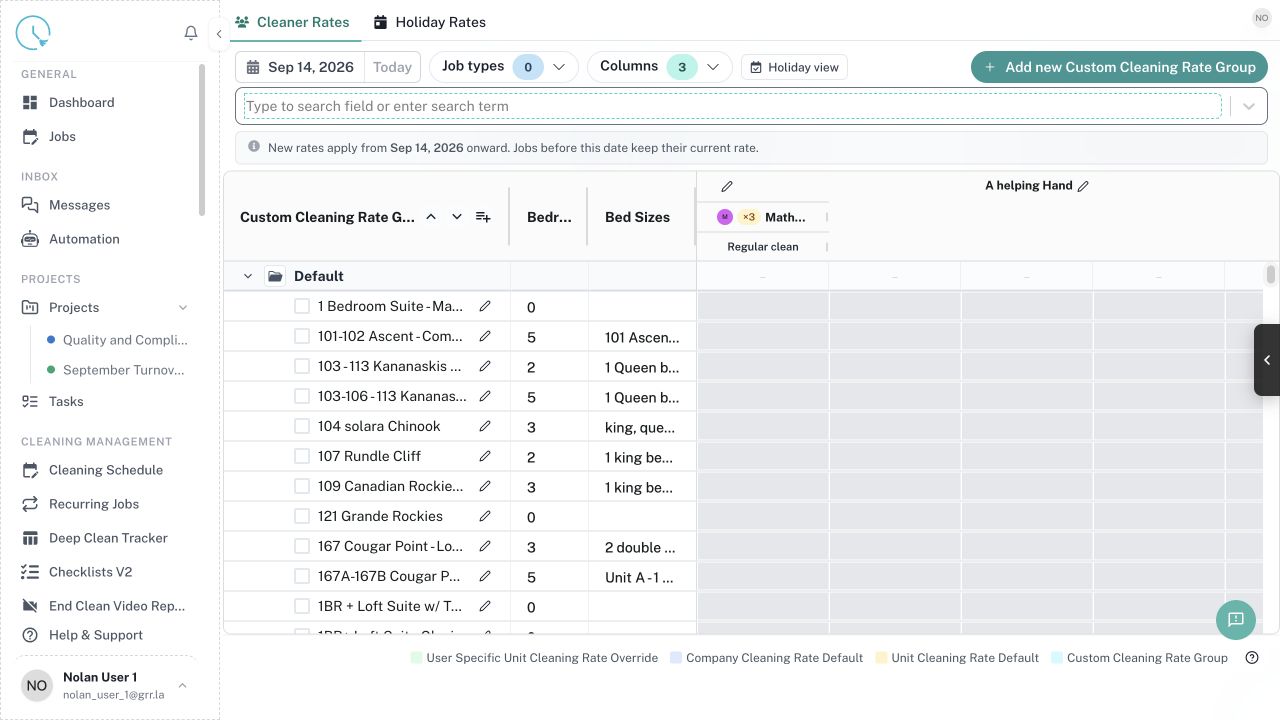
Open Rates and update the applicable cleaner, group, unit, subtype, or holiday rule.
Expected result: New calculations use the corrected rate.
Step 4: Decide whether regeneration is allowed
A draft may be editable or refreshable. Submitted, approved, paid, or manually controlled invoices may require voiding and a new document.
Expected result: The action respects the invoice’s lifecycle state.
Step 5: Refresh a draft carefully
When the draft offers Refresh from rules, use it only for the intended selected jobs and review every recalculated amount.
Expected result: The draft reflects the new rate without adding unrelated work.
Step 6: Void and regenerate when required
If policy allows, void the incorrect invoice and create a replacement for the same service period. Never leave both versions active.
Expected result: Only the valid invoice remains payable.
Step 7: Preview the replacement
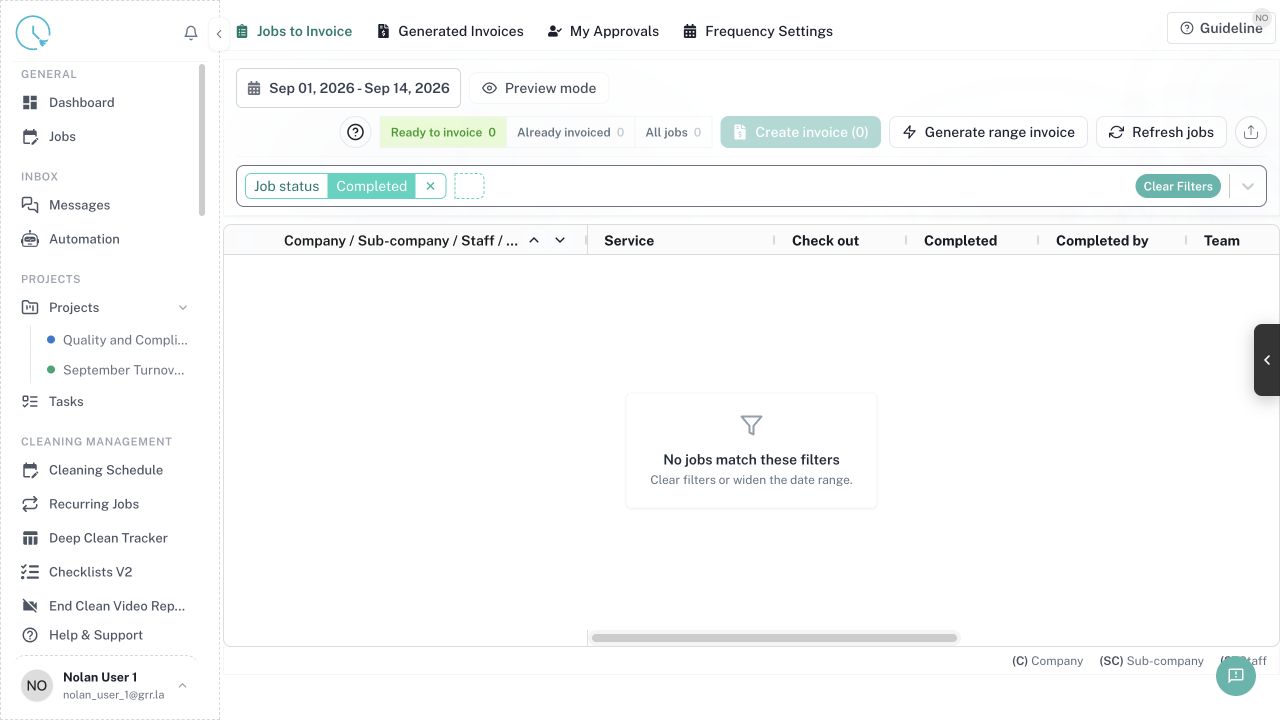
Review billing parties, line items, tax, adjustments, notes, and total before generating.
Expected result: The replacement is correct before issue.
Step 8: Document the correction
Record the reason for the rate change and reference the voided and replacement invoice numbers.
Expected result: Accounting can follow the complete audit trail.
How to confirm the workflow is complete
- Refresh the destination list or calendar and confirm the saved record appears only once.
- Check the unit, date, status, owner or assignee, and any linked record before leaving the page.
- Open the next downstream view mentioned in the guide and confirm it shows the same information.
- Record an internal note when the action corrects historical data or changes another person’s responsibility.
Common issues and what to do
The expected record is missing
Clear old filters, check the date and business context, then search by the most specific identifier available. If the data comes from a connected provider, check connection and mapping status before recreating it manually.
A button is disabled
Look for a required field, incomplete checklist item, missing permission, locked lifecycle status, or unresolved linked task. Complete the highlighted requirement instead of trying to bypass it.
The page shows different information after refresh
Another user or integration may have updated the record. Compare timestamps and the source system, then apply the correction in the system that owns the data.
You are unsure whether to continue
Stop before cancelling, overwriting, revoking, or issuing a financial document. Ask the workflow owner to confirm the intended outcome and add that decision to the internal record.
Best practices
- Use clear names that make sense to a new team member without extra context.
- Prefer the smallest safe scope for bulk actions, filters, permissions, and date ranges.
- Keep guest-facing communication separate from internal diagnostic notes.
- Verify a high-risk change in a second view before considering it finished.
- Update the source configuration when the same correction is needed repeatedly.