09. Review and Export the Owner Statement Taxes Summary
Taxes Summary provides a property-by-property view of tax figures saved on generated owner statements. Use it to reconcile the month, identify remitters and review withholding information before handing the report to the person responsible for tax processing. The report reflects the application's configured statement data. It does not file a return, remit tax or choose the correct tax settings for you.
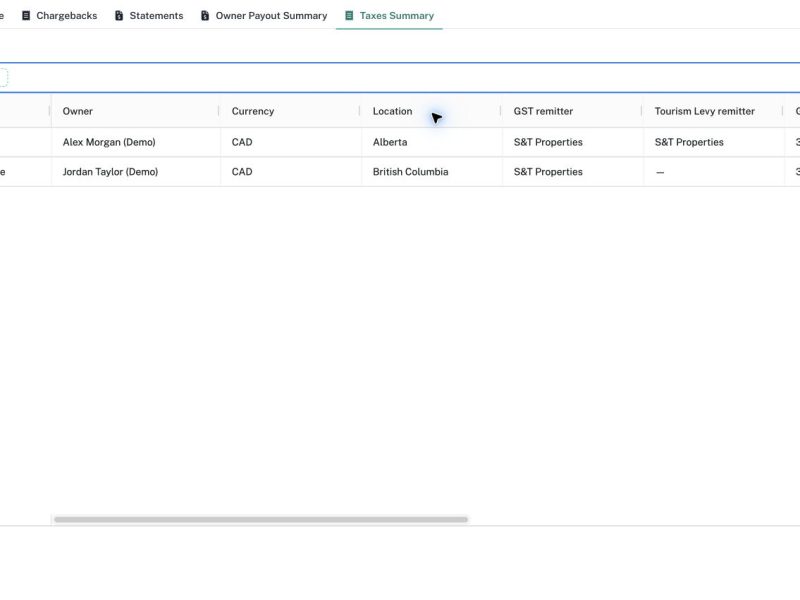
Taxes Summary provides a property-by-property view of tax figures saved on generated owner statements. Use it to reconcile the month, identify remitters and review withholding information before handing the report to the person responsible for tax processing. The report reflects the application's configured statement data. It does not file a return, remit tax or choose the correct tax settings for you.
Before you begin
Generate statements for the reporting month and review their source data. Confirm the approved tax region, remitter and Non-Resident Tax settings in Fee terms. Have the relevant statement and source records available for any discrepancy. The examples in this guide show fictional Canadian properties and are intended to explain the screen, not to prescribe tax treatment for another owner or jurisdiction.
Step 1: Open Taxes Summary
Open Owner Statements, select Taxes Summary and choose the month. This report includes units with generated statements. A property that has not been generated will not appear simply because it has a fee profile. Compare with Owner Payout Summary or Statements when checking whether all intended properties have been included in the monthly close.
Step 2: Apply the intended filters
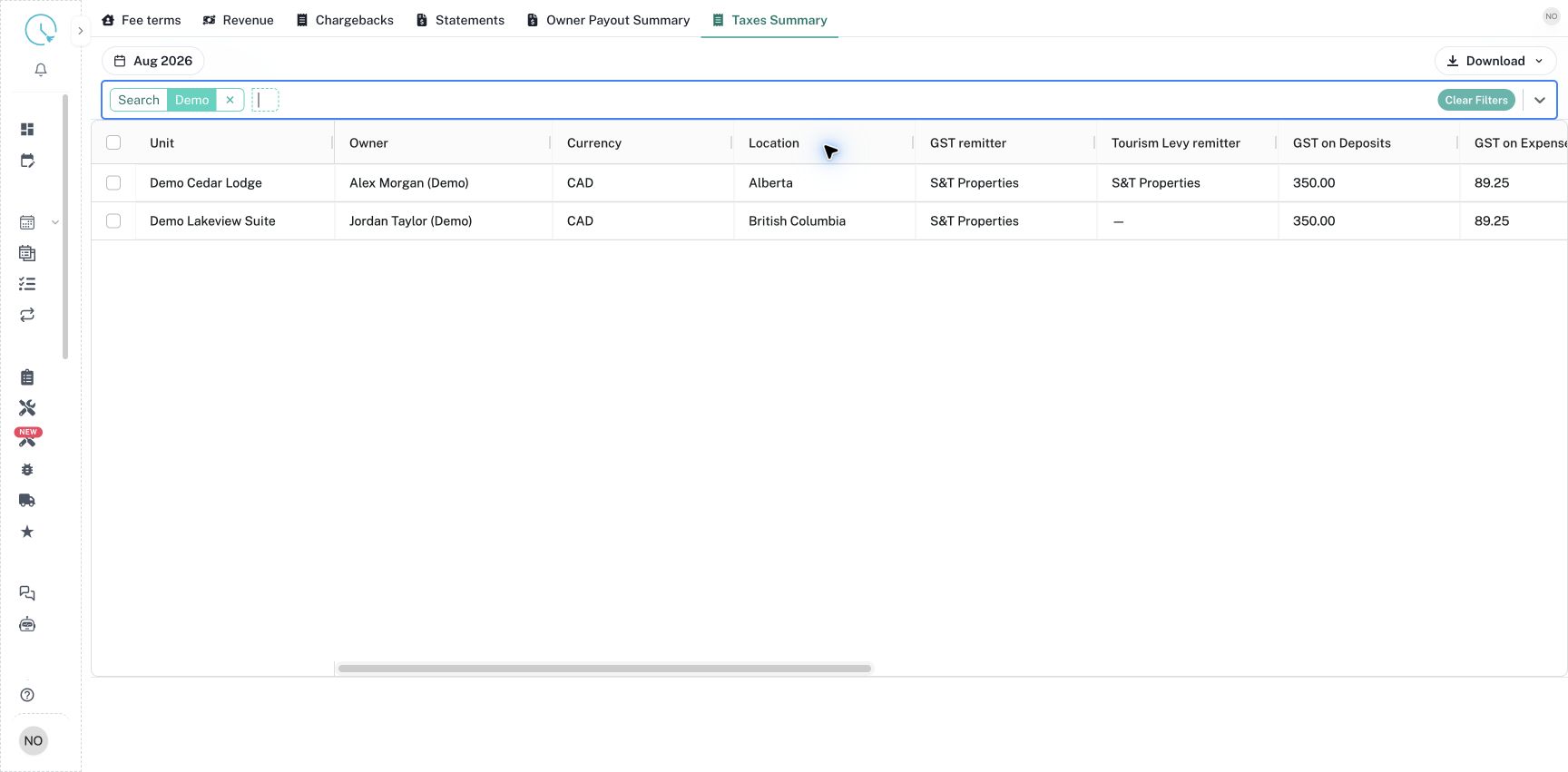
Use the quick-filter box to select a Unit or Search match. Apply the available owner, remitter, non-resident, progress or statement-state filters when you need a focused reconciliation. Check every active chip. Filters can intentionally exclude drafts or other properties, so record the scope you are reviewing. Use Clear Filters to return to the broader set before checking overall completeness.
Step 3: Check identity, currency and location
Read Unit, Owner, Currency and Location before comparing tax amounts. The owner and tax configuration come from the generated statement's saved information. A later fee-term edit does not silently replace a finalized statement's configuration. If the owner or region is incorrect, investigate the applicable fee version and follow the source-correction and regeneration workflow. Do not edit a downloaded tax total as a substitute for correcting the statement.
Step 4: Review the remitter columns
Inspect GST remitter and Tourism Levy remitter where applicable. The remitter indicates who is responsible under the saved setup, which affects how tax is handled in the owner payout. A dash can mean a field does not apply to that region rather than that someone forgot to enter a value. Compare the same property in its statement Summary when deciding whether the reported tax should reduce the payout.
Step 5: Reconcile GST figures
Review GST on Deposits, GST on Expenses and GST Payable. Scroll horizontally to reveal columns outside the initial viewport. For the fictional Cedar Lodge example, deposits show CAD 350.00 of GST and expenses show CAD 89.25, leaving CAD 260.75 net GST payable. Use the same statement and currency when checking this difference. A negative net figure can represent a receivable; investigate the source instead of treating every negative value as an error.
Step 6: Review withholding and regional tax columns
Continue across the table to inspect NR4, NR6, Tourism Levy, PST on Expenses and PST-MRDT on Deposits. NR4 and NR6 are distinct withholding settings, not interchangeable labels. Confirm the owner's approved setup before interpreting the populated column. Not-applicable fields may display dashes, while a calculated tax amount may legitimately be zero. Review the amount together with Location and the statement's saved fee settings rather than comparing columns in isolation.
Step 7: Check state and progress
Review Statement state and Progress when deciding whether the report is ready for your handoff. A Draft figure can still change after regeneration. Finalized preserves the reviewed statement, while Sent records its delivery state. Progress is a separate manual close checklist. If you need only reviewed statements, apply the intended statement-state filter and confirm the resulting list before exporting.
Step 8: Download the report
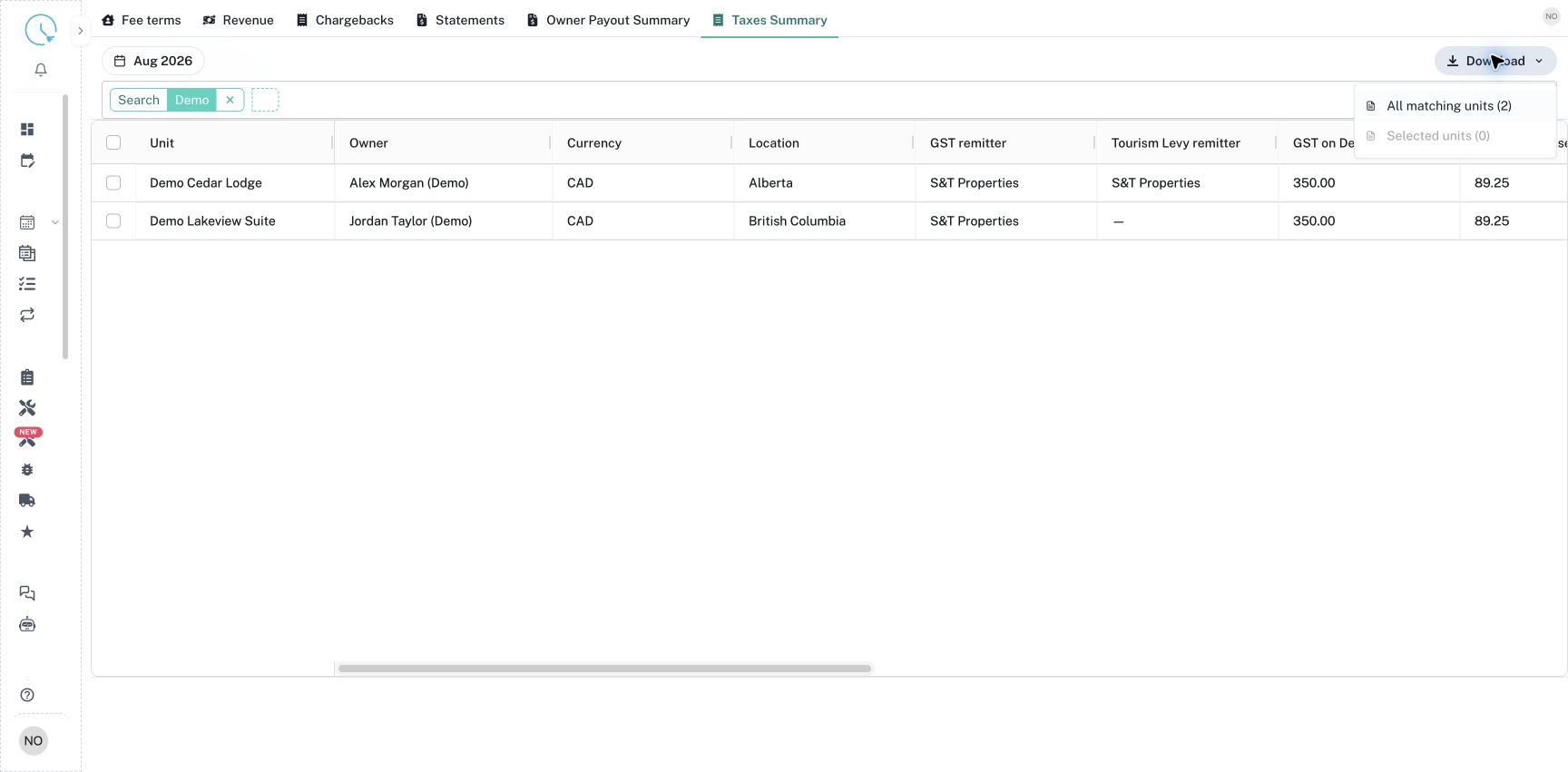
Open Download and choose All matching units to export the current scope. To export a smaller set, tick the relevant units and choose Selected units. Read the count in the menu. The download is an Excel report, not a payment or filing instruction. Keep a note of the month and filters with your reconciliation so the recipient understands what is included and what remains outside the report.
How to verify the result
Open the workbook and compare a sample property's tax figures with Taxes Summary and its statement Summary. Confirm that every intended unit with a generated statement appears once, and reconcile currencies separately. Compare the report population with your complete property checklist so ungenerated units are not overlooked. If a corrected draft was regenerated, download a fresh report; an older workbook retains the previous values.
Common issues and best practices
For a missing unit, first check generation status, month and filters. For unexpected GST, inspect the revenue tax inclusion and expense tax treatment used by the statement. For an unexpected remitter or withholding column, verify the effective fee terms and saved statement version. Resolve discrepancies in the source workflow and review the regenerated result before finalization. Share the reviewed report through your normal accounting process, and use Progress only to record work that has actually been completed.