10. Export Statement PDFs, Excel Reports and Google Drive Copies
Owner Statements provides Excel report downloads and PDF exports for different purposes. Excel is useful for reconciliation and operational review. PDFs contain the owner-facing statement and supporting details. You can prepare one combined PDF, separate PDFs by unit, or save each unit PDF to Google Drive. This guide explains scope, draft inclusion, background results and how to recover from an unsuccessful export.
Owner Statements provides Excel report downloads and PDF exports for different purposes. Excel is useful for reconciliation and operational review. PDFs contain the owner-facing statement and supporting details. You can prepare one combined PDF, separate PDFs by unit, or save each unit PDF to Google Drive. This guide explains scope, draft inclusion, background results and how to recover from an unsuccessful export.
Before you begin
Generate the statements you need and complete the appropriate review. Confirm the reporting month and intended properties. Finalize statements intended for delivery through your normal approval process. For Drive exports, confirm with your administrator that the approved destination is already configured for your business and that CleanOver can add files there. Production requires a writable folder in the company Shared Drive.
Step 1: Set the export scope
Open Statements and choose the month. Apply the desired filters. If you need only some of the matching properties, tick their row checkboxes and check the selection count. A filter defines the available list, while selection defines a subset. Ungenerated units do not supply a PDF, so the number of statements to export can be lower than the number of listed units.
Step 2: Choose Excel or PDF
Open Download. Under Excel summary, choose All matching statements or Selected statements to download that scope as a spreadsheet. To produce owner documents, choose Export PDFs / Google Drive…. The Excel options on other tabs download that tab's report instead: Revenue, Chargebacks, Fee terms, Owner Payout Summary and Taxes Summary each have their own columns and scope.
Read the Excel workbook for your selected report
The Download action exports the report from the tab you are using. After opening the workbook, use the appropriate sheet and check the same reporting month, filters and selection as in CleanOver.
| Report | What to check in Excel |
|---|---|
| Fee terms | The Fee Terms sheet includes Status: Ready means an applicable fee profile exists; Not configured identifies missing setup. |
| Revenue | Unit totals includes status, nights, Airbnb/VRBO revenue amounts and Hostaway, Manual / CSV and Locked entry counts. Transaction details includes the available booking dates, platform context, fees, taxes and guest-payment details. |
| Chargebacks | Use Unit totals for grouped amounts and Transaction details for individual expenses. Needs review is Yes when a transaction is marked for review or lacks tax treatment; otherwise the cell is blank. |
For Revenue and Chargebacks, reconcile Unit and Currency between the two sheets. Compare Entries with the included transaction count and compare the relevant amount total. Keep money separate from entry counts, and treat a blank optional detail differently from a recorded zero. Download a new copy after corrections; changing the workbook does not update CleanOver. See the Fee terms, Revenue and Chargebacks guides in the reading list for the detailed column explanations.
Step 3: Review the PDF options
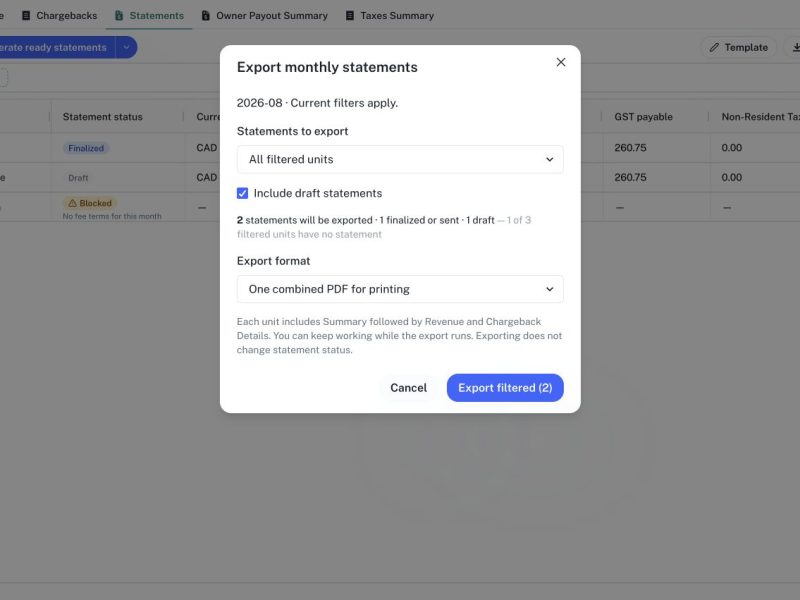
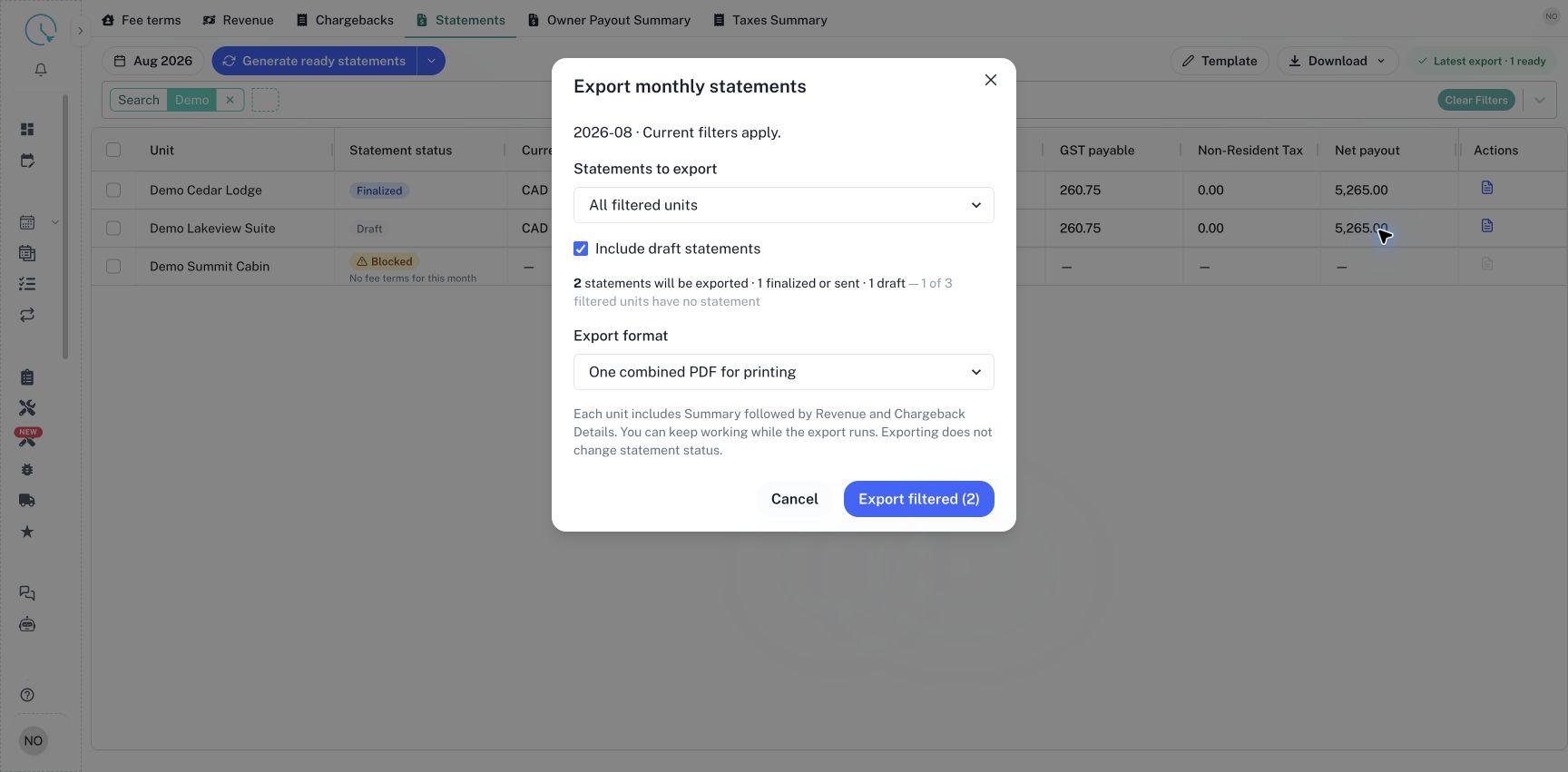
In Export monthly statements, check the period and Statements to export. Choose All filtered units or Selected units only. Review Include draft statements; a draft may be appropriate for internal review, but final delivery should follow your approval process. Read the displayed total and the split between finalized or sent statements and drafts before proceeding. Narrow the scope if it exceeds the displayed 500-statement limit.
Step 4: Start a combined or individual PDF export
For a printing batch, choose One combined PDF for printing. For a file per property, choose Separate PDF for each unit. Each unit includes Summary followed by Revenue and Chargeback Details. Select Export filtered or Export selected with the displayed count. The job runs in the background so you can keep working. Starting the export does not finalize the statements or mark them as sent.
Step 5: Read the result and download
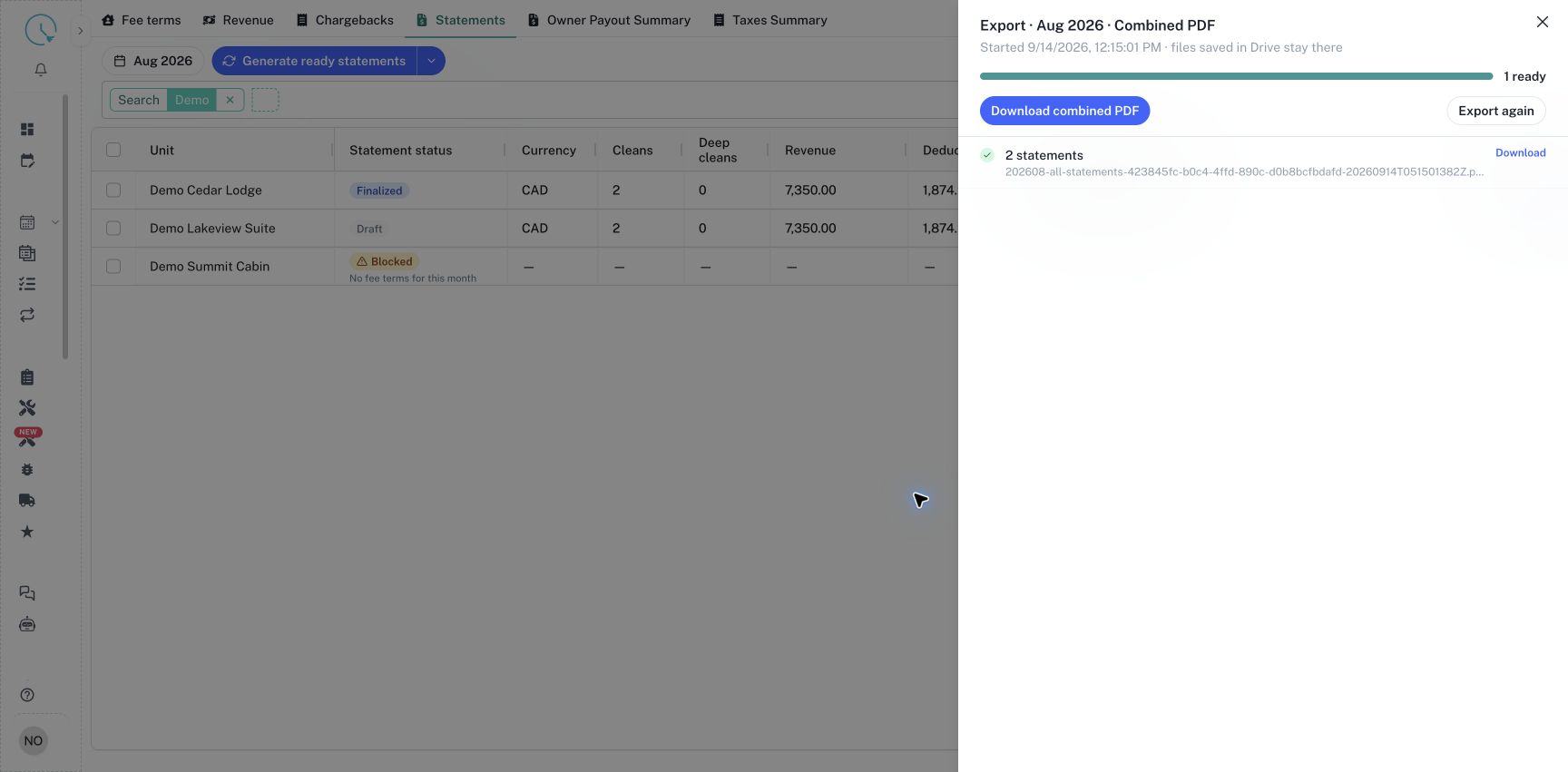
Open the latest export chip or the Latest export menu item to inspect the job. Wait for ready results. A combined export can show one ready file containing several statements, so distinguish file count from statement count. Select Download combined PDF for the combined file, or the relevant Download action for an individual result. Open the downloaded file and confirm its month, units and page contents before using it.
Step 6: Review the configured Google Drive folder
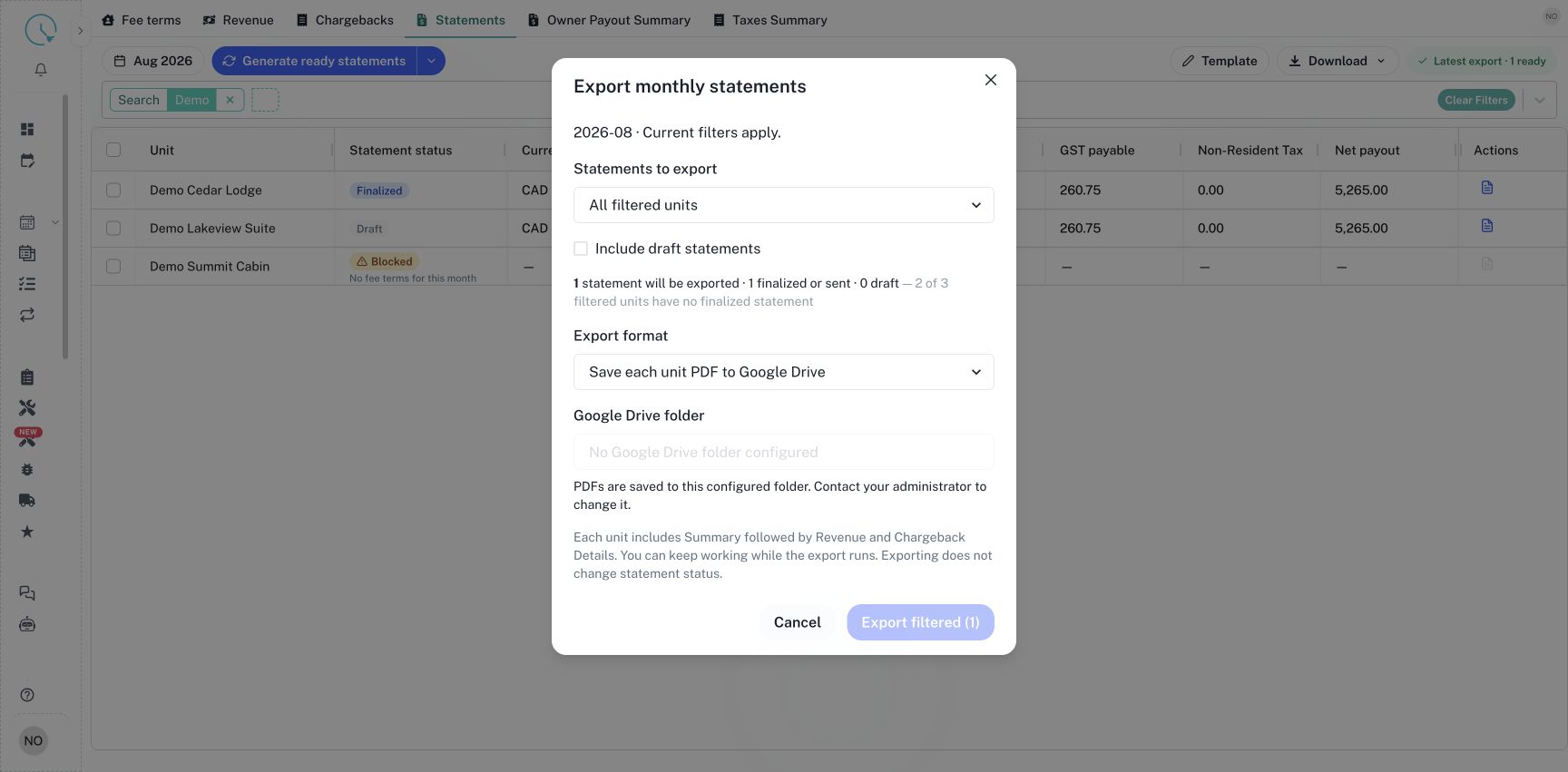
Choose Save each unit PDF to Google Drive under Export format. Review the draft checkbox again: Drive mode starts with drafts excluded. Google Drive folder is read-only and displays the destination configured for your business. Check the displayed folder URL and Saved folder name before exporting. You cannot enter, edit or save a folder in this dialog. Contact your administrator if the destination needs to change, then close and reopen Export monthly statements to load the updated configuration. The export uses this configured destination; a link in Unit information does not override it.
If Google Drive folder shows No Google Drive folder configured, the Drive export button is disabled. Ask your administrator to configure the destination, then close and reopen this dialog. If you only need a local download, choose One combined PDF for printing or Separate PDF for each unit instead.
The Google Drive folder label is shared across environments. Production still requires a writable company Shared Drive folder. An administrator may configure a personal Drive account for one business in a non-production QA environment. That test-only setup does not enable personal Drive for other businesses or production, and this screen does not provide a personal-account sign-in flow.
Step 7: Export to Drive and verify the files
Confirm that the configured destination is correct, check the final statement count, then select Export filtered or Export selected. Inspect the results when the job completes. Use Open Drive folder or the available file link to confirm that the intended PDFs are present. Check the actual file, not only the progress percentage. Exporting to Drive saves documents; it does not make a payment, send an owner email or change the statement's lifecycle state.
Step 8: Retry only what needs attention
If results show failed files, read the individual error. Resolve the folder access or document problem, then use Retry failed when available. Use Export again for a new export after changing scope or correcting statement data. The latest-export view belongs to the earlier job; changing the current filters does not rewrite its result. Check the job period and format before downloading from it.
How to verify the result
Compare a sample PDF's owner, currency and payout with its statement review. Check that Details contains the expected revenue and expense rows. For Excel, verify the selected month and row count and distinguish transaction selections on Chargebacks from unit selections elsewhere. Keep currencies separate when reconciling totals. If a statement was corrected after an earlier download, export a fresh copy.
Common issues and best practices
A zero export count can mean drafts are excluded, filters are too narrow or statements have not been generated. Review the month, filters and draft checkbox before trying again.
If the message says Google Drive export is not configured correctly, contact your administrator to check the CleanOver Drive connection. The administrator must resolve missing or invalid account credentials. If the message says Google Drive API is not enabled, ask the administrator to enable it for the configured account. You do not need to enter account credentials in the export dialog.
If CleanOver cannot access the folder or add files, ask your administrator to check the configured destination and the account's write access. In production, a message asking for a company Shared Drive means a My Drive folder cannot be used. Ask the administrator to configure the approved Shared Drive destination, then close and reopen the export dialog to review the updated folder before trying again.
In an administrator-configured QA environment, expired or revoked authorization requires the administrator to authorize the test account again. An incomplete test connection or a business mismatch also requires administrator help. Retry failed files only after the reported problem has been resolved.
If a result is no longer available, generate another export; files already saved in Drive remain there. Retain the reviewed version used for delivery, and update monthly Progress only after confirming that the actual printing, saving or delivery work has been completed.