04. Record and Review Owner Statement Chargebacks
Chargebacks records costs and adjustments assigned to an owner statement. A row can represent an expense, reimbursement, prior-month credit or an amount already paid to the owner. Category determines how the row affects the statement, while Source identifies where it came from. Use this guide to enter a row, select its tax treatment, attach receipt references, import CSV data and complete the review before finalization.
Chargebacks records costs and adjustments assigned to an owner statement. A row can represent an expense, reimbursement, prior-month credit or an amount already paid to the owner. Category determines how the row affects the statement, while Source identifies where it came from. Use this guide to enter a row, select its tax treatment, attach receipt references, import CSV data and complete the review before finalization.
Before you begin
Have the invoice, receipt or approved adjustment available. Confirm the unit and reporting month, and determine whether the amount includes tax. Check the category against the intended statement line. If the tax treatment or allocation is uncertain, keep the row marked for review until the responsible reviewer has resolved it. The sample transactions in this guide are fictional.
Step 1: Open the monthly transaction list
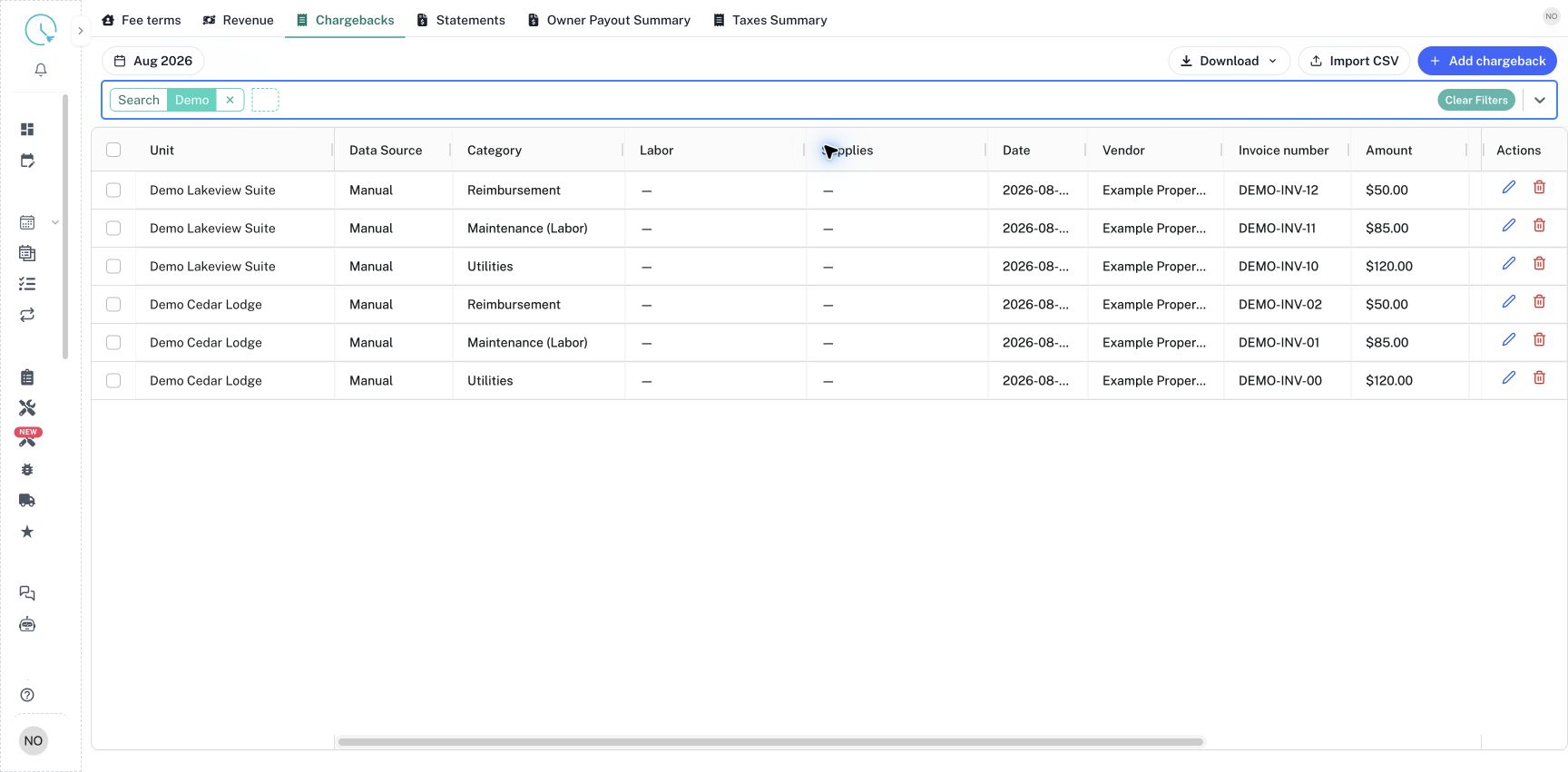
Open Owner Statements, choose Chargebacks and select the month. Search by unit, vendor, invoice or description, and select the suggested Search option. You can also apply Unit, Category, Source and other available filters. Each row is a transaction; a property can have several rows. Read the unit and invoice reference together to distinguish similar purchases.
Step 2: Add or open a chargeback
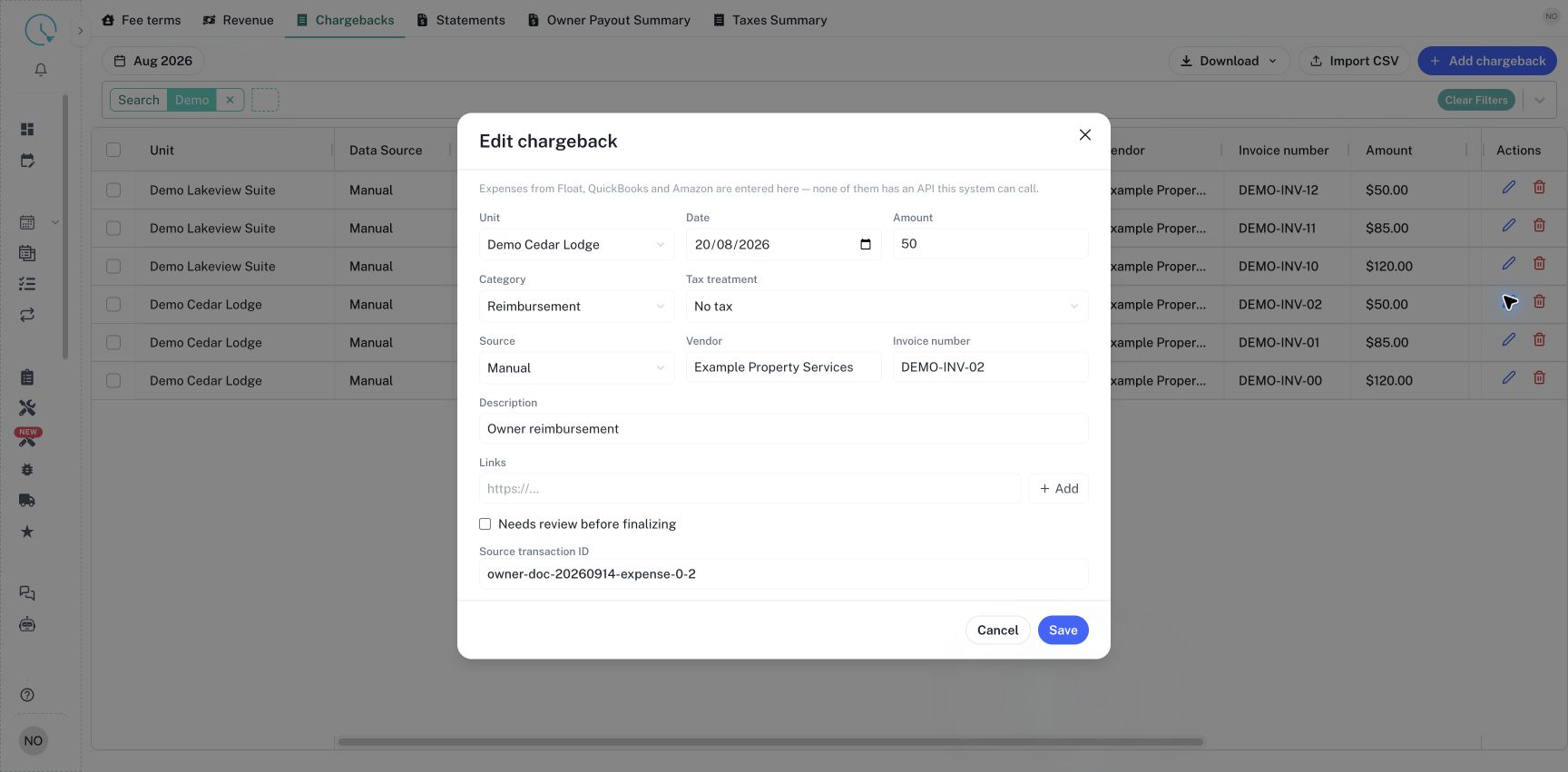
Select Add chargeback to create a row, or the pencil action on an existing row to edit it. Confirm Unit and Date, then enter Amount. The date assigns the row to the reporting period. Enter Vendor, Invoice number and Description so another reviewer can identify the expense without opening every receipt. Select Save only after you have reviewed the category and tax fields as well.
Step 3: Choose the correct category and source
Select Category for the financial purpose of the row, such as Utilities, Maintenance (Labor), Maintenance (Supplies), Purchased Items or Reimbursement. Select Source for the origin, such as Manual, Float, Amazon or AP Bills. A source name alone does not establish tax treatment. Maintenance Tracker can provide Labor and Supplies together; enter those components in the relevant fields when that category is selected. For cleaning invoices, use the cleaning classification that matches the unit's manual-cleaning setup.
Step 4: Confirm how tax is represented
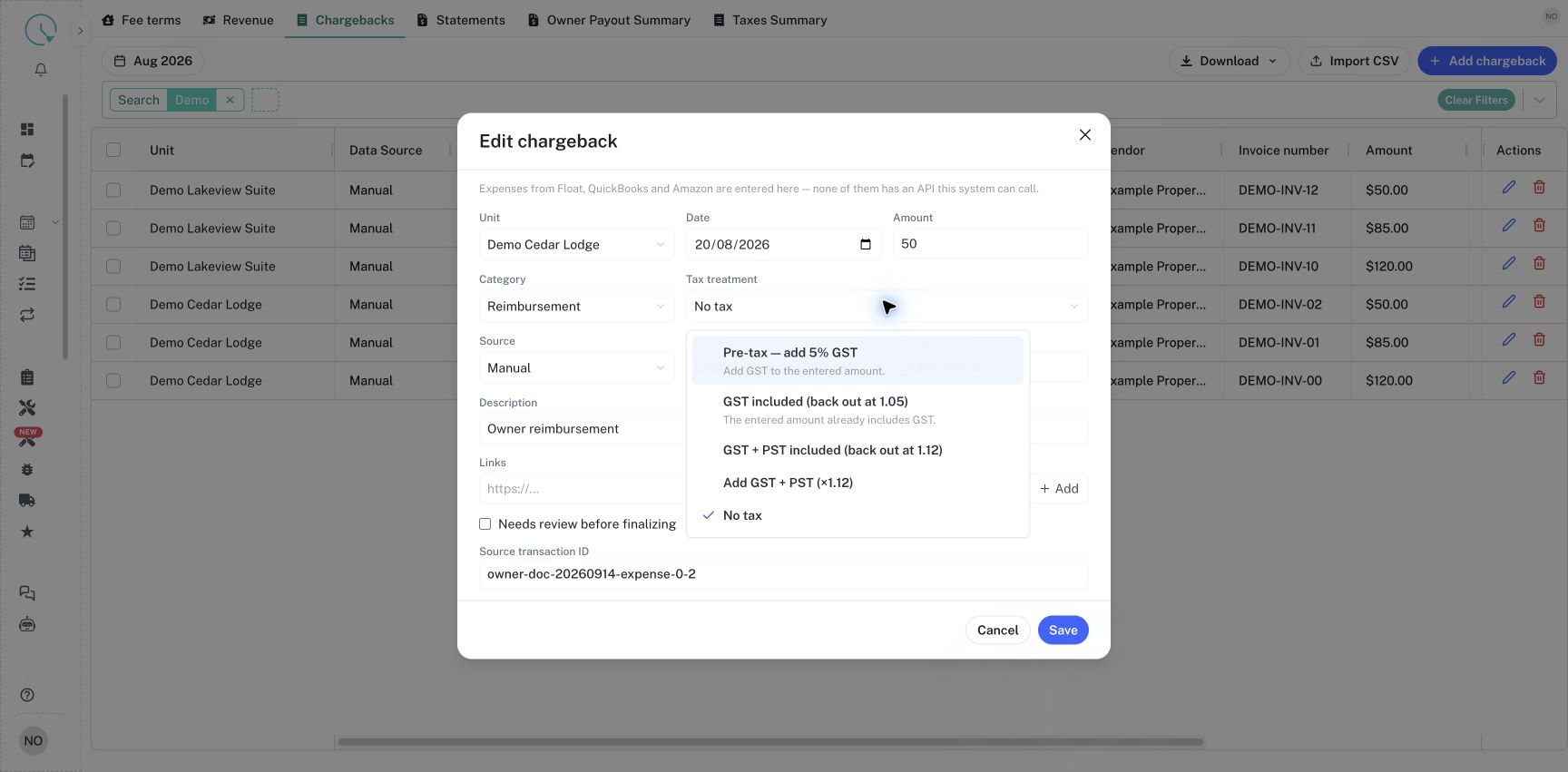
Open Tax treatment and choose the option that matches the source amount. An add-tax option means the entered amount is before that tax. An included-tax option means the entered amount already contains it. No tax records an amount without a tax addition or recovery. For GST and PST expenses, check whether both taxes are already included or need to be added. These choices change the statement; use the approved treatment rather than selecting whichever produces an expected-looking total.
Step 5: Add evidence and review information
Paste a receipt or supporting-document URL into Links and select Add. Check that it points to the intended supporting document and that your colleagues have access. These are references to existing files. Enter Source transaction ID when available, especially for records that may be imported again. Leave Needs review before finalizing checked while the row still needs a decision. After reviewing the evidence and tax treatment, clear it and save the record.
Step 6: Handle adjustments deliberately
Reimbursement increases the amount returned to the owner. Credit from Previous Month and Amount Already Deposited have different roles from ordinary taxable expenses. A positive prior-month credit reduces this month's payout; a negative value increases it. Amount Already Deposited prevents paying the same advance twice. Check the sign and category against the previous statement or payment record, and avoid entering the same adjustment in more than one place.
Step 7: Import multiple transactions
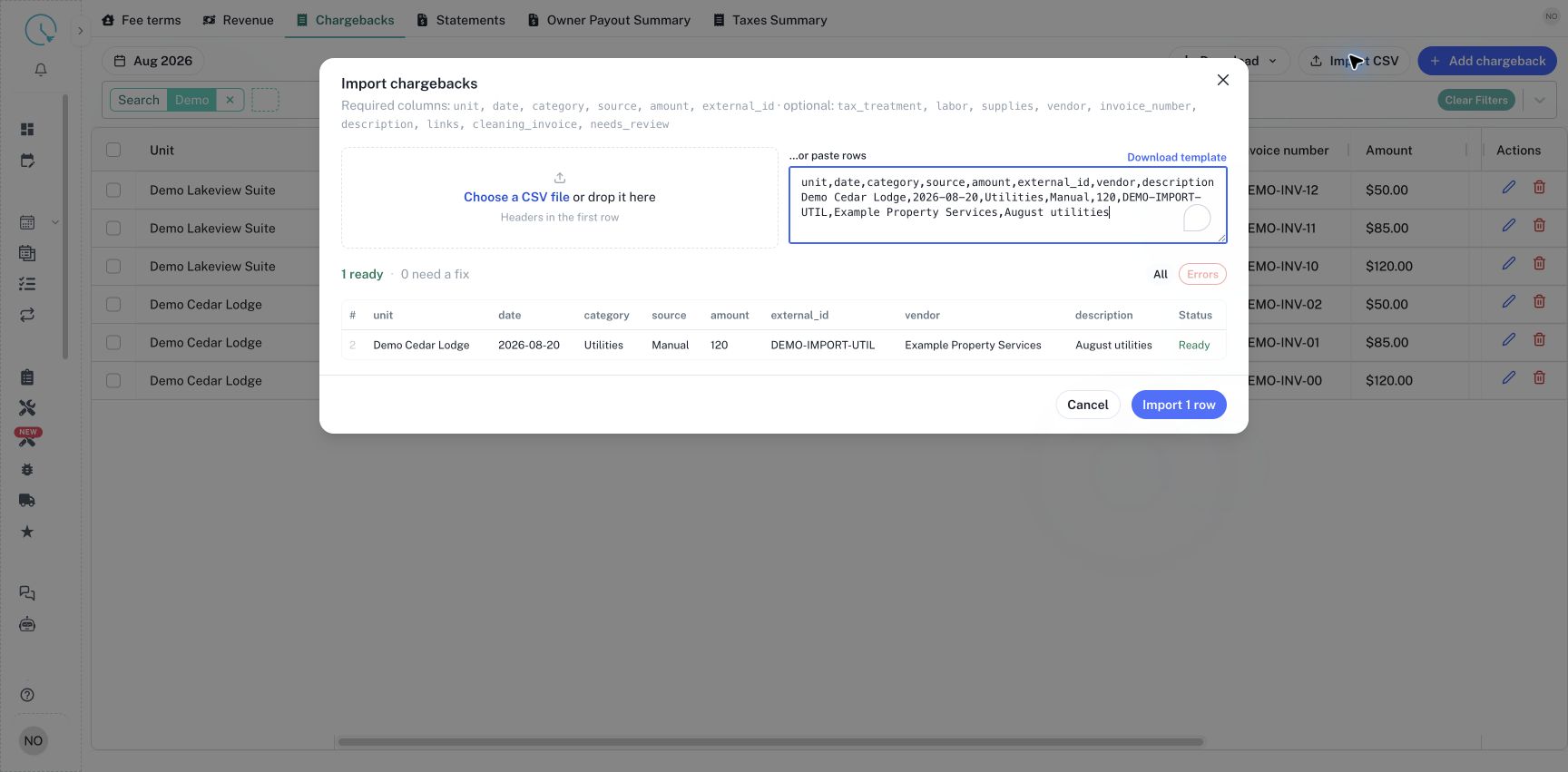
Select Import CSV and use Download template. Required headers are unit, date, category, source, amount and external_id. Optional fields include tax_treatment, labor, supplies, vendor, invoice_number, description, links, cleaning_invoice and needs_review. Choose a file or paste rows, then inspect the preview. Keep the source identifier stable across repeat imports, review invalid rows and confirm the valid count before selecting Import.
Remove an incorrect chargeback
Find the transaction by unit and invoice reference, then select its Delete chargeback action. Read the confirmation, which warns that the action cannot be undone in the interface. Select Delete only for the intended row, or Cancel to keep it. Confirm the transaction disappears, then regenerate and review the affected draft. If the goal is to correct an amount or category, editing the existing transaction keeps the source reference easier to follow.
Review chargebacks in the Excel workbook
- Confirm the month and filters. For the complete matching scope, open Download and choose All matching transactions. For a subset, select the intended transaction rows and choose Selected transactions.
- Open Unit totals to compare the entry count and Chargebacks amount by unit and currency. Open Transaction details to inspect individual expenses, references and review flags.
- Find the Needs review column in Transaction details and filter it to Yes to collect transactions requiring attention.
| Needs review | Meaning |
|---|---|
| Yes | The transaction is explicitly marked for review, or its tax treatment has not been specified. Either condition produces Yes. |
| Blank | The transaction is not explicitly marked for review and a tax treatment is present. A blank flag does not by itself mean the statement is finalized or the expense has been paid. |
For each Yes row, match the unit, vendor and invoice reference, then open the transaction in Chargebacks. Review the evidence, choose the appropriate tax treatment and clear the review flag only when the review is complete. Save in CleanOver and download a new workbook to confirm the result. Removing Yes in Excel does not resolve the saved transaction. A selected export contains the selected transactions; it does not automatically include every expense for their units.
How to verify the result
Find the saved row in the selected month and compare its amount, category and invoice number with the source. Generate or regenerate the affected draft statement. In Details, confirm the transaction is included; in Summary, confirm that it appears in the correct deduction, reimbursement or adjustment section. A remaining review flag can prevent finalization even when a draft has already been generated.
Common issues and best practices
If the ledger shows a partial-results notice, narrow the month or filters as instructed before treating the visible rows as complete. If a row is missing, check its date and current filters. A source correction does not update an older generated statement automatically. Keep descriptions short but meaningful, retain receipt references and resolve review flags based on evidence. When exporting selected rows, remember that Chargebacks selects transactions, not every transaction belonging to the same unit.