03. Add, Import and Review Owner Statement Revenue
Revenue records supply the deposits used by owner statements. Use this guide to review channel totals, inspect individual bookings, enter a manual row, preview a CSV import and understand Hostaway synchronization. The reporting date determines which statement month receives a record. It is separate from booking, stay and payout detail dates, so check it when reconciling a transaction that spans more than one month.
Revenue records supply the deposits used by owner statements. Use this guide to review channel totals, inspect individual bookings, enter a manual row, preview a CSV import and understand Hostaway synchronization. The reporting date determines which statement month receives a record. It is separate from booking, stay and payout detail dates, so check it when reconciling a transaction that spans more than one month.
Before you begin
Have the channel's payout report or another approved source available. Confirm the property, channel, revenue month, amount and reservation reference. Check the unit's fee terms and currency. For a Hostaway sync, listing mappings and the connection must already be configured. For CSV imports, use a stable external transaction identifier so the same source record can be recognized on later imports.
Step 1: Review the monthly revenue list
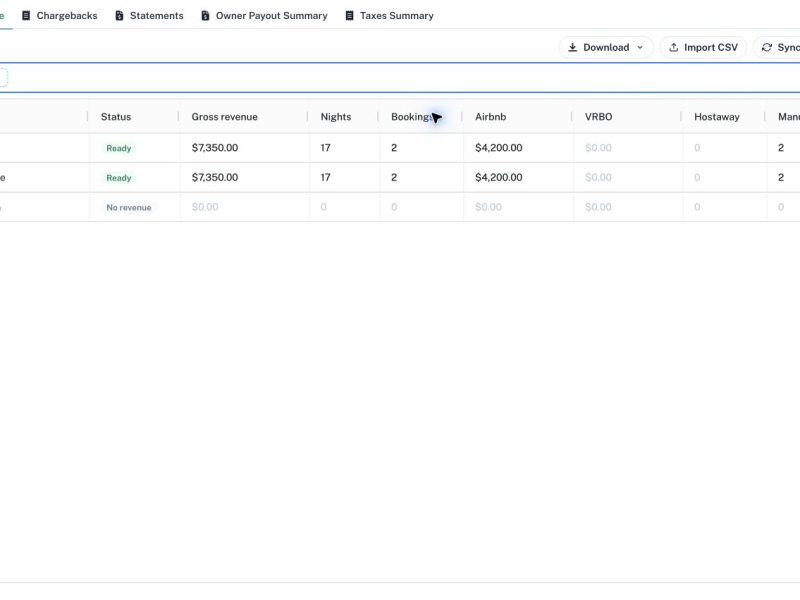
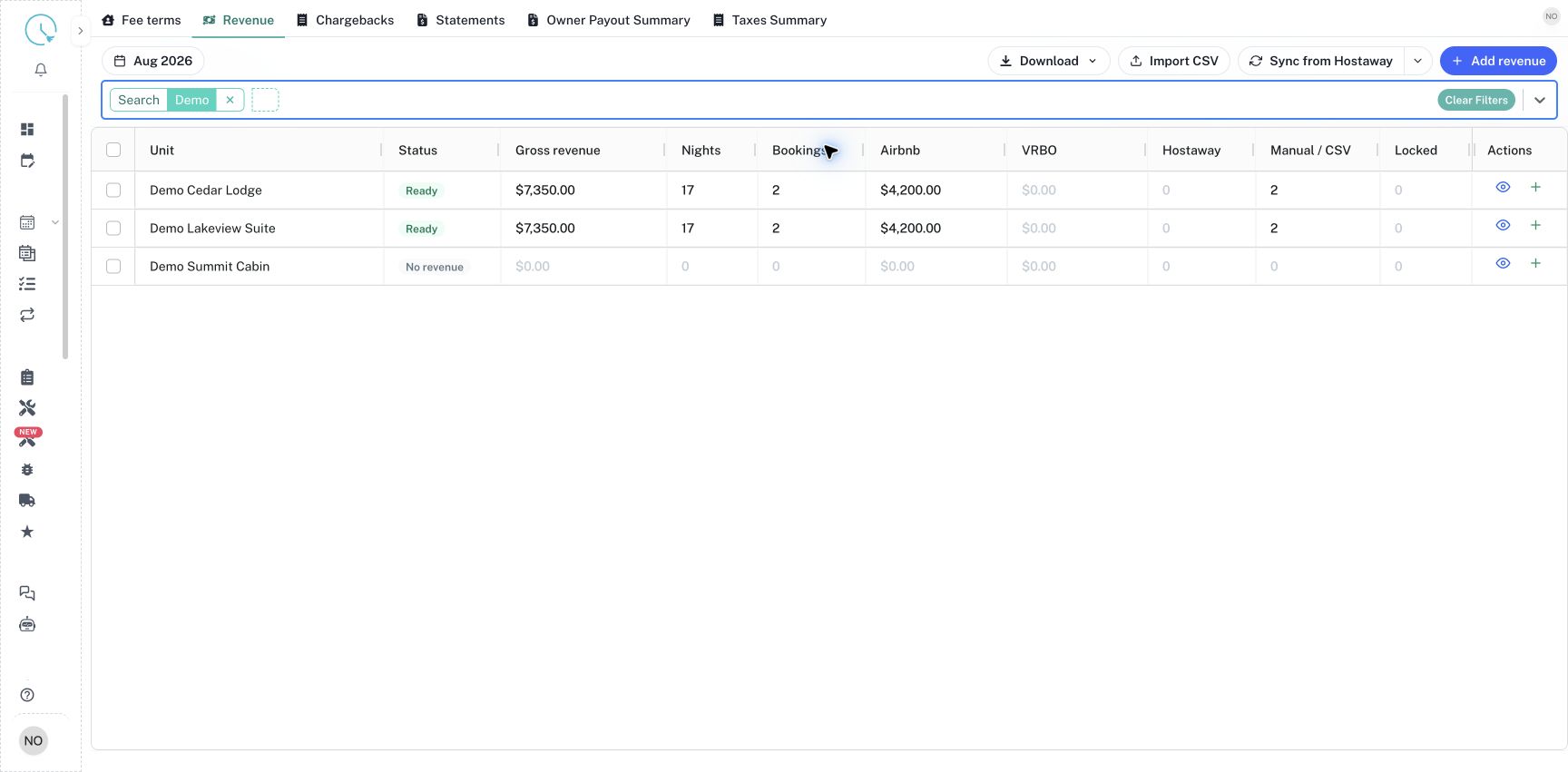
Open Owner Statements, choose Revenue and select the month. Apply a Unit or Search filter to the properties you are checking. The table shows Gross revenue, Nights, Bookings, channel totals, source counts and locked entries. Ready means revenue exists for that unit. No revenue means no matching revenue rows were found for the period; investigate before assuming the property earned nothing.
Step 2: Inspect individual records
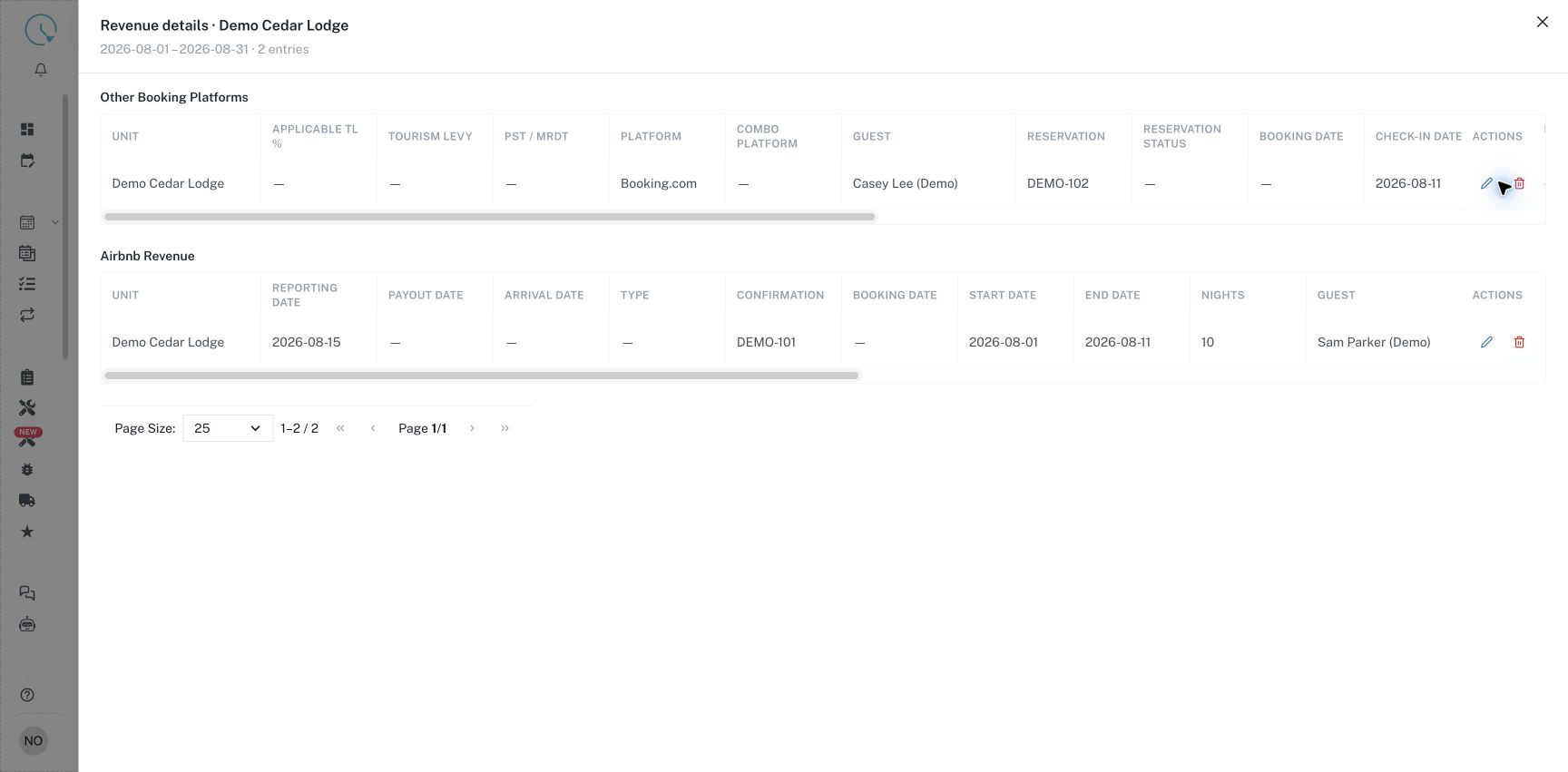
Select View revenue details for the property. Review the Other Booking Platforms and Airbnb Revenue tables. Check the reservation reference, guest, stay dates, reporting date and payout amount against the source. Scroll horizontally to see all available fields. Use pagination when the drawer contains more records than one page. Missing optional details appear as dashes and should not be treated as confirmed zero amounts.
Step 3: Add or correct a revenue row
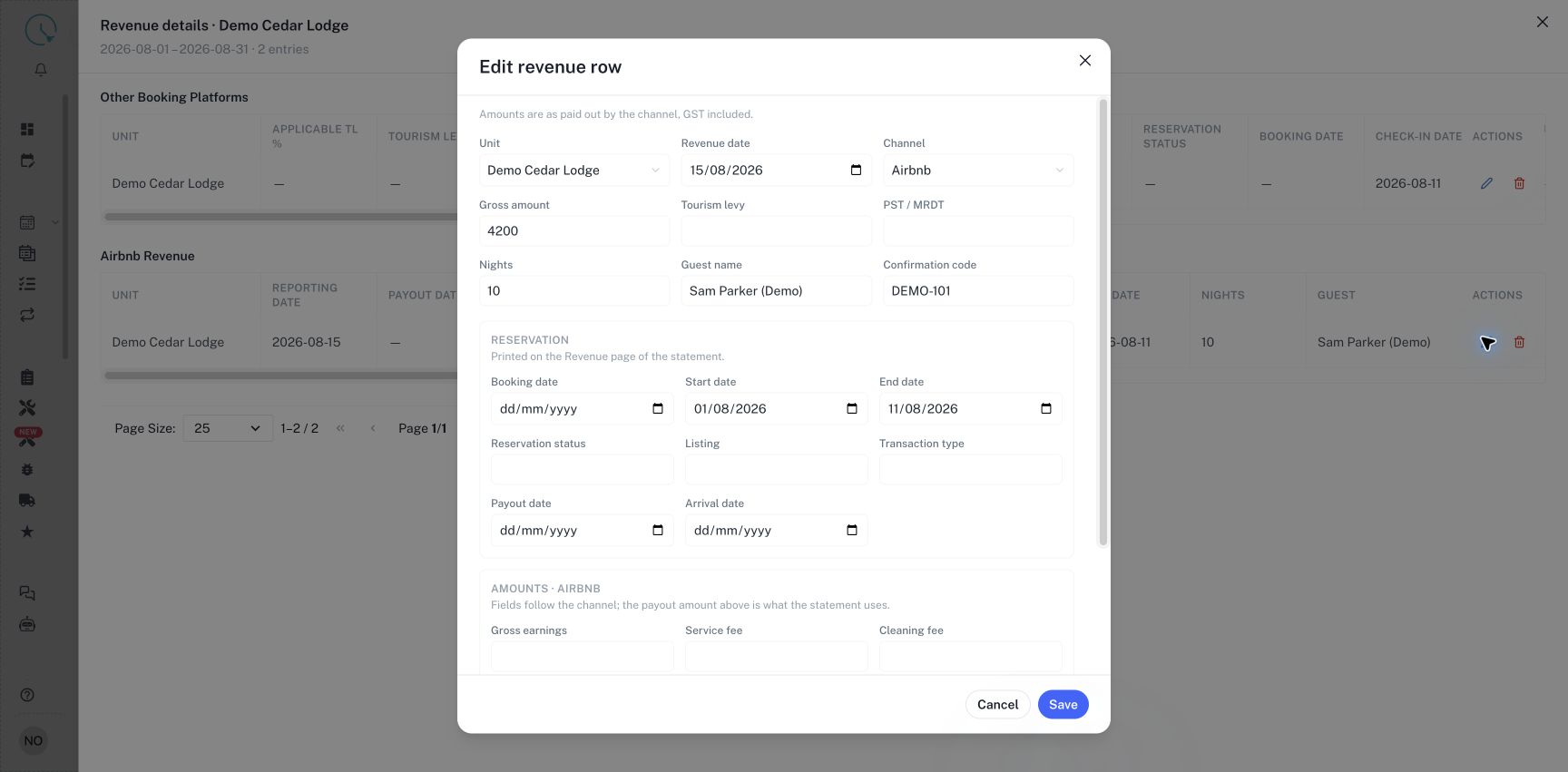
Use Add revenue for the property, or select a row's Edit revenue action in the details drawer. Confirm Unit, Revenue date and Channel. Enter Gross amount and the applicable Tourism levy, PST / MRDT and Nights values. The form describes amounts as paid out by the channel, with GST included. Use the source's payout figure and verify any tax treatment through the approved reconciliation process.
Step 4: Complete the supporting details
Add Guest name and Confirmation code so the row is easy to trace. Review booking, start and end dates, reservation status and the other channel-specific fields. Airbnb has fields such as Gross earnings, Service fee, Cleaning fee and Occupancy taxes. Other channels have their own supporting fields. These details help explain the statement, while the payout amount at the top remains the amount used by the statement. Add a concise note when a record needs context, then select Save.
Step 5: Preview and import a CSV
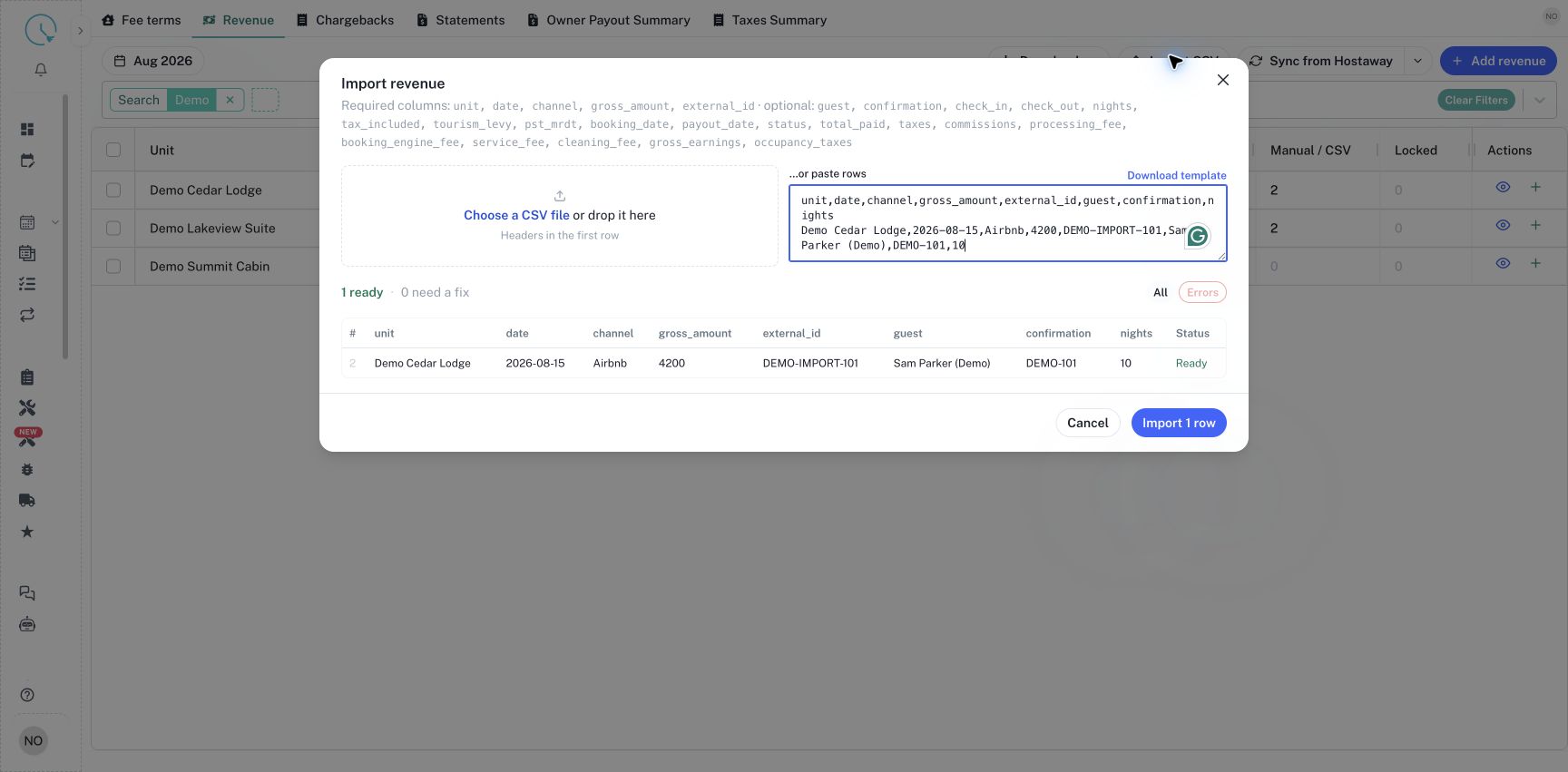
Select Import CSV. Use Download template to obtain the current headers, then choose a CSV file or paste rows into CSV rows. Required columns are unit, date, channel, gross_amount and external_id. Use the unit's exact name or identifier. Optional columns can carry guest, confirmation, nights, dates, tax values and channel fee details. Review the parsed table and every error before selecting Import. The button displays the number of valid rows available to import.
Step 6: Use Hostaway sync when appropriate
Open the arrow beside Sync from Hostaway and review Revenue basis. Channel payout and Total price represent different source amounts; choose the basis agreed for the portfolio before running the sync. Read the confirmation's check-out date range, then select Sync to proceed or Cancel to stop. The confirmation describes reservations checking out in the selected month; do not assume the quick-filter list limits the sync. Inspect the result and reconcile the resulting records. A manually corrected synced row can be locked so a subsequent sync does not overwrite the correction. Check the Locked count and row history or supporting source before treating a locked amount as current.
Step 7: Refresh the statement after corrections
Return to the list and confirm the revised revenue, nights and booking counts. Then open Statements and regenerate the affected draft. If it is Finalized or Sent, follow the reopen-and-review process before changing its figures. Compare both Summary and Details after regeneration, because an old statement or downloaded PDF still contains the previous saved data.
Remove an incorrect or duplicate revenue row
Open the property's revenue details, identify the exact guest and confirmation reference, then use that row's Delete revenue action. This action removes the row directly, so check the target before selecting it. Confirm the entry disappears and the unit total updates. If you removed the wrong entry, recreate it from the original source record or ask your administrator for recovery support; there is no undo control in this drawer. Regenerate the affected draft before relying on its totals.
Read and reconcile the Revenue Excel export
- Confirm the month and active filters in Revenue. Open Download and choose All matching units, or select units first and choose Selected units.
- Open Unit totals for the property overview, then open Transaction details for the individual revenue entries behind those totals.
- Match Unit and Currency across both sheets. Apply the same scope when comparing the workbook with CleanOver; a filtered export can contain only part of a property's revenue.
Unit totals: amounts, counts and status
A property can occupy more than one row when its revenue uses different currencies. Reconcile each currency separately. The extra columns have different meanings:
| Column | How to read it |
|---|---|
| Entries | Number of revenue entries in this unit/currency group. |
| Revenue | Total revenue amount for the group. |
| Airbnb and VRBO | Revenue amounts for those platforms, not booking counts. Revenue can also include other platforms, so Airbnb plus VRBO may not equal total Revenue. |
| Nights | Sum of the nights recorded on the included entries. |
| Hostaway and Manual / CSV | Entry counts grouped by source. Hostaway counts entries sourced from Hostaway; Manual / CSV counts the other entries. These are counts, not money. |
| Locked | Number of included entries with a sync lock. These entries are already counted in their source group; do not add Locked to the source counts. |
| Status | Locked if any included entry has a sync lock; otherwise Ready when entries exist, or No revenue when none exist. This describes revenue data, not the statement lifecycle. |
Transaction details: booking dates, fees and taxes
Use Unit, Date, Platform, Guest, Reservation and Currency to identify an entry. Revenue, Nights, Tourism Levy, PST-MRDT and Notes remain available. Scroll right to inspect the additional details supplied by the source record:
| Details | Export columns |
|---|---|
| Dates | Payout date; Arrival date; Booking date; Check-in / Start date; Check-out / End date. |
| Booking context | Type; Listing; Reservation status; Combo platform. |
| Amounts and fees | Resolution adjustment; Service fee; Cleaning fee; Gross earnings; Total paid by guest; Commissions / host fee; Processing fee; Booking engine fee. |
| Tax details | Occupancy taxes; Applicable TL %; Taxes. |
The availability of these details depends on the entry and its source. A blank optional field means no value was supplied; it should not automatically be treated as zero. Recorded zero and negative values are retained, and valid date fields are exported as dates. Do not add the fee, guest-payment and tax columns together to recreate Revenue without checking how the platform reports them.
For a final check, filter Transaction details to one Unit and Currency, compare its entry count and Revenue sum with Unit totals, then match a reservation back to its source record. Correct discrepancies in CleanOver or the source data and download a fresh workbook. Spreadsheet edits do not change saved revenue or regenerate an existing statement.
How to verify the result
Match at least one imported or edited row back to its source transaction. Check the reporting month, unit, gross amount and reservation reference. Confirm the unit total equals the intended set of transactions, with no duplicated manual and imported records. Download the Revenue report when you need an Excel reconciliation copy.
Common issues and best practices
For missing rows, check the reporting date, filters and pagination. For a CSV error, inspect the first row of headers, required values and exact unit spelling. Keep external_id stable for the same transaction and distinct for different transactions. Do not import a duplicate simply to change a note; edit the existing row where appropriate. Syncing and importing should always be followed by a reconciliation of totals and a fresh statement review.