02. Set Up and Maintain Owner Statement Fee Terms
Fee terms describe how a property's owner statement should be calculated. They include management and cleaning fees, monthly charges, the owner's name, currency and tax handling. This guide explains how to inspect a property's setup, edit it, choose the effective month and check its history. Use the rates and tax settings agreed for that owner; the example values are fictional and are not a recommended contract or tax configuration.
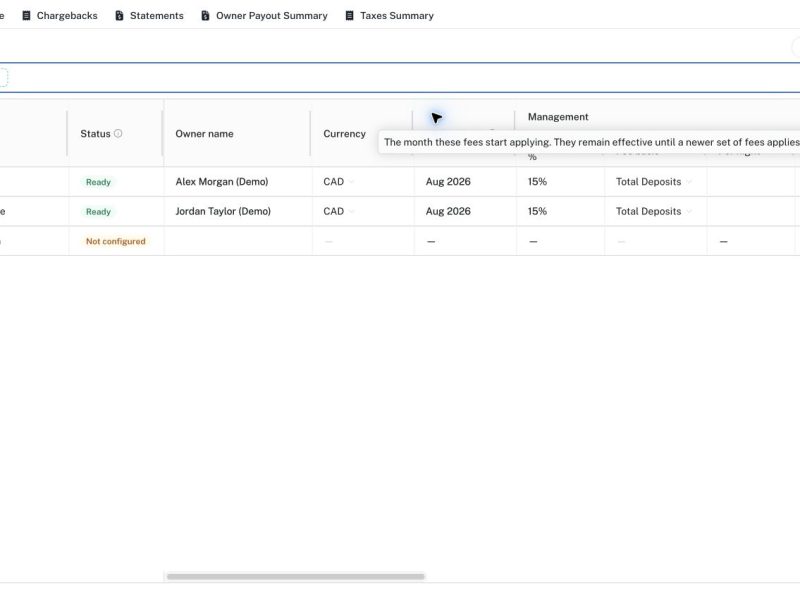
Fee terms describe how a property's owner statement should be calculated. They include management and cleaning fees, monthly charges, the owner's name, currency and tax handling. This guide explains how to inspect a property's setup, edit it, choose the effective month and check its history. Use the rates and tax settings agreed for that owner; the example values are fictional and are not a recommended contract or tax configuration.
Before you begin
Make sure the unit exists and that you have its approved fee schedule. Confirm the month from which the agreement applies, the owner's display name and the reporting currency. Know whether cleaning is billed from counts and rates or supplied through chargebacks. Obtain the approved tax region, remitter and non-resident setting from the person responsible for those decisions.
Step 1: Find the unit and check its status
Open Owner Statements, select Fee terms and choose the statement month. Search for the property and select its Unit option, or apply a Search filter. Ready indicates that fee terms are available for the selected period. Not configured means setup is missing. The Applies from column identifies when the displayed version starts. A Ready badge confirms configuration exists; it does not mean someone has reviewed every value.
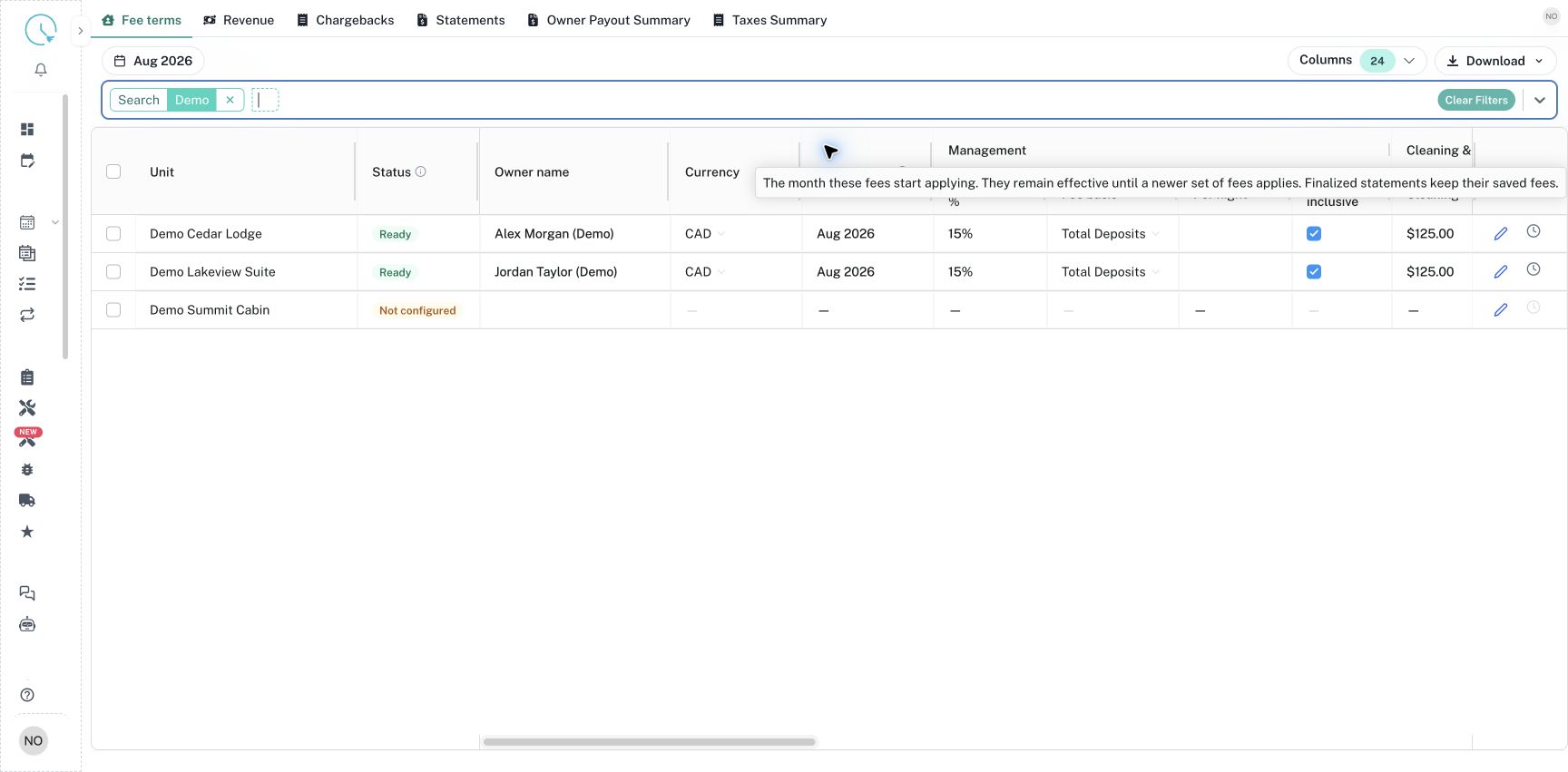
Step 2: Open the full fee editor
Use the pencil action labelled Edit fee terms for the required unit. For an unconfigured unit, use Set up fee terms. The editor groups the fields into Management fee, Cleaning & operations, Monthly fees and Tax handling. Confirm the unit name at the top before entering anything. In this editor, Management fee (%) accepts a percentage such as 15 for fifteen percent.
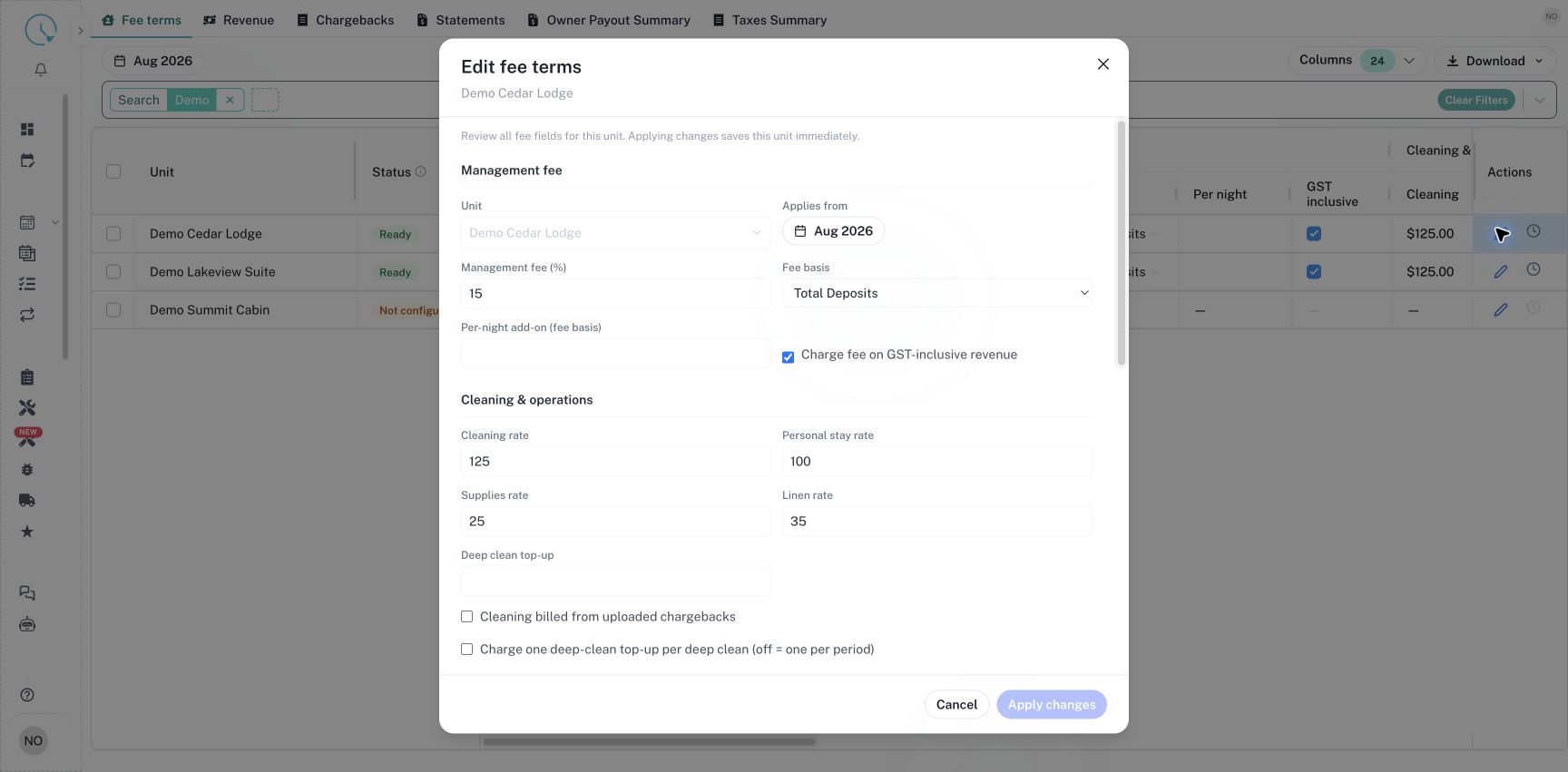
Step 3: Choose Applies from carefully
Select Applies from and choose the month when these terms become effective. A version continues until a newer version applies. The reporting month and effective month serve different purposes: selecting an August report does not mean every agreement originally began in August. Read any message about the effect of changing the effective month, and confirm the intended date before applying the change. Earlier finalized statements keep their saved terms.
Step 4: Enter management and operating charges
Choose the agreed Fee basis. Total Deposits and Revenue for Mgmt Fee (+ per night) use different fee bases. Enter a Per-night add-on only when the agreement calls for it. Check Charge fee on GST-inclusive revenue against the approved setup. Enter Cleaning rate, Personal stay rate, Supplies rate and Linen rate, and review the deep-clean setting. Cleaning billed from uploaded chargebacks switches cleaning to the supplied chargeback amount; do not also expect normal count-times-rate cleaning for that setup.
Step 5: Review monthly fees and tax handling
Scroll down to Internet, NoiseAware, Streaming, Keynest and Smartlocks. Enter only the charges that apply. Review Tax region, GST paid by, Tourism levy paid by, PST / MRDT paid by and Non-Resident Tax. The remitter matters because manager-remitted taxes can reduce the owner payout while owner-remitted amounts are handled differently. Treat these as accounting settings to confirm, not choices to guess from the property's name.
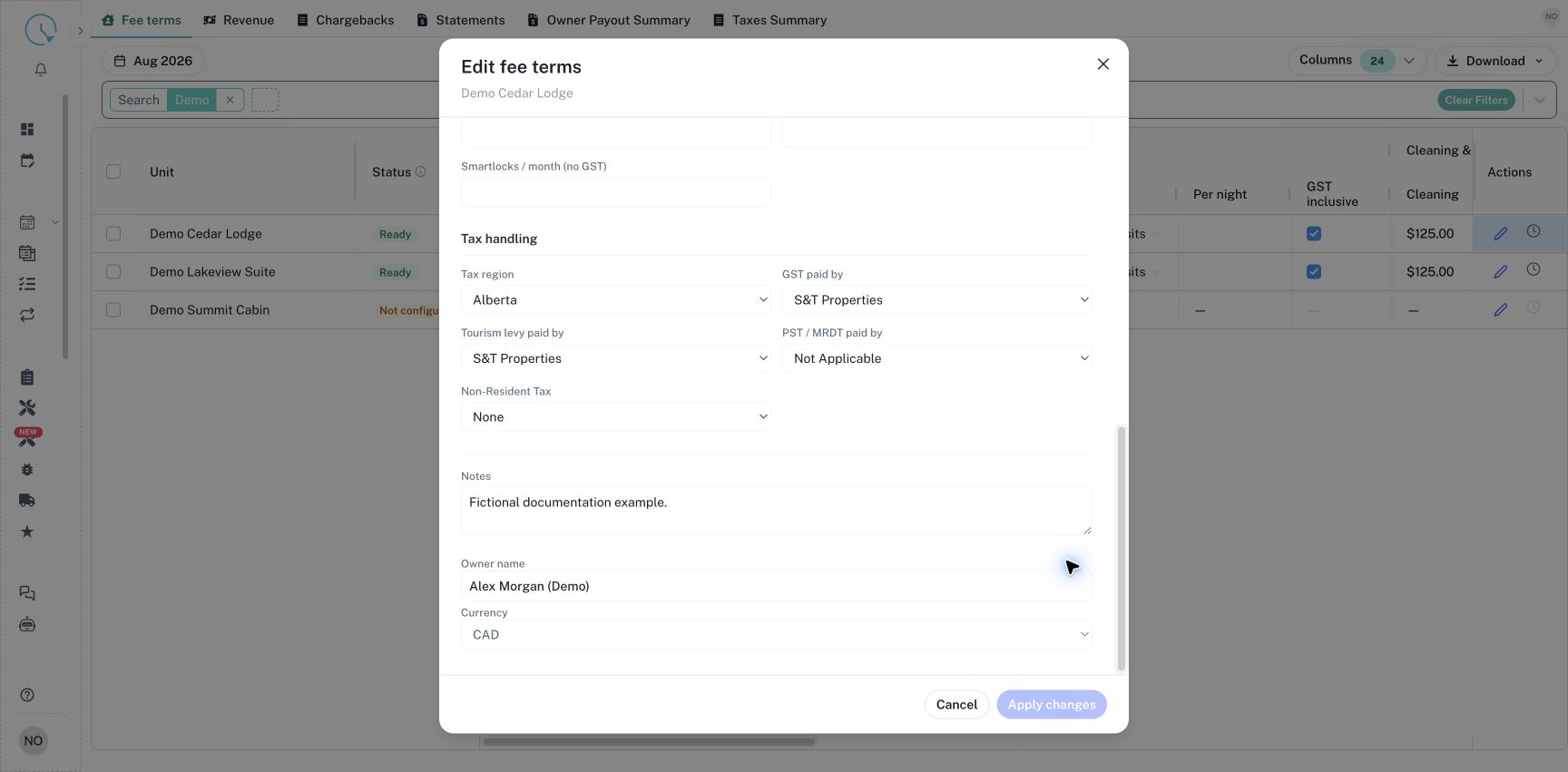
Step 6: Complete owner information and apply
Enter Owner name as it should appear on the statement and select Currency. Add relevant Notes if required. Read the complete form once more, then select Apply changes. This saves the unit immediately. Cancel closes the form without applying the unsaved edits. Wait for the save result and return to the row to confirm the owner, rate and effective month. If a month confirmation is shown, read it and choose the action that matches your intended change.
Step 7: Check fee history
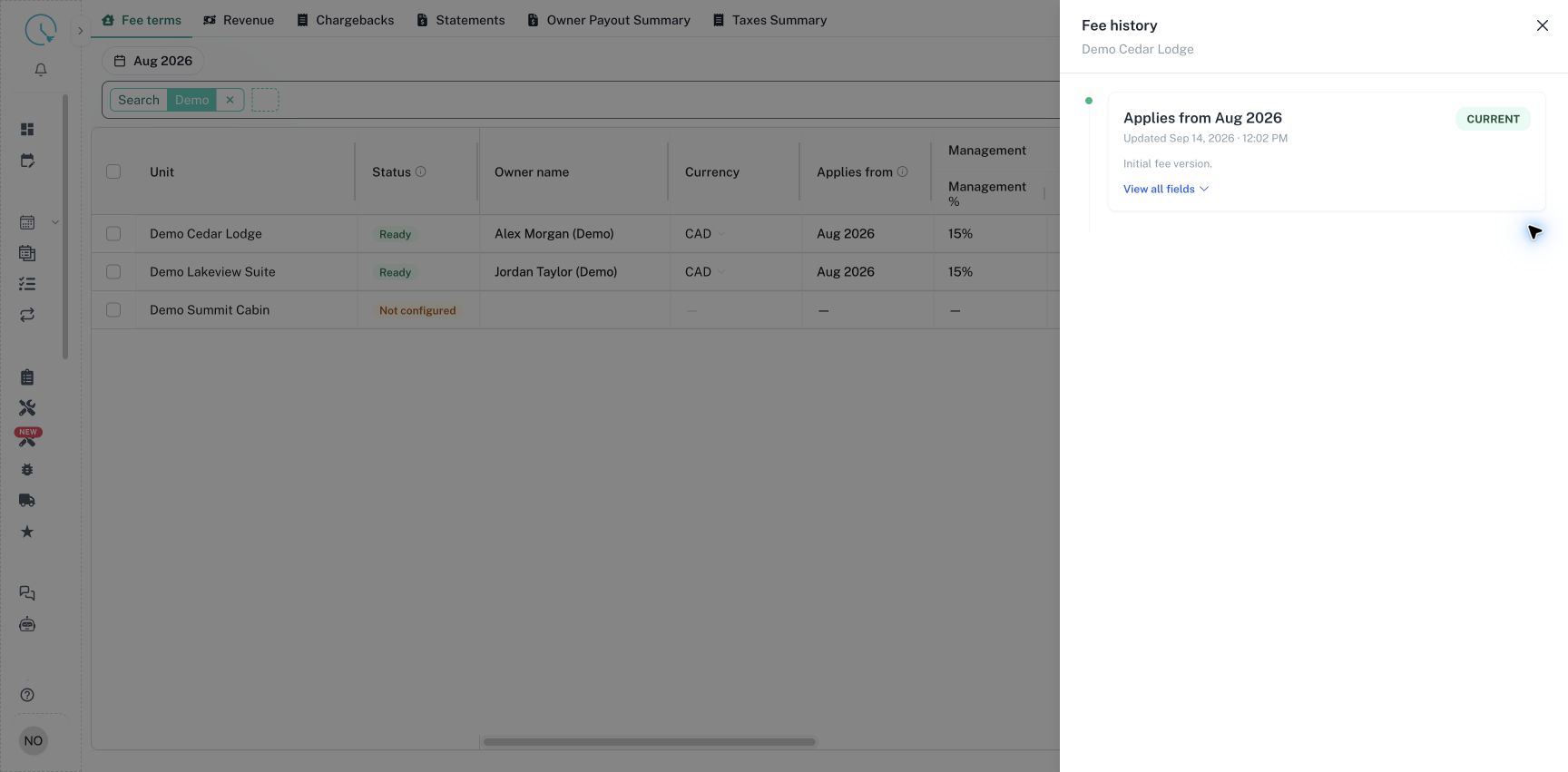
Use View fee history for the property. Review the effective month, update time and Current badge. Select View all fields to inspect the recorded values rather than relying only on the summary of changes. This is useful when investigating why two periods use different fees or when checking an agreement update entered by a colleague.
Step 8: Edit several cells in the grid
For small updates across units, double-click an editable cell and enter its value. You can paste values into compatible cells, then check for rejected values or validation messages. The floating bar shows how many units have unsaved changes. Select Save changes to save the grid edits, or Discard to restore the saved values. Review any effective-month confirmation. Unlike Apply changes in the full editor, changing a grid cell alone does not finish the save. Use Columns to choose which fields are visible, and check every changed row before saving.
Read the Fee Terms Excel export
- Confirm the reporting month and apply the unit filters you need. Open Download and choose All matching units, or select the required units and choose Selected units.
- Open the downloaded workbook and select the Fee Terms sheet. Locate the property by Unit and confirm Currency and Applies from before comparing fees.
- Use the Status column to identify missing setup, then review the individual rates and tax settings against the agreed fee terms.
| Status | Meaning |
|---|---|
| Ready | A fee profile applies to the unit for the selected reporting period. This is a setup status, not confirmation that the fees have been reviewed or that a statement is finalized. |
| Not configured | No applicable fee profile was found. Return to Fee terms and complete the setup for the selected period. |
After correcting the setup, download a fresh workbook. Editing the exported Status or fee cells does not update CleanOver. If a generated statement also needs the corrected terms, regenerate its draft and review the result through the normal statement workflow.
How to verify the result
Return to the intended reporting month and confirm the unit is Ready. Generate or regenerate its draft statement, then check the owner name, currency and fee lines in Summary. Saving fee terms does not rewrite a previously generated statement automatically. A finalized statement must be reopened before you can regenerate its figures.
Common issues and best practices
If the expected version is absent, check Applies from and the statement month. If Apply changes is disabled, there may be no edits to save or a field may be invalid. For a wide table, use Columns to show the fields you need or scroll horizontally. Inline edits are useful for small changes, but the full editor is easier when checking an entire agreement. Review the saved version and a regenerated statement together before completing the month.