07. Manage Monthly Progress, Unit Information and History
Owner Statements keeps two kinds of operational information: monthly Progress and shared Unit information. Progress records where a property stands in a particular month's close. Unit information stores references such as the owner name in QBO and document folders used across months. This guide explains how to edit them, inspect history and preview a bulk import without confusing them with the statement's financial status.
Owner Statements keeps two kinds of operational information: monthly Progress and shared Unit information. Progress records where a property stands in a particular month's close. Unit information stores references such as the owner name in QBO and document folders used across months. This guide explains how to edit them, inspect history and preview a bulk import without confusing them with the statement's financial status.
Before you begin
Confirm the unit and month you intend to update. Have the current reviewer notes and correct accounting or folder references available. Use folder URLs provided for the property and confirm the intended audience through your normal document-sharing process. A link field records a location; entering a link does not by itself give anyone permission to open that location.
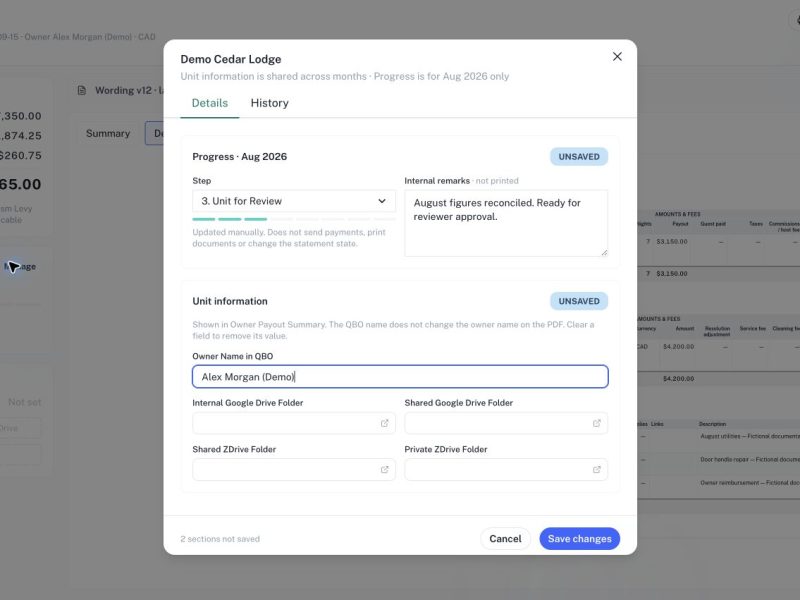
Step 1: Open the management dialog
Go to Owner Payout Summary, find the unit and choose its Manage statement action. Alternatively, open the statement review and select Manage beside Progress. The dialog identifies the unit and states that Unit information is shared across months while Progress applies only to the selected month. Check both before editing, especially when revisiting an earlier close.
Step 2: Select the monthly step
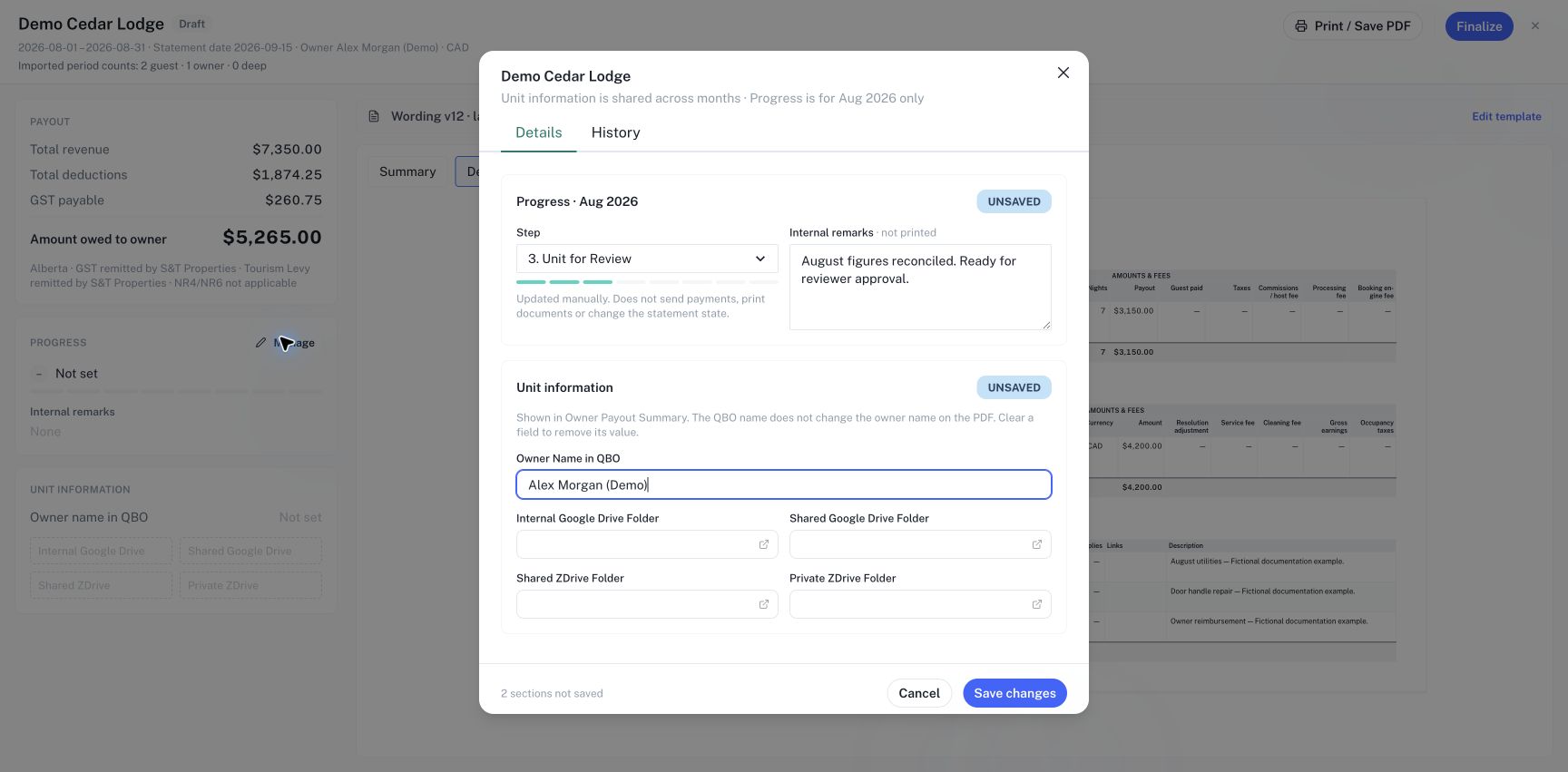
In Details, choose the appropriate Progress step. The available stages move from pulling data and chargebacks, through preparing reports, review and clarification, to payment preparation, Plooto upload, PDF printing and 100% Complete. Choose the stage that reflects the work actually completed. The stage is a manual tracking value: it does not transfer money, upload a payout, print a PDF or change Draft into Finalized.
Step 3: Add useful internal remarks
Enter a short note in Internal remarks, such as what was checked, what is unresolved or what the next reviewer needs to do. These remarks are not printed on the owner statement. Keep the wording specific enough to be actionable, for example identifying the invoice that needs clarification rather than writing only “check expenses.” Update the note when the issue is resolved so the next person sees the current situation.
Step 4: Maintain unit information
Review Owner Name in QBO and the Internal Google Drive Folder, Shared Google Drive Folder, Shared ZDrive Folder and Private ZDrive Folder fields. QBO naming helps the team match accounting records; it does not change the owner name printed on the PDF. Change the printed owner name in Fee terms instead, then refresh the draft as required. Enter complete folder URLs beginning with http:// or https://. Use the adjacent open action to check a saved link when available.
Step 5: Save and confirm
Select Save changes. Wait for the confirmation, then return to Owner Payout Summary and check the progress and owner information. Closing the dialog with unsaved changes is different from saving. In the direct editing form, clearing a field removes its saved value. This is intentionally different from the bulk import's blank-cell behavior. If the application reports another person's newer change, reload before retrying so you do not overwrite their work unknowingly.
Step 6: Inspect history
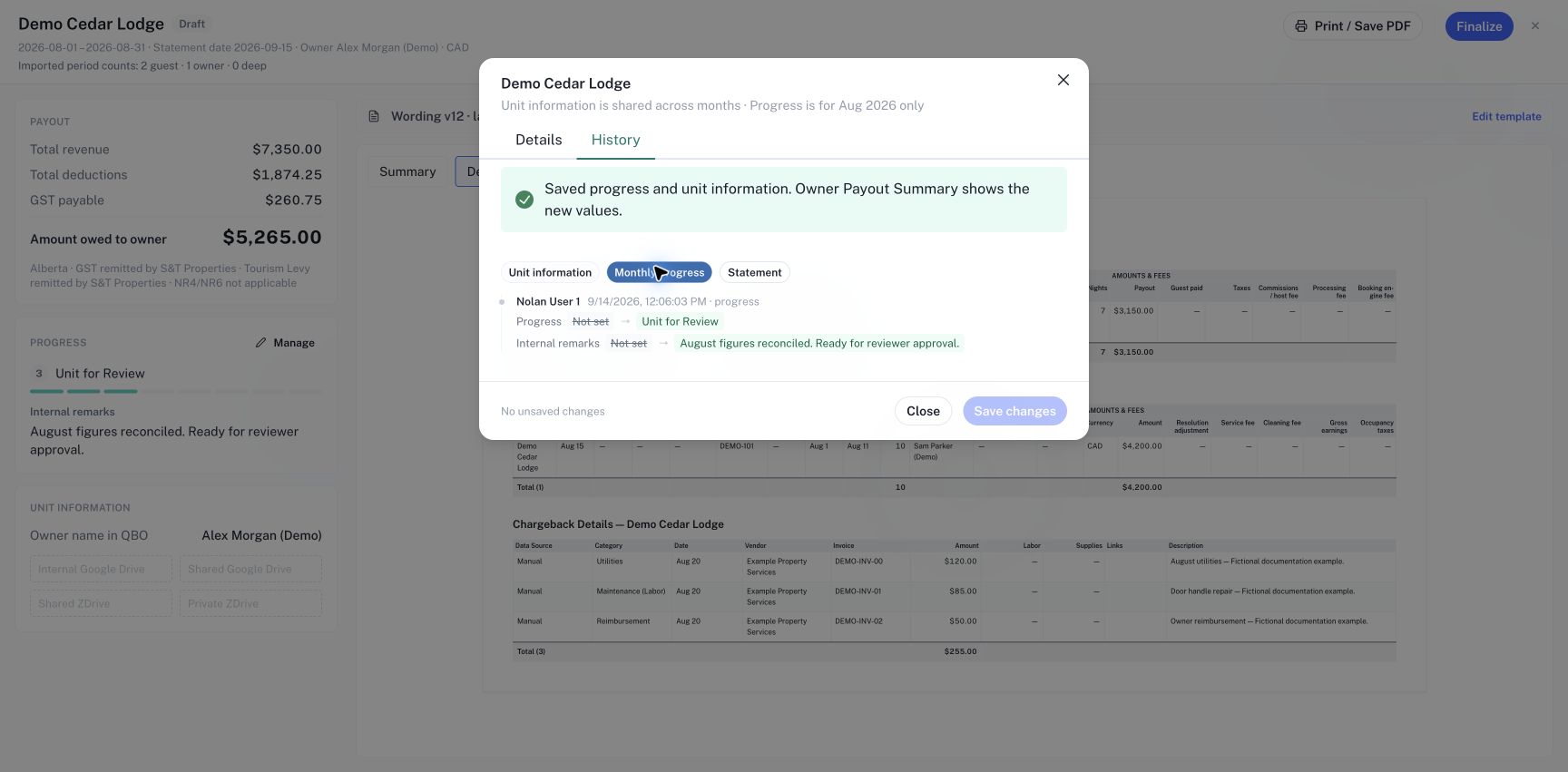
Open History in the same dialog. Choose Unit information, Monthly progress or Statement to see the relevant changes. Review the actor, time and before-and-after values. Monthly progress history helps explain how the selected month reached its current stage; unit-information history explains changes to shared references. Statement history concerns its lifecycle. These histories answer different questions, so select the scope that matches the issue you are investigating.
Step 7: Preview a bulk unit-information import
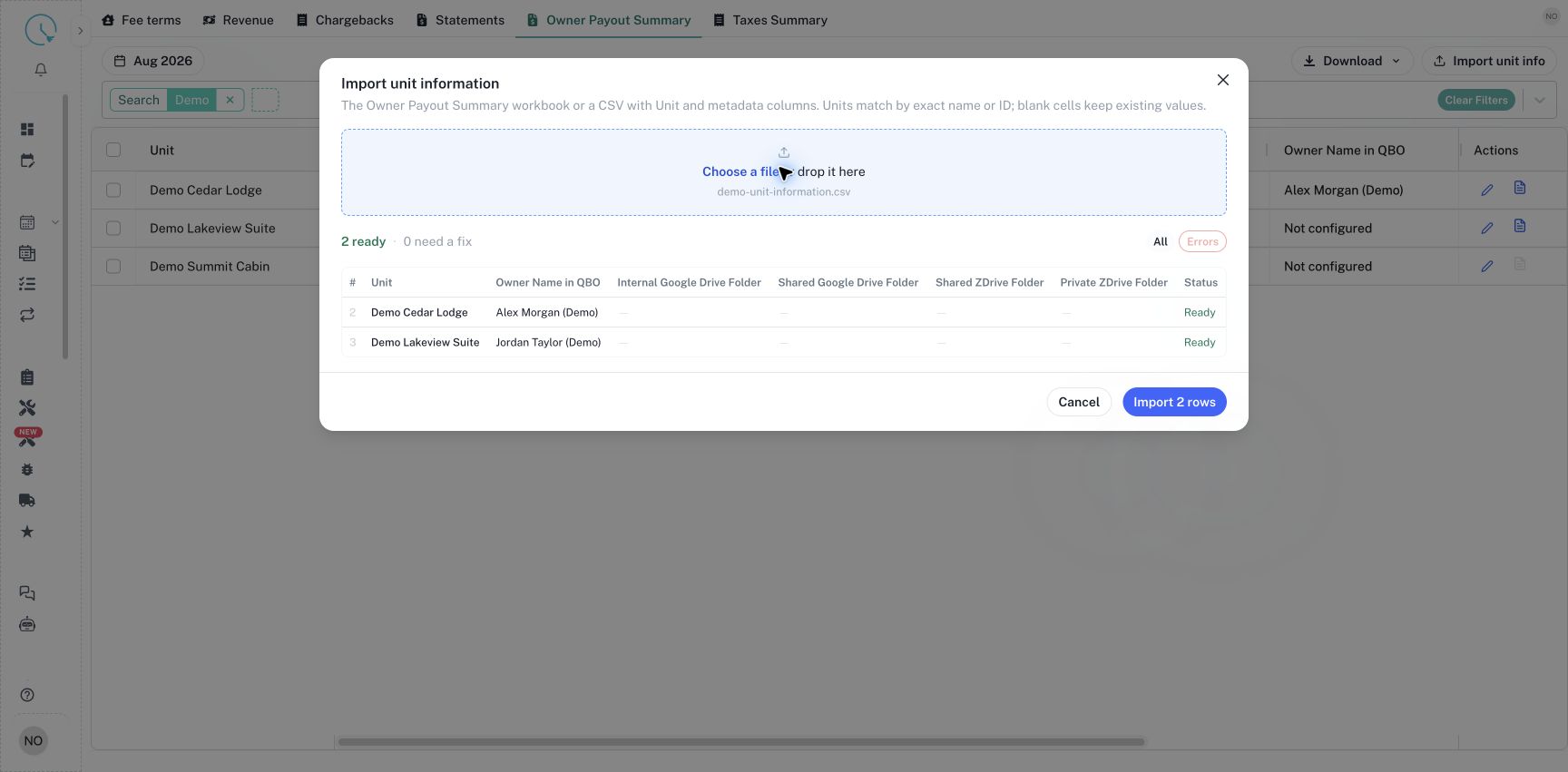
From Owner Payout Summary, select Import unit info. Choose an Owner Payout Summary workbook or a CSV with Unit and the supported metadata columns. Files may be .xlsx or .csv, up to 10 MB. Units match by exact name or ID. Read the preview and the ready/error counts, use Errors to focus on rows needing attention, and confirm the proposed values before selecting Import.
Step 8: Verify the imported values
After importing, check each result for Saved or an error. Rows with errors are left out and must be corrected before another import. Blank cells keep existing values; they do not clear fields. A row without changes is different from a failed row. Reopen a sample unit to confirm the stored QBO name and folder references. Use the management dialog when you intentionally need to remove an existing value.
Common issues and best practices
If a metadata import cannot match a property, compare the spelling with the actual unit or use its ID. If a folder does not open, verify the URL and access separately. Progress should be updated after the underlying work, not used as a substitute for it. Keep notes current, check the selected month, and use history to resolve conflicting accounts of what changed. Review shared unit fields carefully because later months use the same references.