01. Owner Statements: Your Monthly Workflow
Owner Statements brings a property's revenue, fees, expenses and payout into one monthly workflow. Use this guide to understand where to begin, which page to use next, and what a completed month looks like. The examples throughout this collection use fictional Demo properties and August 2026. Replace these with your own property and reporting month when following the steps.
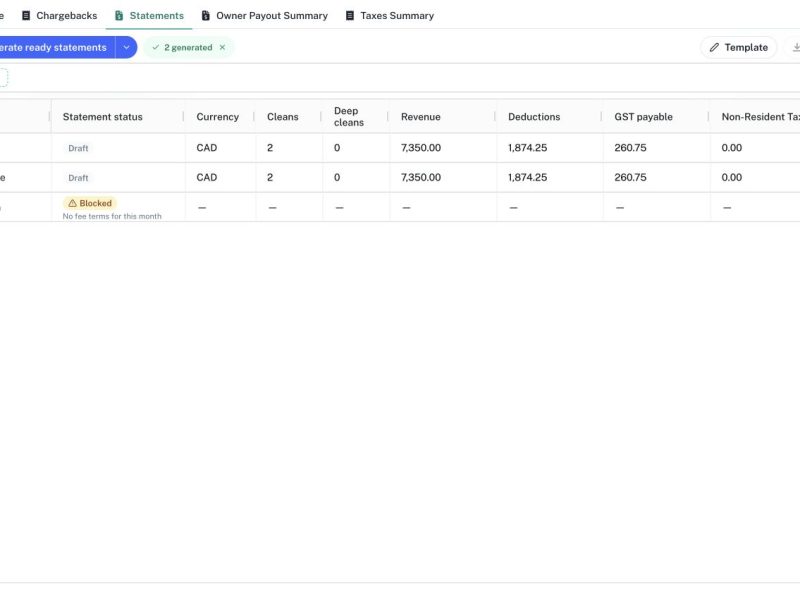
Owner Statements brings a property's revenue, fees, expenses and payout into one monthly workflow. Use this guide to understand where to begin, which page to use next, and what a completed month looks like. The examples throughout this collection use fictional Demo properties and August 2026. Replace these with your own property and reporting month when following the steps.
Before you begin
Sign in with an account that can open Owner Statements. Have the property list, agreed owner fee terms, booking payout records and expense receipts ready. Decide who prepares the month and who reviews it. If the menu or a required action is unavailable, ask your CleanOver administrator to check your access. The owner statement is a report of the amount owed; creating one does not move money to an owner's bank account.
Step 1: Open Owner Statements
From the main sidebar, open Owner Statements under Financial Management. The workspace contains Fee terms, Revenue, Chargebacks, Statements, Owner Payout Summary and Taxes Summary. Each tab serves a different part of the monthly process. You can collapse the sidebar to give wide tables more room.
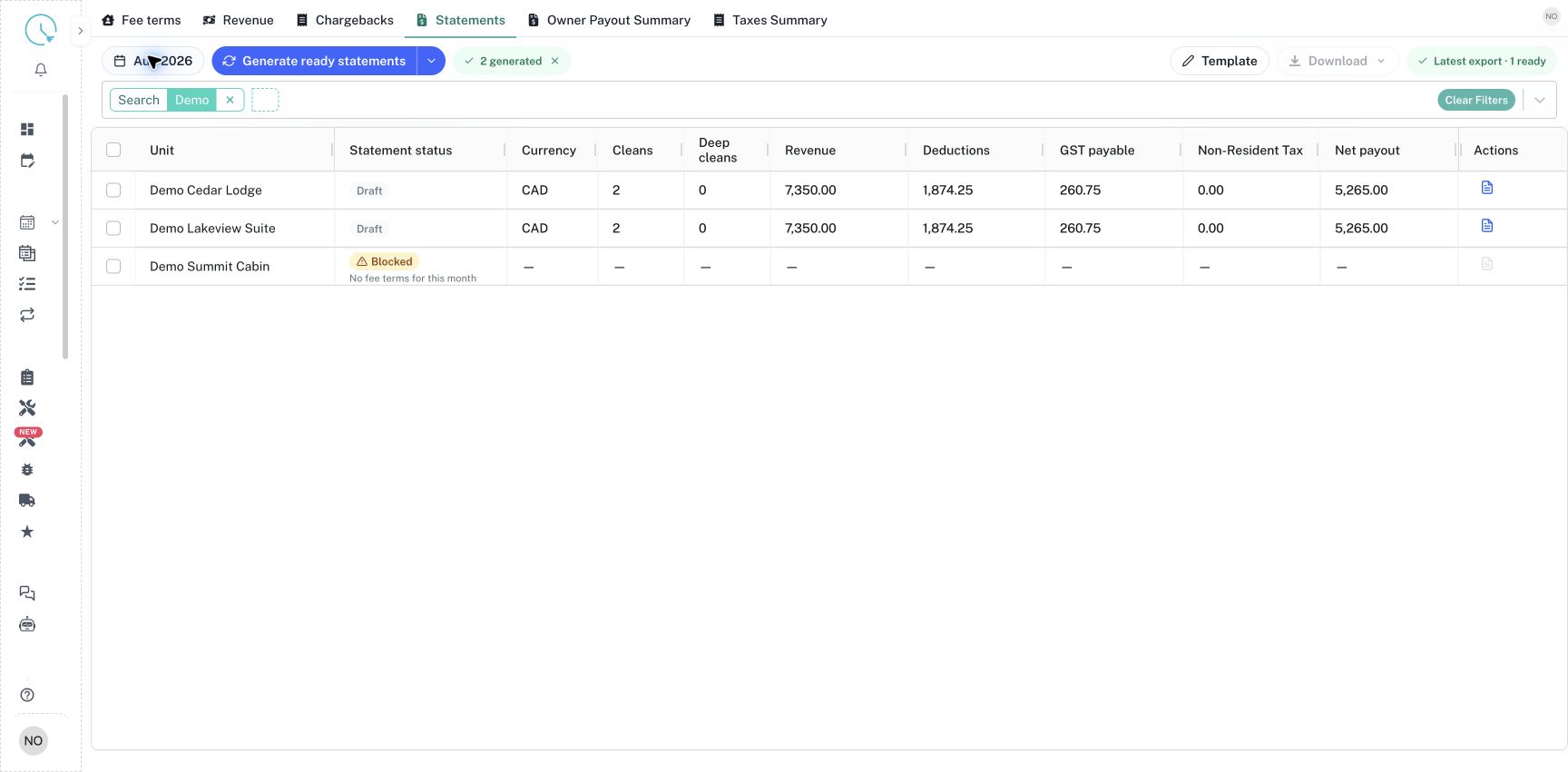
Step 2: Choose the reporting month
Select the month button at the upper left, then choose the year and month you want to work on. Check this value whenever you switch tasks. The statement month controls which period you are reviewing. The printed statement date is a separate setting on Statements; for example, an August statement can be dated September 15.
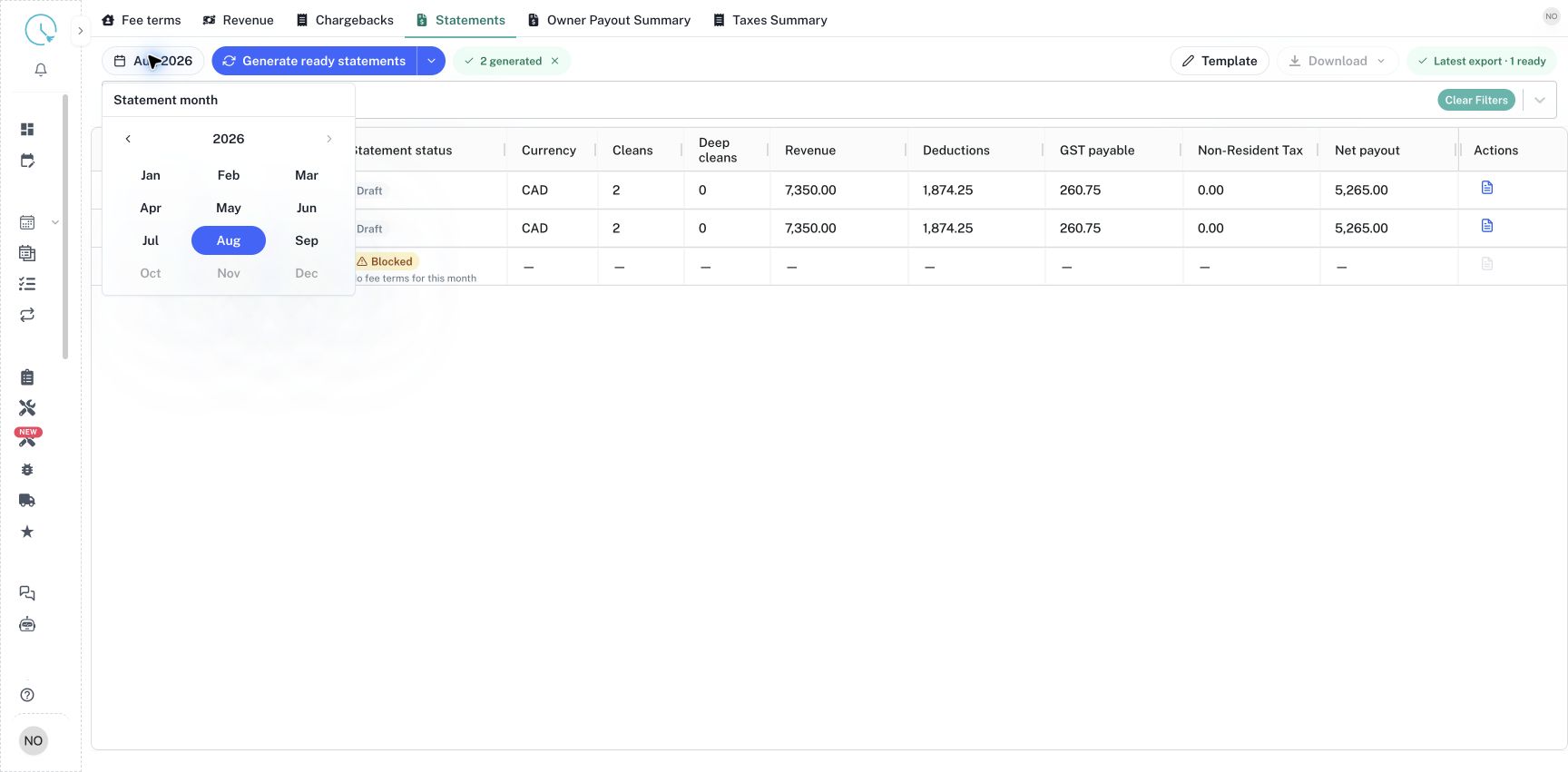
Step 3: Narrow the property list
Click the search and filter box. Type a property name and select its Unit option, or choose the Search option to match the entered text. Merely typing does not apply the filter: select the suggested option. The applied filter appears as a chip. Add filters such as Owner, Management fee rate or Progress where available. Use Clear Filters to return to the broader list. Check each tab's visible chips because filters belong to the report you are viewing.
Step 4: Prepare the three inputs
Open Fee terms to confirm the owner name, currency, effective month, fee rates and tax settings. Open Revenue to reconcile booking amounts, dates, channels and nights. Open Chargebacks to add expenses, reimbursements and other adjustments with the appropriate category and tax treatment. A clean monthly close starts with these source records. Correcting an exported spreadsheet alone does not correct the records used by CleanOver.
Step 5: Generate and review
Open Statements, confirm the month and property scope, and select Generate ready statements. The action applies to the listed units; blocked, finalized and sent statements are skipped. Wait for the generation result, then use the review action on a generated row. Review Summary for the payout and Details for its supporting revenue and chargeback rows. Resolve any blocking message using the action provided in the readiness drawer.
Step 6: Complete the review lifecycle
A Draft can be regenerated after its inputs change. Finalize only after reviewing the amounts and supporting details. A Finalized statement preserves the reviewed figures; use Reopen as draft when a correction is required, then regenerate and review again. Mark as sent records a delivery state after your delivery process. It does not send an email. Monthly Progress is a separate checklist used to coordinate work, and can be updated without changing the statement's financial state.
Step 7: Export and reconcile the month
Use Owner Payout Summary to review owners, payouts, progress and folder references across properties. Use Taxes Summary to review the generated tax figures. Download Excel for the current report, or export statement PDFs from Statements. Confirm the export count before starting. All matching rows and selected rows are different scopes; ticking a checkbox matters only when you choose an action for the selection.
How to verify the result
Check the property, month, currency, owner name and payout on a sample statement. Compare the same property in the summary and exported file. Confirm that every intended property is accounted for, including blocked or ungenerated units. Complete the payment and delivery steps through your normal business process, then update Progress to reflect what actually happened.
Common issues and good habits
An empty report can mean the wrong month or an overly narrow filter, rather than missing data. A blank amount is not necessarily zero: the unit may have no generated statement. If a source entry or fee changes, regenerate the draft before relying on the previous PDF. Work through a small, filtered group first, keep source transaction identifiers consistent, and review different currencies separately. Use the related guides below whenever you need the detailed steps for one part of this workflow.