06. Generate, Review and Finalize Owner Statements
Generate creates a monthly statement from the unit's fee terms, revenue, chargebacks and period inputs. Review then lets you inspect the owner payout and its supporting details before freezing the figures. This guide follows the process from a filtered property list to Finalized, and explains how to correct a statement later. All amounts shown in the screenshots belong to fictional demonstration properties.
Generate creates a monthly statement from the unit's fee terms, revenue, chargebacks and period inputs. Review then lets you inspect the owner payout and its supporting details before freezing the figures. This guide follows the process from a filtered property list to Finalized, and explains how to correct a statement later. All amounts shown in the screenshots belong to fictional demonstration properties.
Before you begin
Choose the correct reporting month and complete the source review. Confirm fee terms, owner names, currencies, booking revenue and chargeback tax treatment. Resolve uncertain transactions with the reviewer. If imported cleaning counts are used, check those counts and their source. Keep the reference records available while reviewing the statement; a plausible-looking payout is not enough to establish that every input is correct.
Step 1: Choose the units and printed date
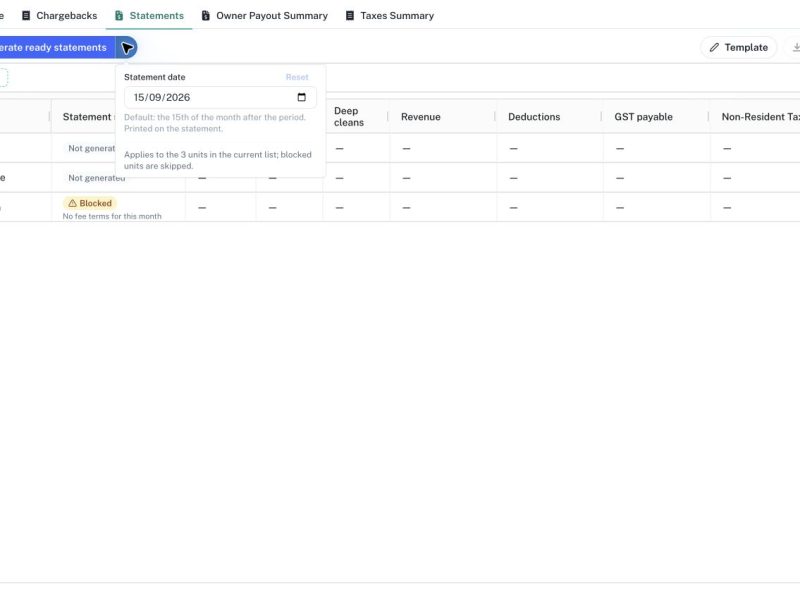
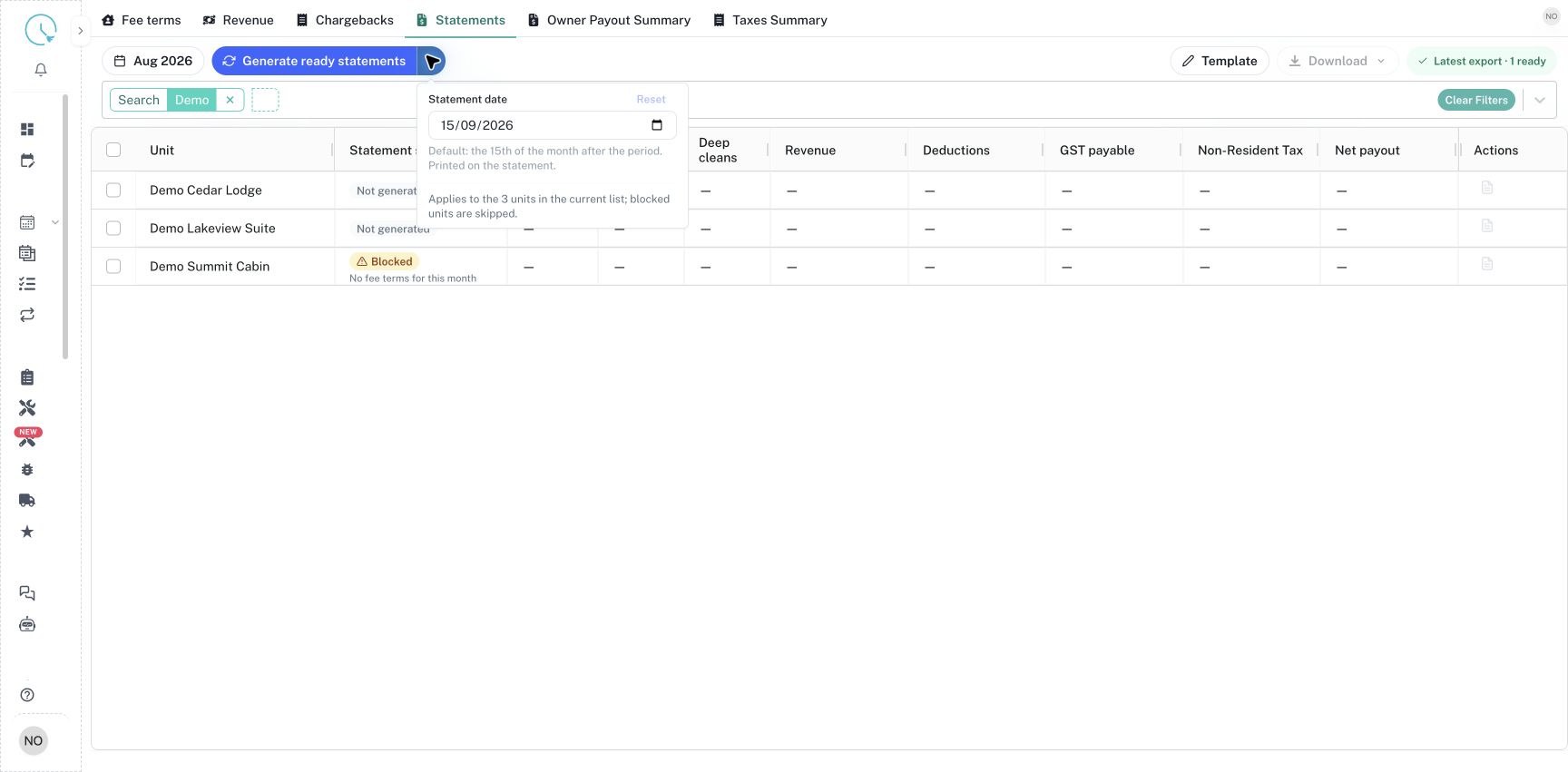
Open Statements and select the month. Apply a Unit or Search filter to the intended properties. Select the arrow beside Generate ready statements to inspect Statement date. By default it is the fifteenth day of the following month. Change it only if your reporting process calls for another printed date. This date does not change the month of revenue being reported.
Step 2: Generate the listed ready statements
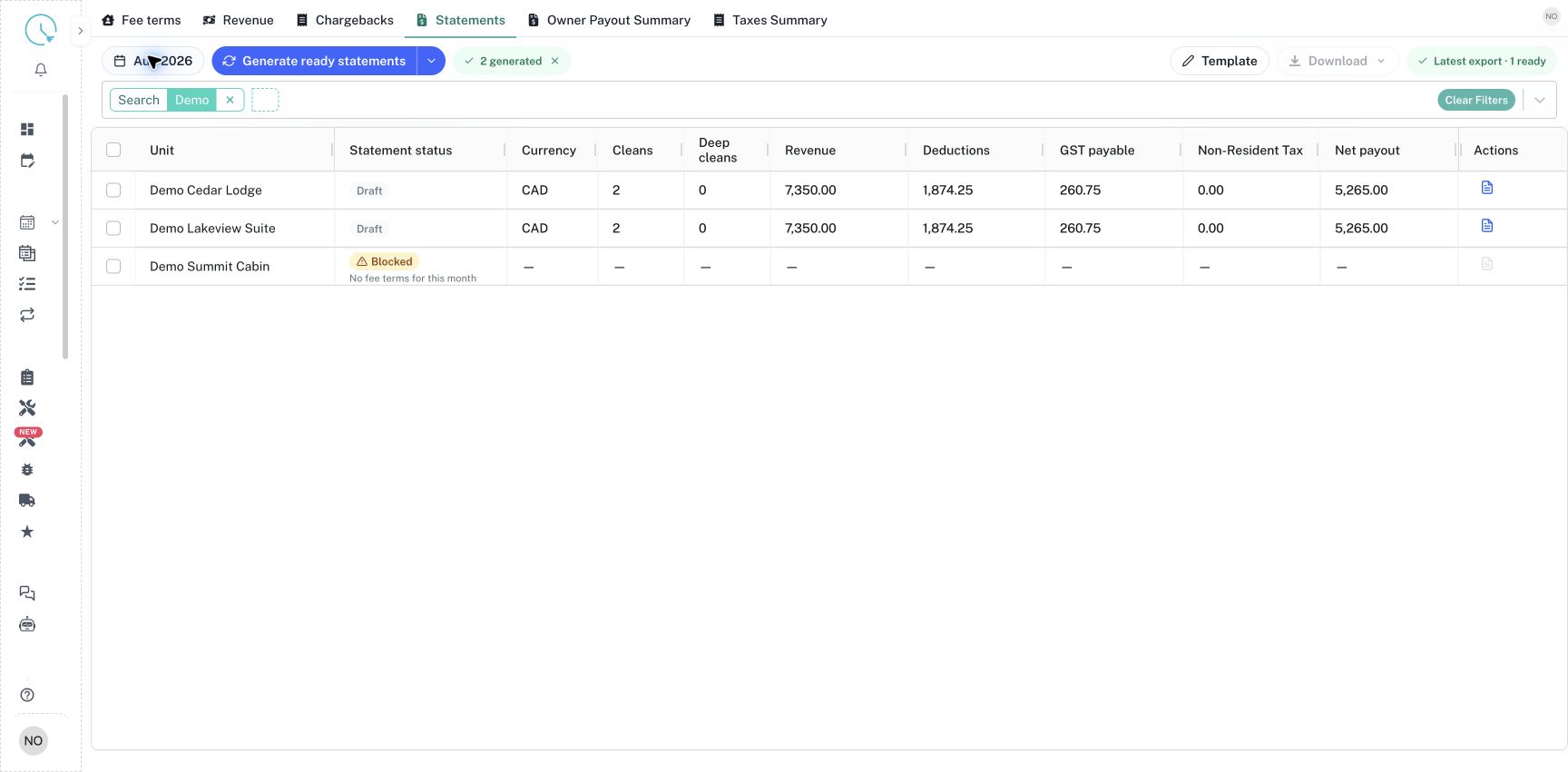
Select Generate ready statements. The action uses the current list; review the scope before clicking. Blocked, finalized and sent statements are skipped. Generation runs in the background, and the result reports what was generated or skipped. Wait for the outcome before starting another run. A new generated statement appears as Draft with revenue, deductions, taxes and net payout populated.
Step 3: Resolve blocking issues
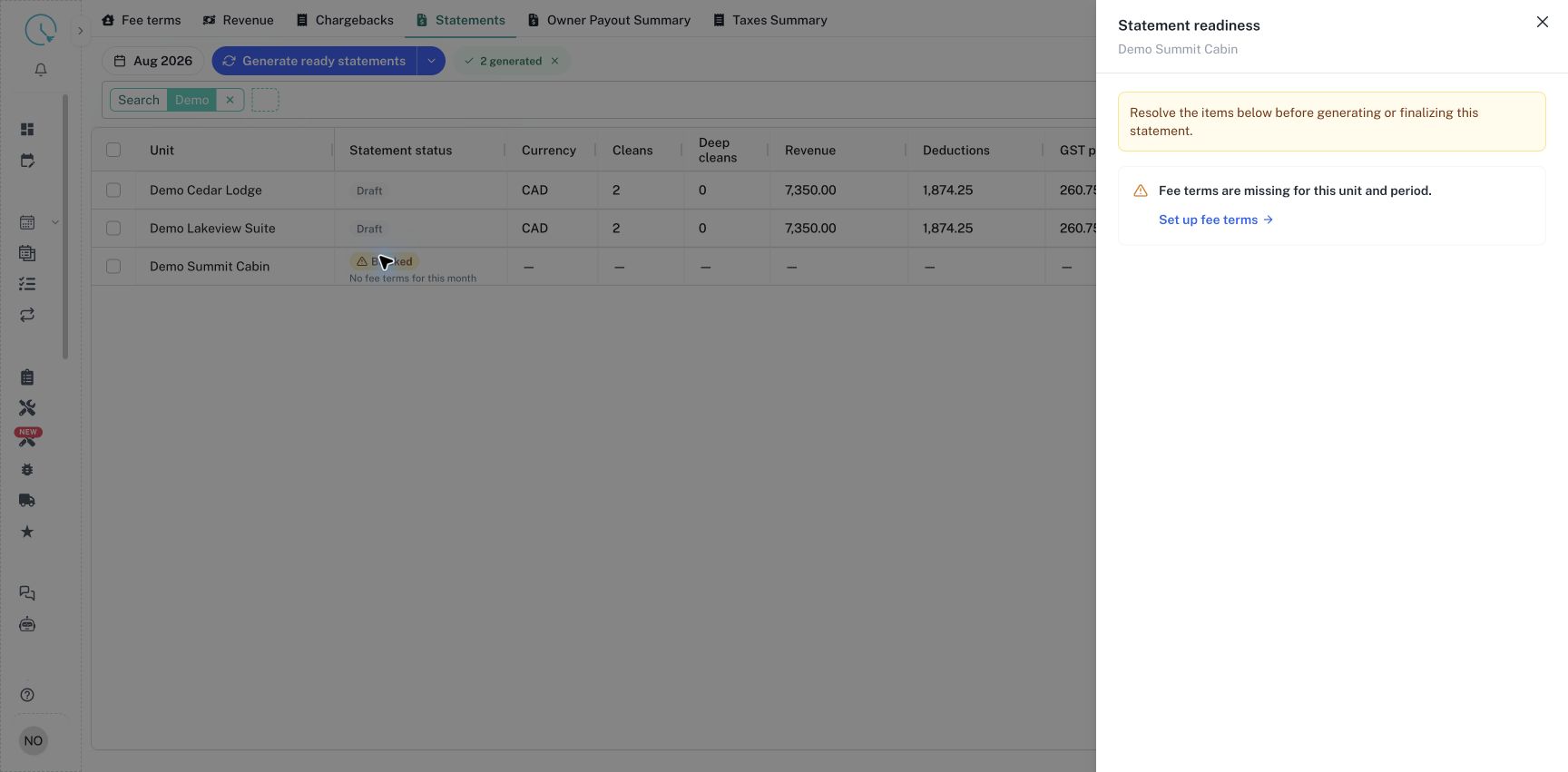
Select a Blocked badge to open Statement readiness. Read the reason and use the supplied action, such as Set up fee terms. Return after correcting the problem and generate the unit again. A unit can have a draft while a chargeback still requires review; finalization checks the current source and review conditions as well as the existence of fee terms.
Step 4: Review Summary
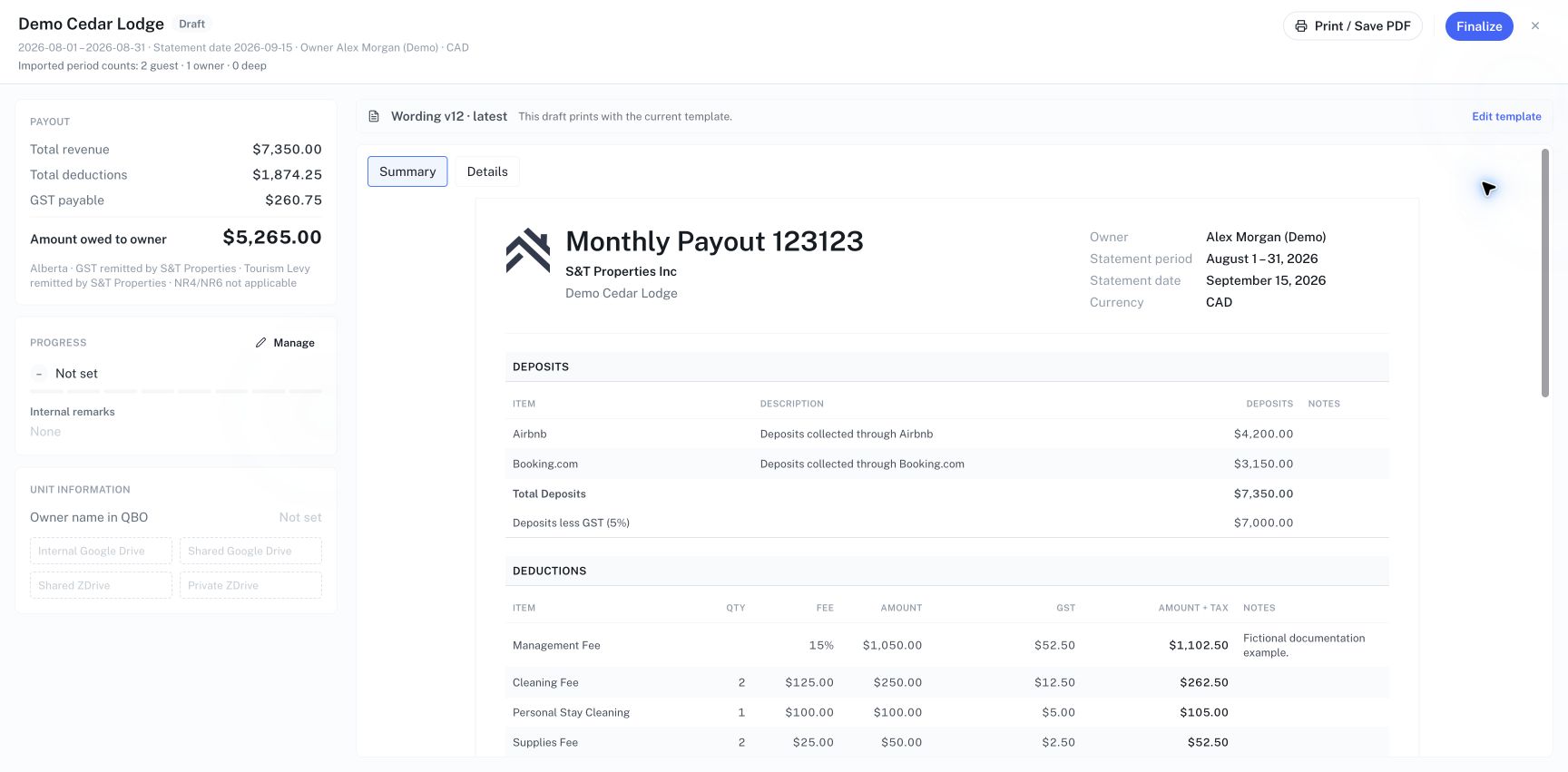
Use the statement review action in the unit's row. Confirm the property, owner, reporting period, printed date and currency in the header. Check any imported count information. Review deposits, deductions, reimbursements, tax remittance, carry-forward balances and Amount Owed to Owner. The sidebar gives a compact payout summary and links to progress management. Internal remarks help coordinate the review and are not printed on the owner document.
Step 5: Review Details
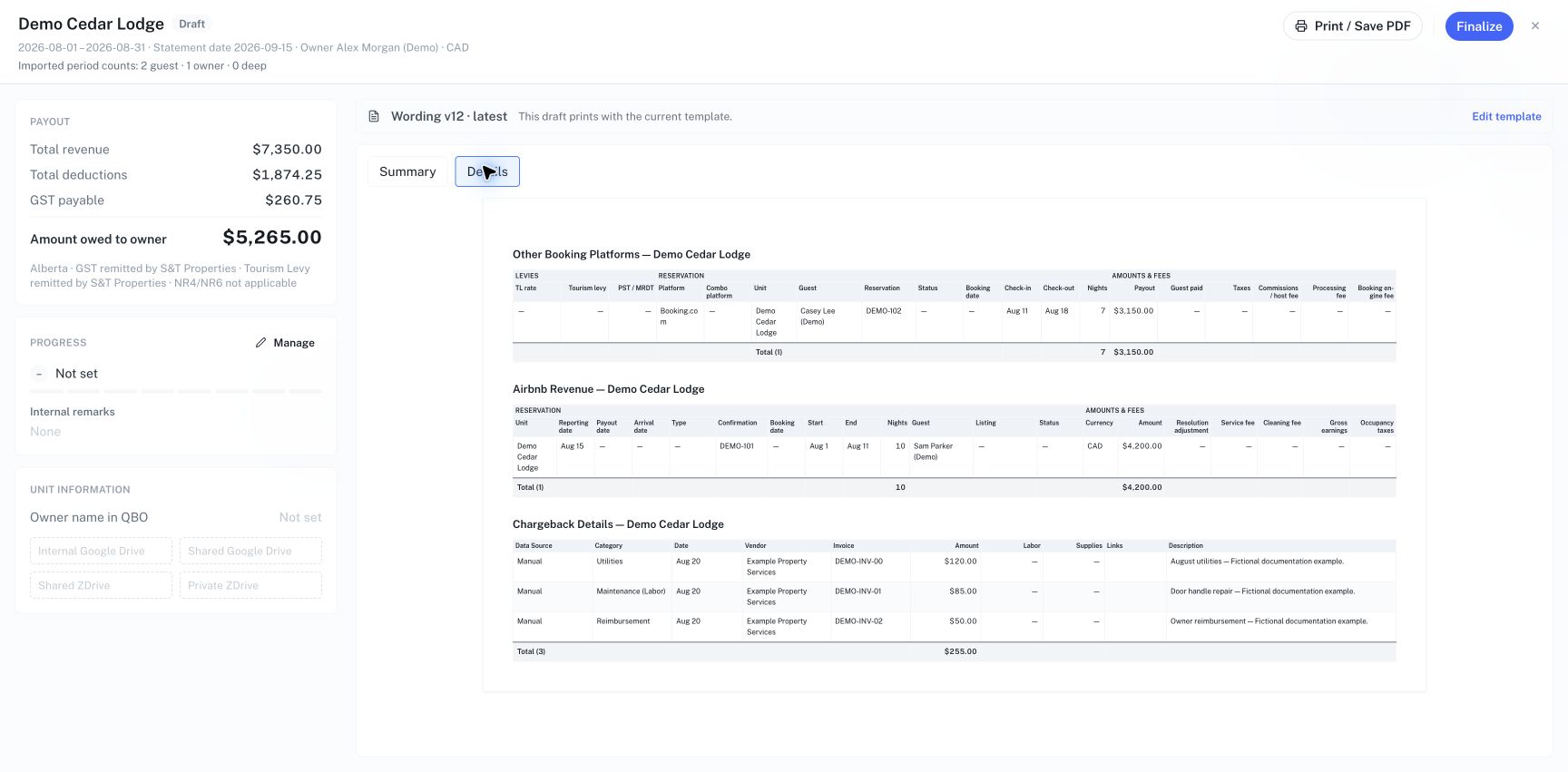
Select Details above the document. Compare the revenue tables with booking and payout records, and the chargeback table with invoices or receipts. Check dates, reservation references, amounts, categories and descriptions. The supporting rows are saved with the generated statement. If something is wrong, correct the source on Revenue, Chargebacks or Fee terms, then regenerate the draft and review again.
Step 6: Finalize the reviewed statement
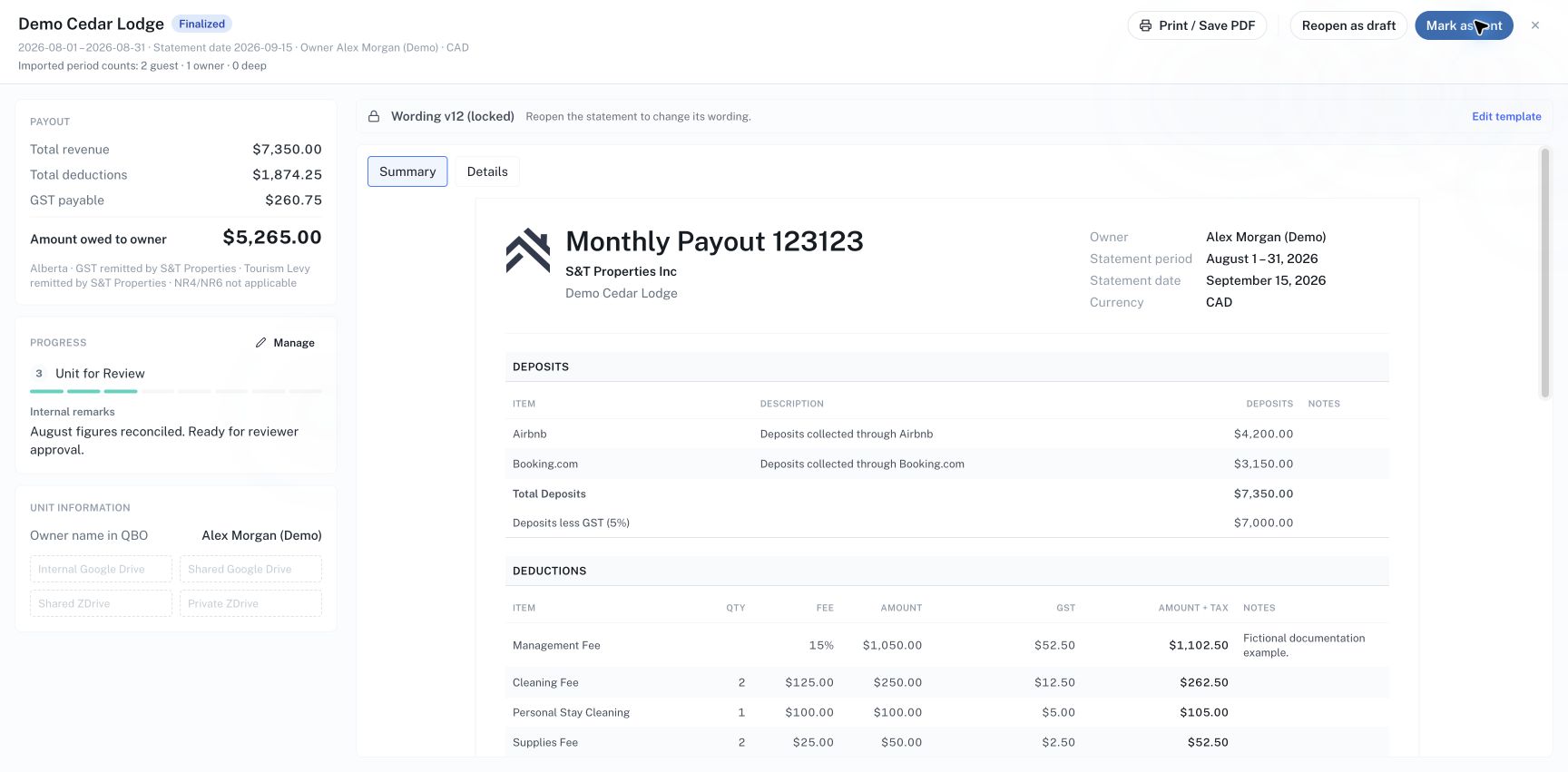
Select Finalize when the review is complete. Wait for the Finalized state and check that Reopen as draft and Mark as sent become available. If finalization reports that inputs or source entries changed, regenerate and review the updated draft. If a chargeback still needs review, resolve its review flag based on the supporting evidence. Do not treat an unsuccessful finalization attempt as a completed close.
Step 7: Record delivery or make a correction
After completing your normal delivery process, use Mark as sent to record that state. This action does not email the statement. To correct a Finalized or Sent statement, select Reopen as draft, make the source correction, regenerate and review, then finalize again. Create fresh exports after the correction so an older PDF is not mistaken for the revised document.
How to verify the result
Confirm the final state in the list and compare the same unit in Owner Payout Summary. For the demonstrated Cedar Lodge, revenue is CAD 7,350.00, deductions are CAD 1,874.25, reimbursement is CAD 50.00 and manager-remitted net GST is CAD 260.75, giving CAD 5,265.00 owed to the owner. These are an example reconciliation, not values to copy into another property.
Common issues and best practices
If Generate is disabled, inspect filters, readiness and whether the listed statements are already finalized. A dash on an ungenerated row is not a calculated zero. If the screen reports a concurrent change, reload and review the latest saved version before retrying. Keep financial state separate from monthly Progress: selecting a payment or printing progress step does not perform that action. Finalize from reviewed source evidence, and retain the exported file that corresponds to the version actually delivered.