08. Use Owner Payout Summary to Review and Track the Monthly Close
Owner Payout Summary brings the monthly property list, statement state, owner, revenue, payout, progress and accounting references together. Use it to coordinate the close across several properties, identify work still outstanding and download an Excel overview. It reads statement figures that have already been generated. Editing progress or a folder reference does not recalculate those figures and does not perform a payment.
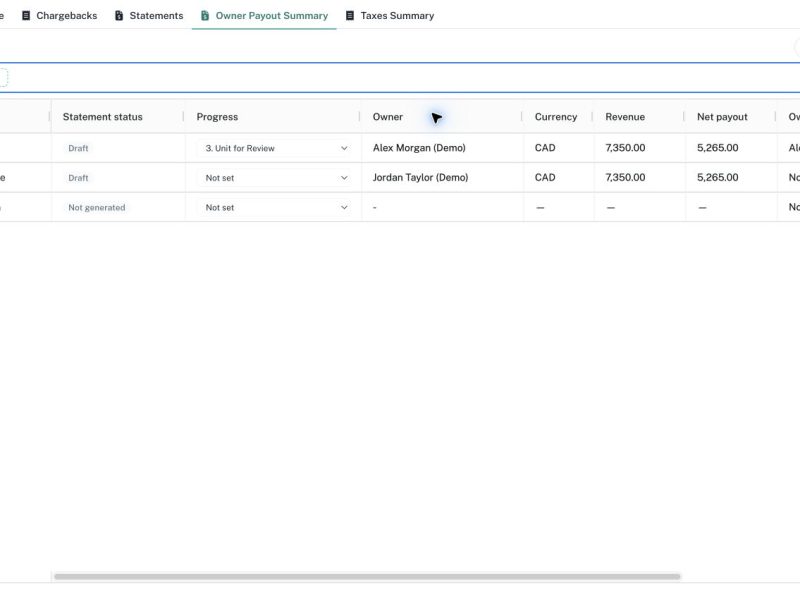
Owner Payout Summary brings the monthly property list, statement state, owner, revenue, payout, progress and accounting references together. Use it to coordinate the close across several properties, identify work still outstanding and download an Excel overview. It reads statement figures that have already been generated. Editing progress or a folder reference does not recalculate those figures and does not perform a payment.
Before you begin
Choose the reporting month and decide which properties or owners you are reviewing. Generate statements for units whose numbers are ready, while keeping missing or blocked units visible in your close checklist. Confirm the owner names and currencies in Fee terms. Have the QBO naming and supporting-folder references available if they need to be completed. The screenshots use fictional properties so you can follow the workflow without relying on real owner data.
Step 1: Open the summary and select the month
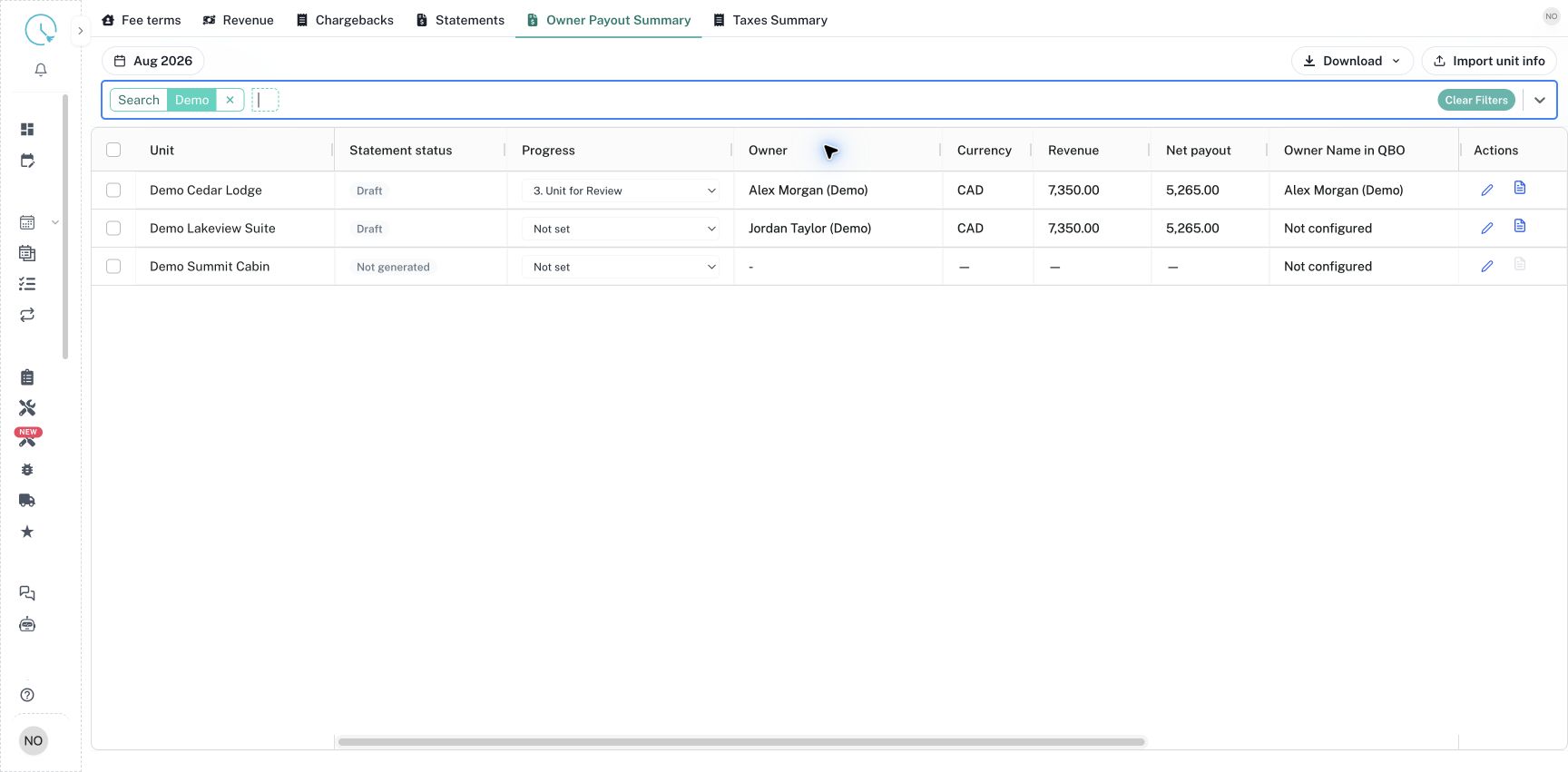
Open Owner Statements and choose Owner Payout Summary. Select the month at the upper left. The rows represent units, including those without a generated statement. Read Statement status before interpreting Revenue and Net payout. A Not generated row has no saved statement figures; its dashes are not a confirmed zero payout. This is why the summary is useful for tracking missing work as well as reviewing completed figures.
Step 2: Filter the review list
Click the quick-filter box, type a property name and select the Unit suggestion, or choose Search for a text match. Use available Owner, Management fee rate, GST remitter, Non-Resident Tax, Progress or Statement state filters to focus the review. Check the chips after applying them. Clear Filters removes the restrictions when you need the full monthly population again. A narrow list is easier to review, but should not be mistaken for the entire portfolio.
Step 3: Inspect owner and payout information
Read Unit, Owner, Currency, Revenue and Net payout together. Use the statement review action for a property when you need the supporting calculation and source details. Net payout is the generated amount owed to the owner, after the statement's deductions and adjustments. It is not evidence that money has already been transferred. Review each currency separately and investigate missing owner information before preparing delivery.
Step 4: Update the monthly progress
Use the Progress dropdown in the row for a quick update, or open Manage statement to add a more detailed note. Select the stage that matches the work actually completed, then check the saved result. Progress is specific to the month you are viewing. Its payment, Plooto, printing and completion stages are manual tracking labels, not actions that initiate those operations. The financial state remains separate from the selected stage.
Step 5: Maintain QBO names and folder links
Choose Manage statement and review Unit information. Owner Name in QBO helps match your accounting records and is distinct from the owner name printed on the PDF. The folder fields store Internal Google Drive, Shared Google Drive, Shared ZDrive and Private ZDrive references. These values are shared across months. Scroll horizontally in the summary to see folder columns if they are outside the visible area, and use available links to open the intended location.
Step 6: Import unit information when needed
Select Import unit info to preview a workbook or CSV containing Unit and the supported metadata columns. Match properties by exact name or ID and inspect the ready and error counts. Blank cells preserve existing values. The import updates operational metadata; it is not a way to replace Revenue, Net payout or the underlying fee terms from a spreadsheet. Use the dedicated input screens to correct financial data.
Step 7: Download the appropriate Excel scope
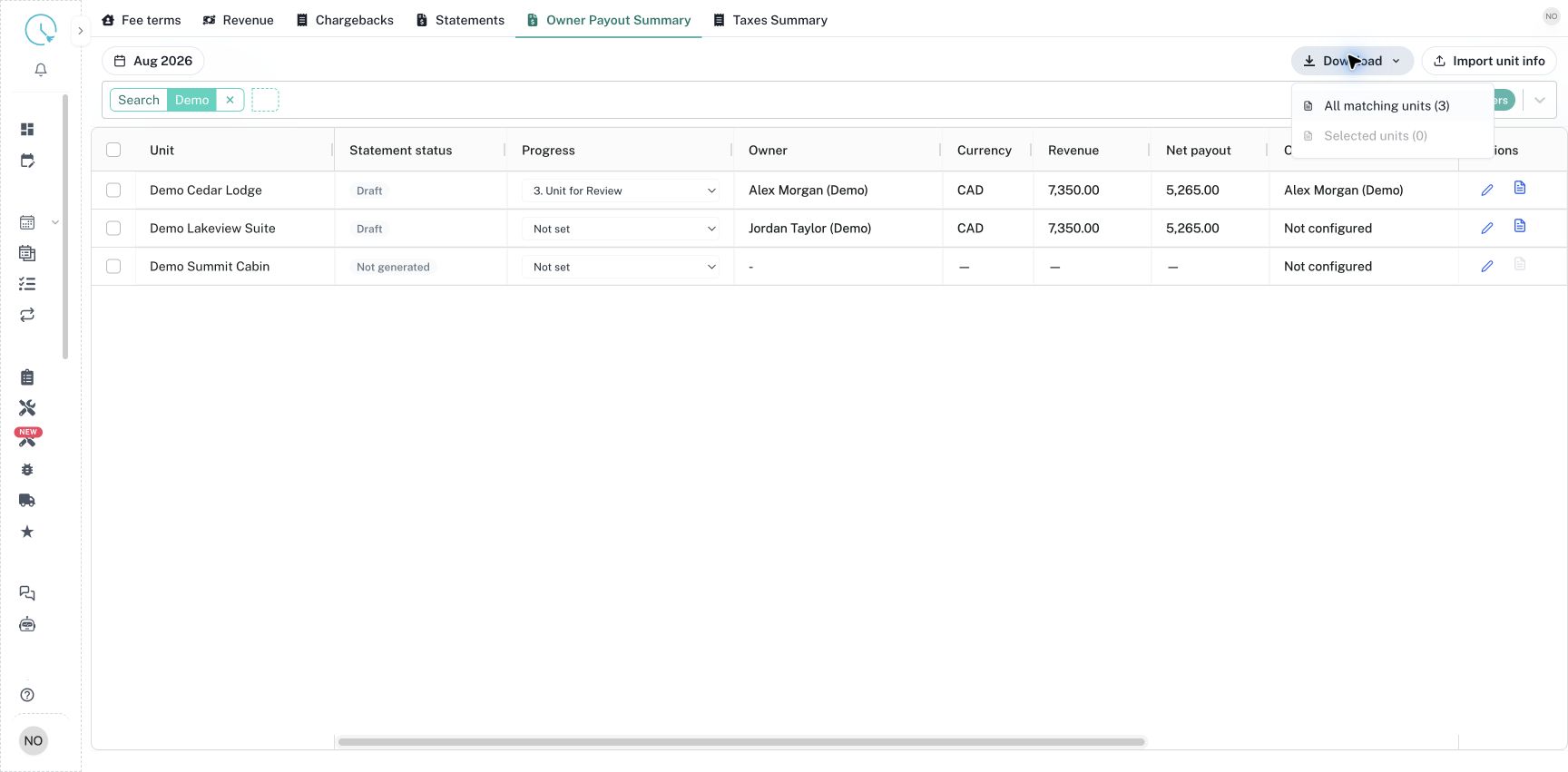
Open Download and choose All matching units for the current filtered list. To download a subset, tick the required units first and choose Selected units. Read the count in the menu before downloading. A unit without a statement can still belong in a summary checklist, so the summary's row count can exceed the count of generated statement PDFs. Recheck selection after changing the month or filters.
Step 8: Reconcile and complete the close
Open the downloaded workbook and compare a sample property with its statement review. Confirm period, owner, currency, revenue and net payout, then compare progress and QBO references with the screen. Finish the approved payment and document-delivery processes separately. Update Progress to 100% Complete only when the underlying work is done, rather than when a spreadsheet has merely been downloaded.
Common issues and best practices
If a property's figures do not reflect a source correction, regenerate its draft statement and review it again. If a QBO name changes but the PDF owner does not, update Fee terms for the printed name. If a property disappears, check filters and the selected month. Keep internal remarks concise and current, use History to investigate changes, and review missing statements explicitly before declaring the month complete. A Finalized state, a complete progress step and an exported file each describe a different part of the close.